Charting a Course with RapidStart Charts
By Steve Mordue
To demonstrate how you can easily customize RapidStart to meet your needs, we created this “Tips and Tricks” Series. In this series we will outline some simple-to-perform solutions to common things customers ask about RapidStart Apps. Enjoy!
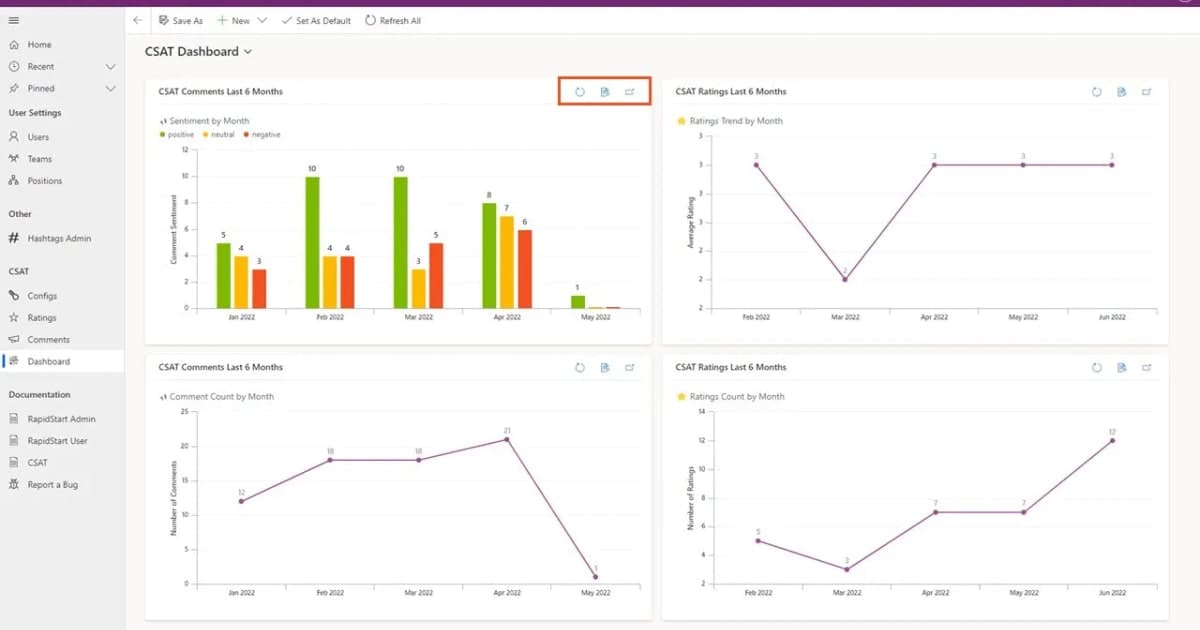
Charts
RapidStart and RapidStart Addons have many charts built-in. You may have seen them on our built-in Dashboards. You may even have created additional charts and dashboards yourself. In this post we’ll explore some capabilities you may not be aware of.
You may notice some icons at the top of any chart: “refresh”, “view records” and “enlarge”. Refresh might be used if a lot of data is coming into your system while you are viewing a chart. We’ll take a look at “enlarge” first.
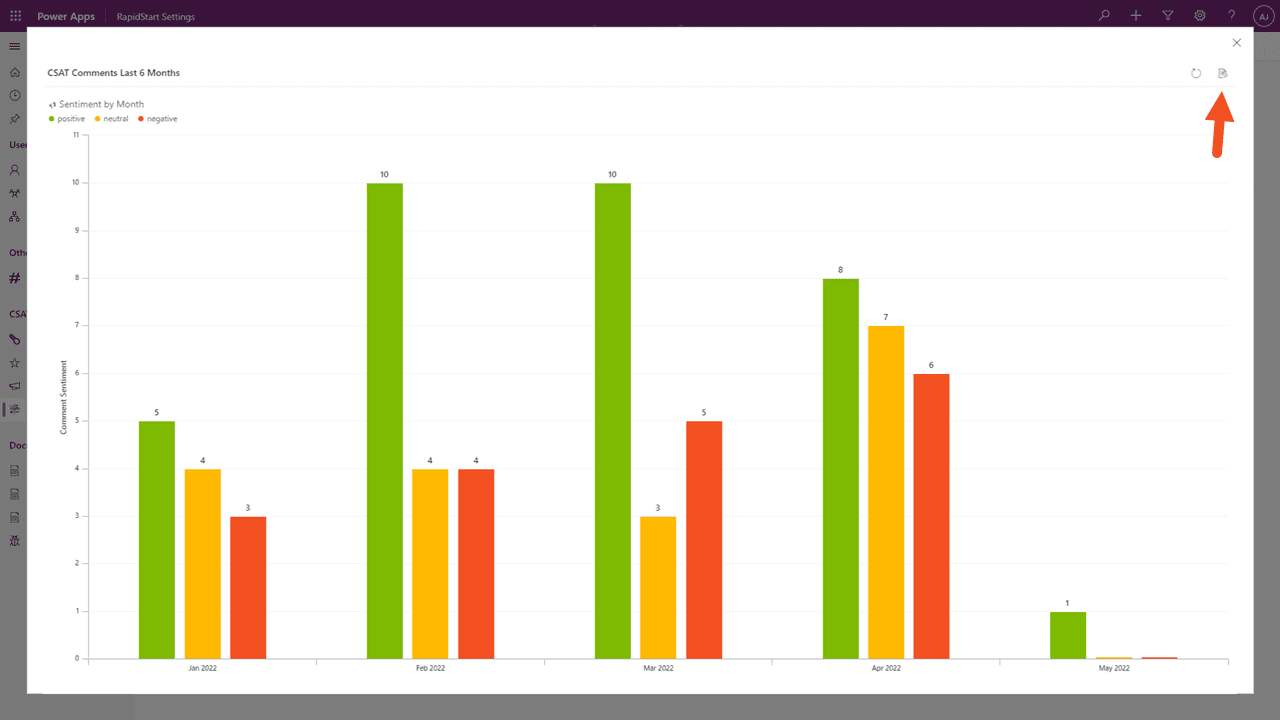
As you might expect, this zooms the chart on the screen. This was not really necessary for this particular chart as it was easy enough to read, but if you have a chart with a lot of lines or bars, enlarging could make it more readable. We’ll click the “View Records” icon, which was visible from the dashboard, but is also visible here.
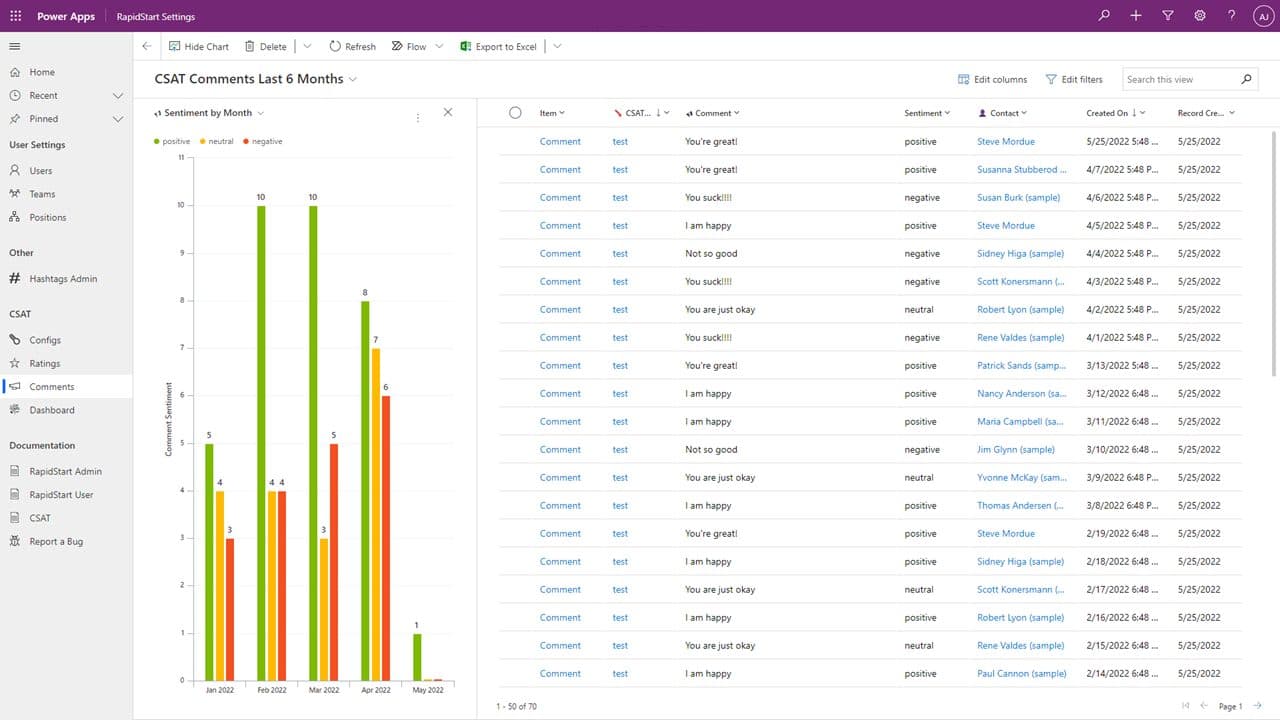
This option brings in a view of all of the records that are used to make up the chart, but there is more.
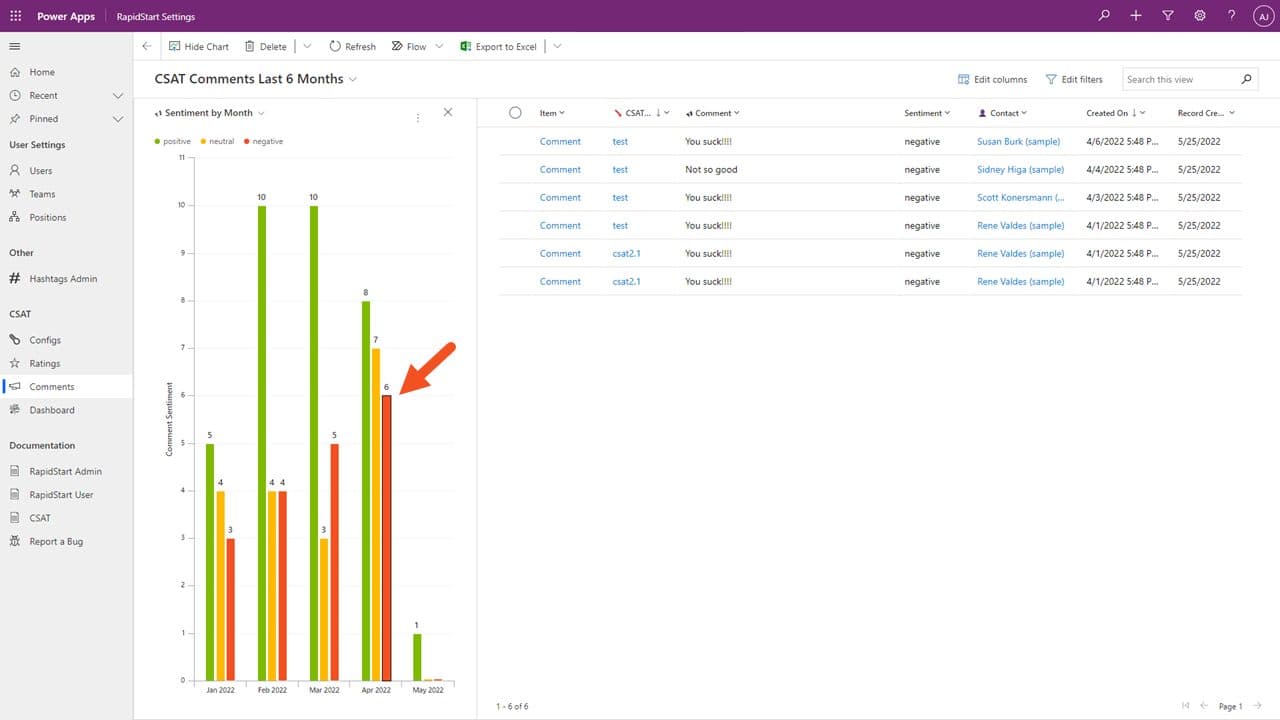
Click on any measurement — in this case, the Bar indicating negative sentiment in the month of April. The list of records is now filtered to only those that made up this measure. But, there is more.
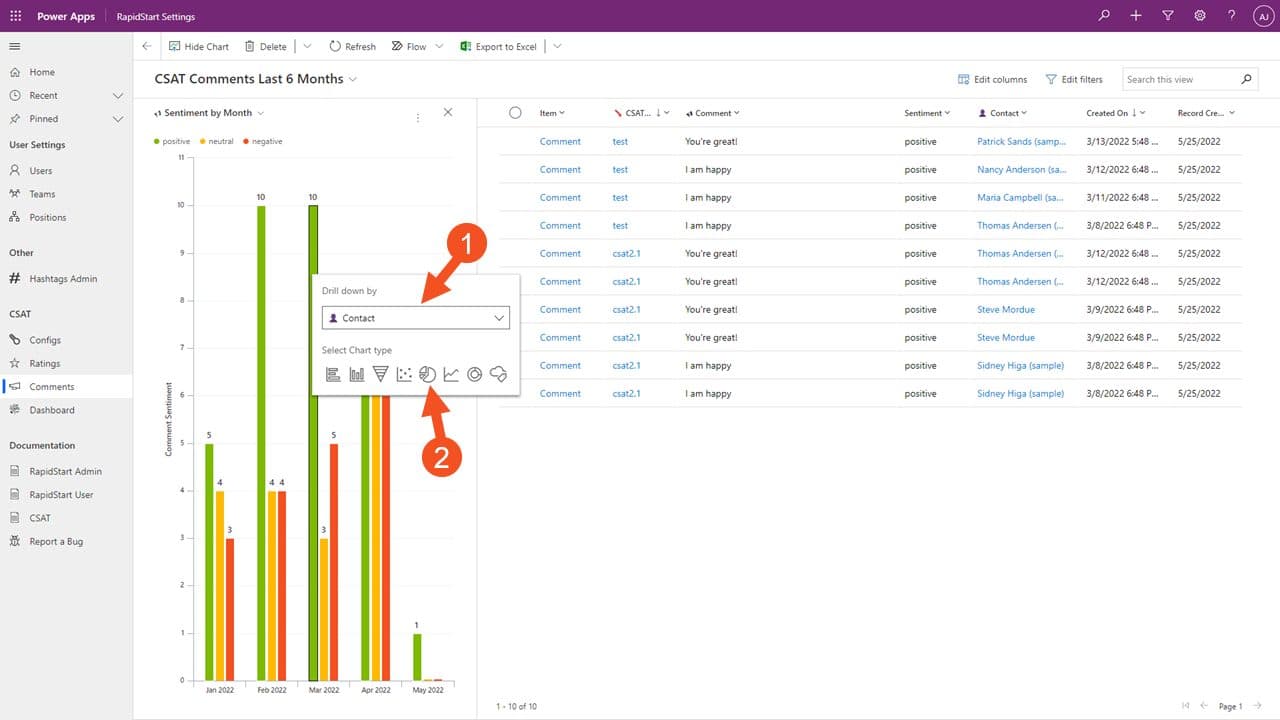
We can drill down further and see this data in chart types we have not even created. For example, by adding the Contact attribute and clicking the Pie chart icon we get what you see below.
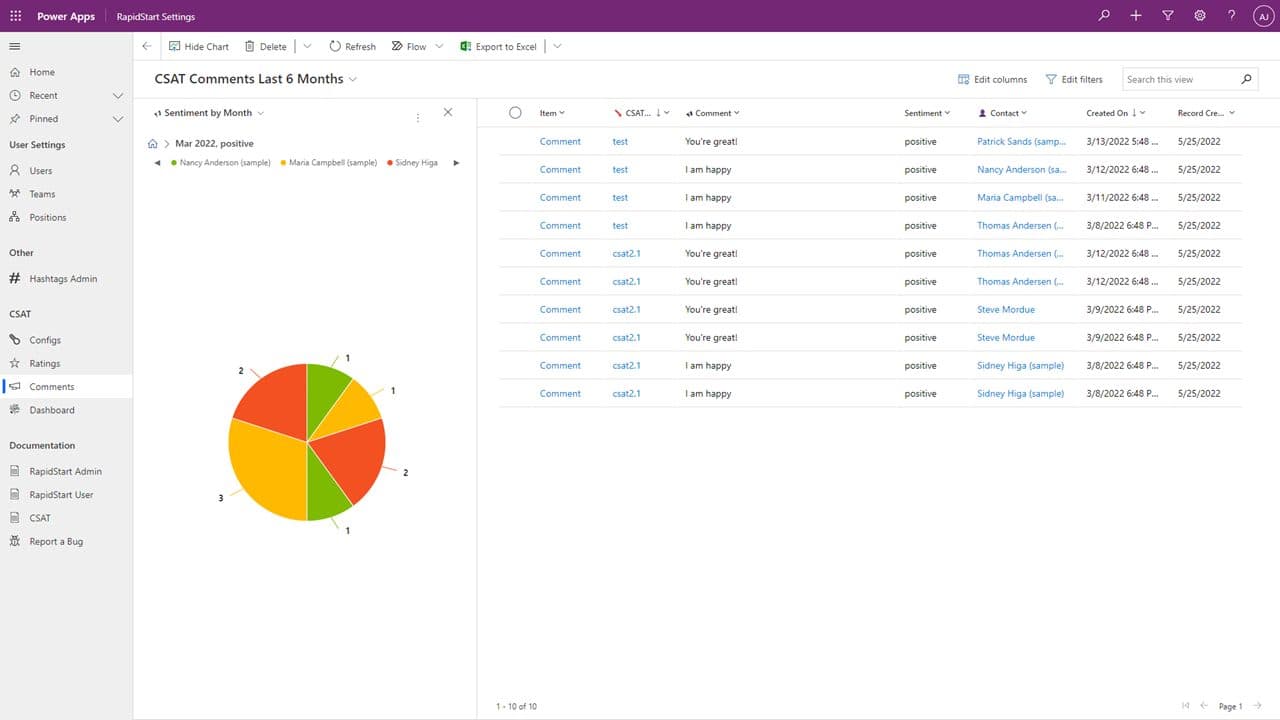
We have not even created a “Pie Chart” in the solution! We can view data in many different chart types, filters, and drill-downs. And, you guessed it, there’s more.
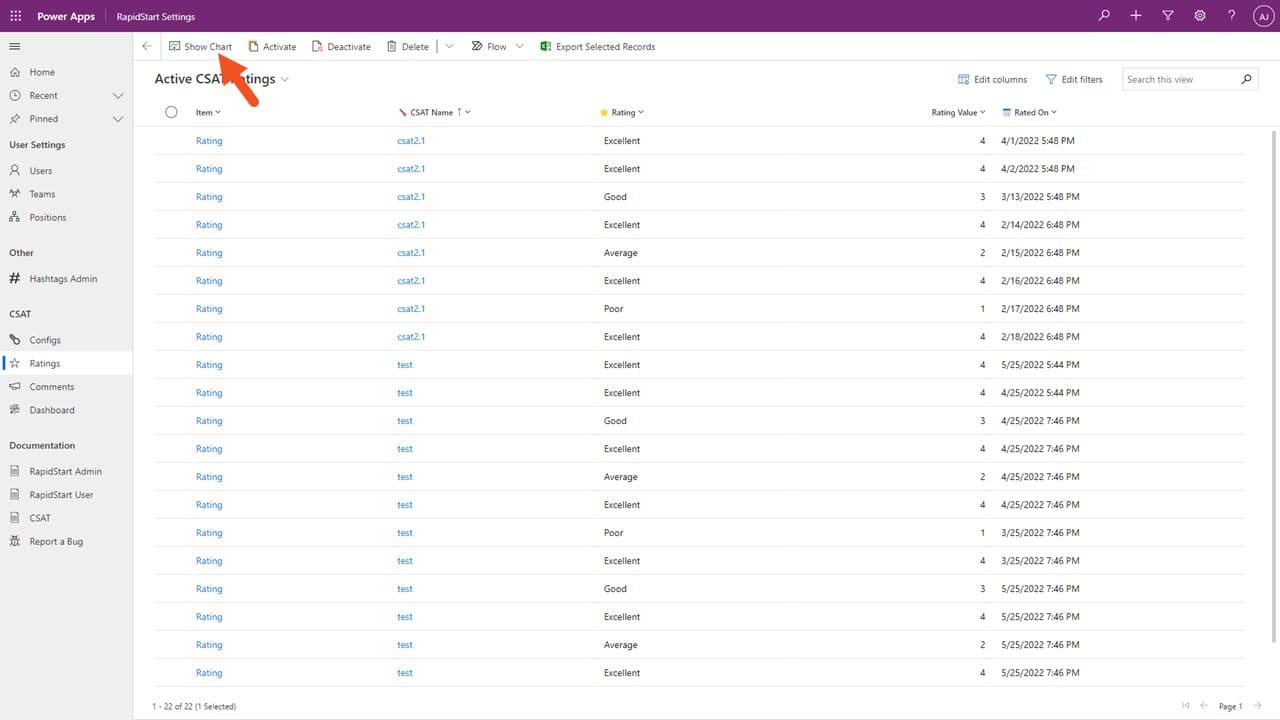
We don’t have to start in a Dashboard — we can open any view of records and click “Show Chart” to see the same “View Chart Records” screen.
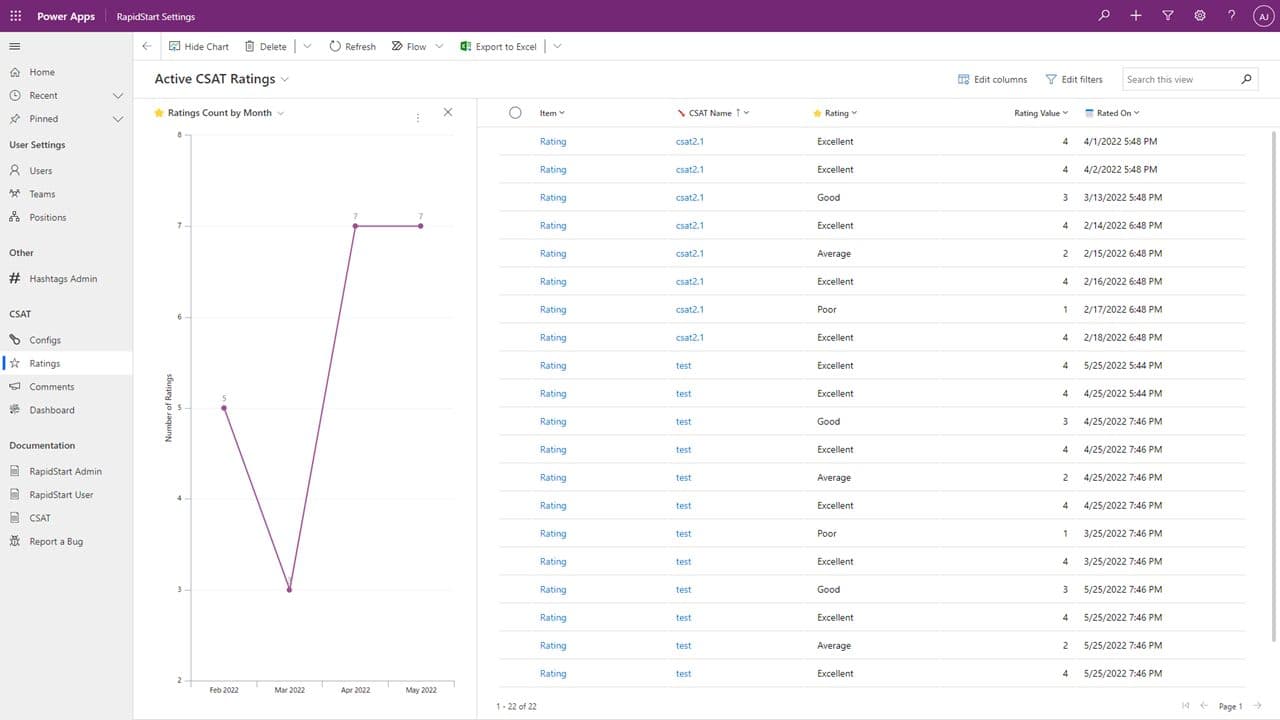
From here we can also perform the same actions, drill-downs, etc. But, there is one more thing to show you.
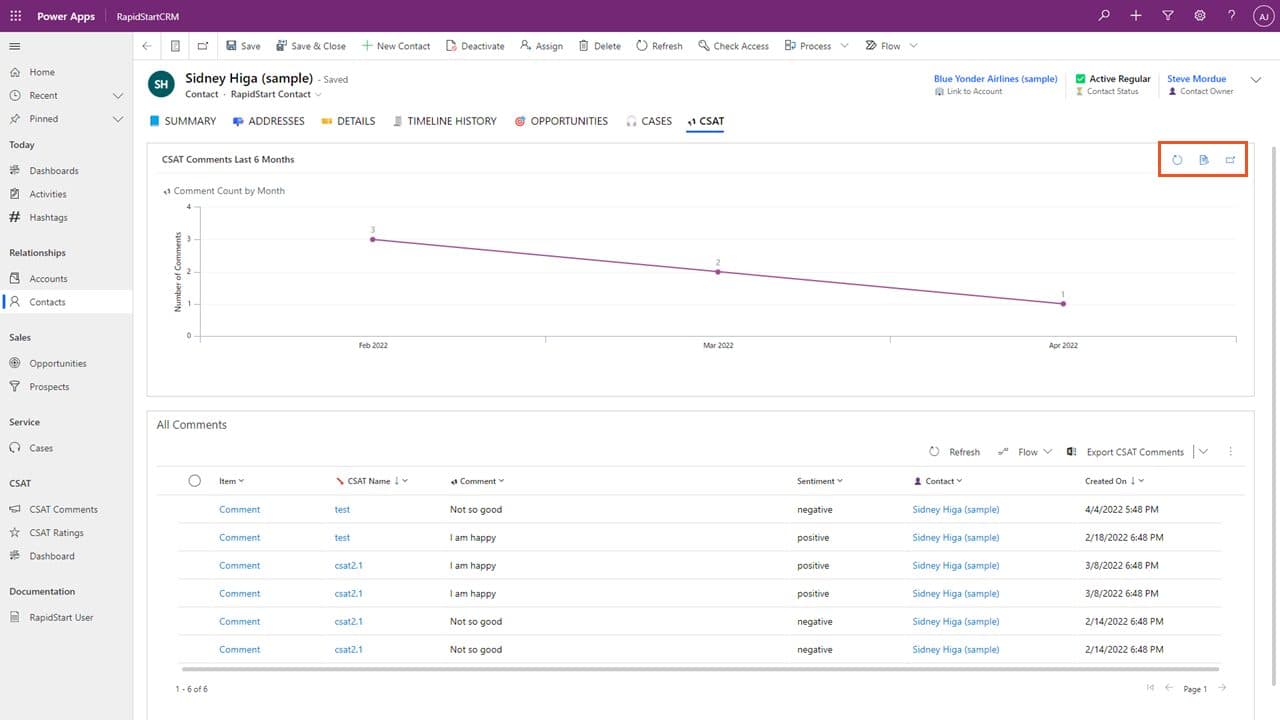
Forms can also have embedded charts. For example, a Contact form can have a tab with a chart showing data filtered by this specific contact. The same options are available on the chart here, and by clicking on the Show Records Icon, we see the information below.
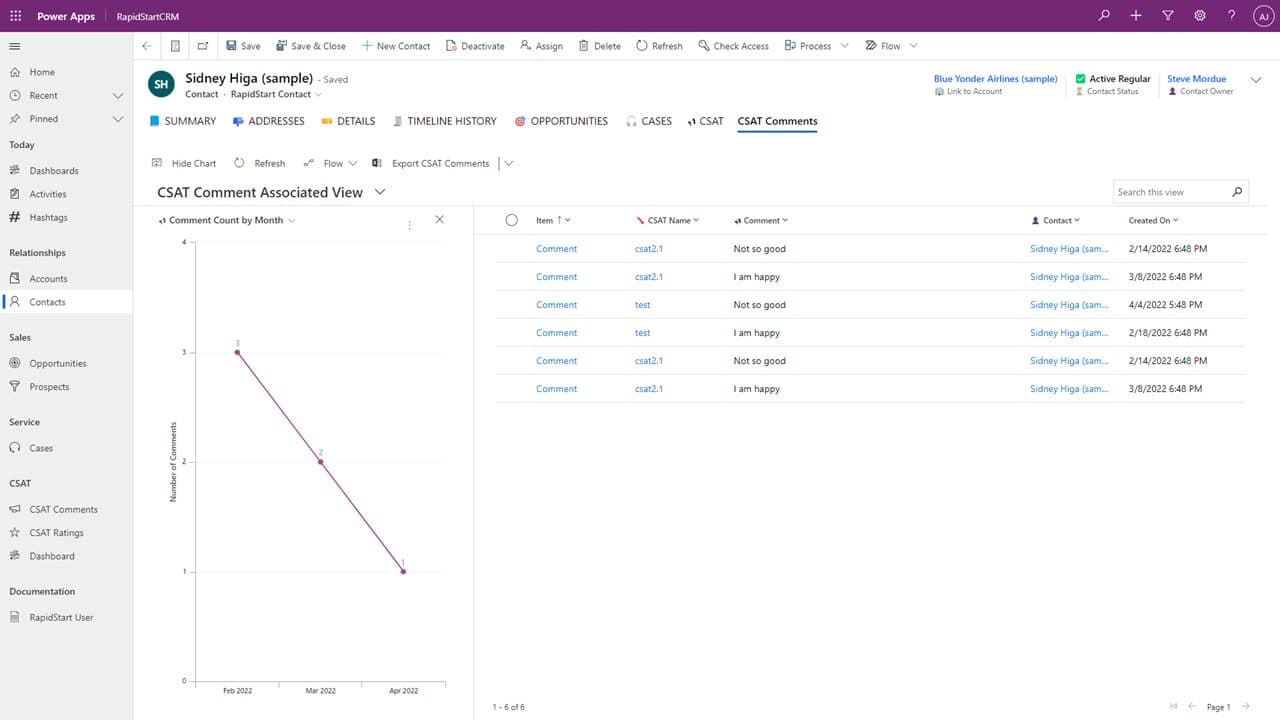
We can also perform the same drill-downs etc. right here inside this Contact form for this particular contact!
Summary
So, we hope you learned something new in this quick exploration of RapidStart charts. The built-in charting capabilities are powerful, flexible, and require no additional configuration to use.