Getting Started
License Management for RapidStart
How to buy additional licenses, remove licenses, and assign or unassign them to users in the Microsoft 365 Admin Center.
Overview
RapidStart App licenses are managed through the Microsoft 365 Admin Center. From there you can purchase additional licenses, remove licenses you no longer need, and assign or unassign them to individual users.
Buying Additional Licenses
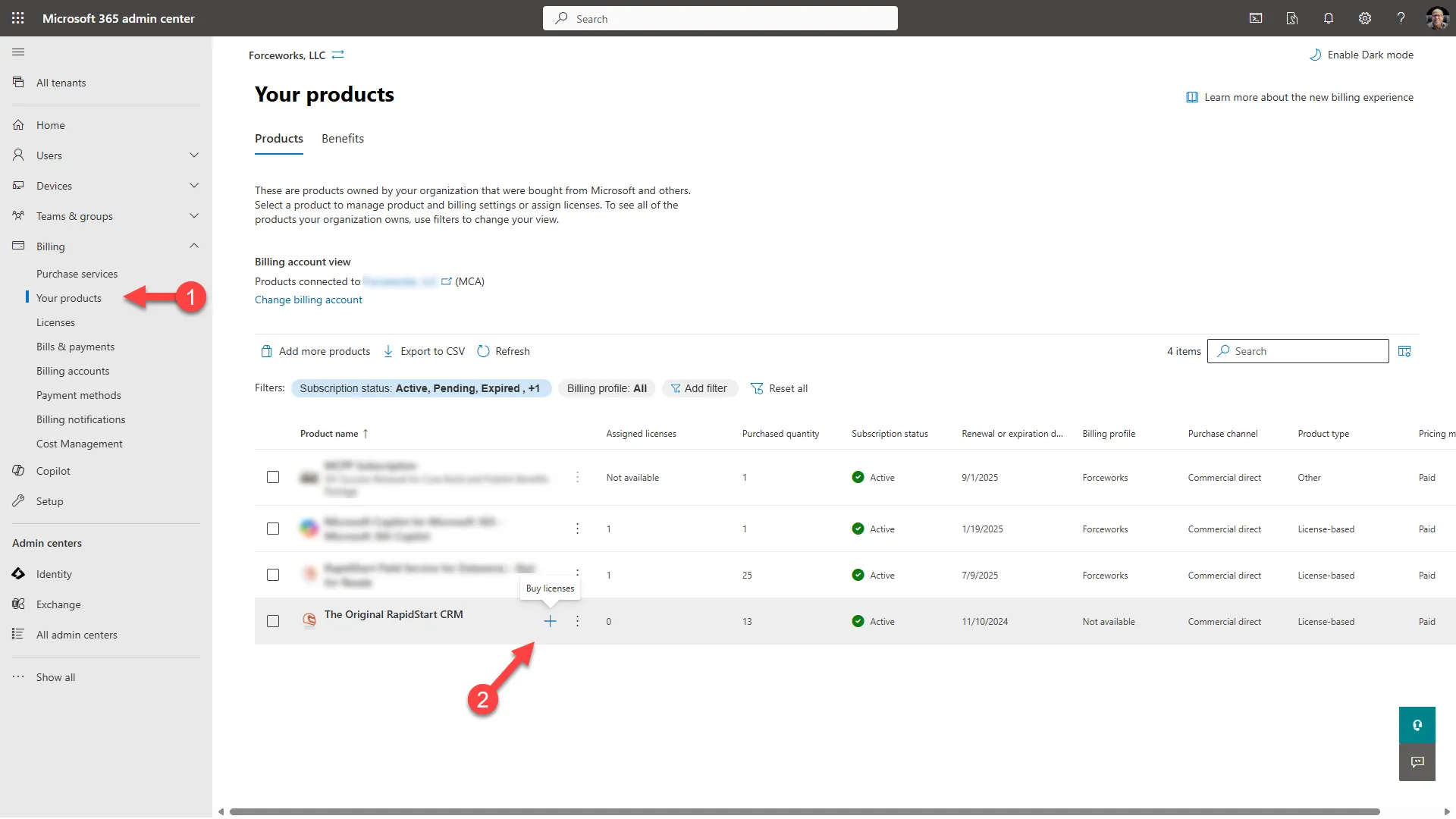
- Sign in to the Microsoft 365 Admin Center.
- Go to Billing → Your products and find your RapidStart subscription.
- Click Buy licenses.
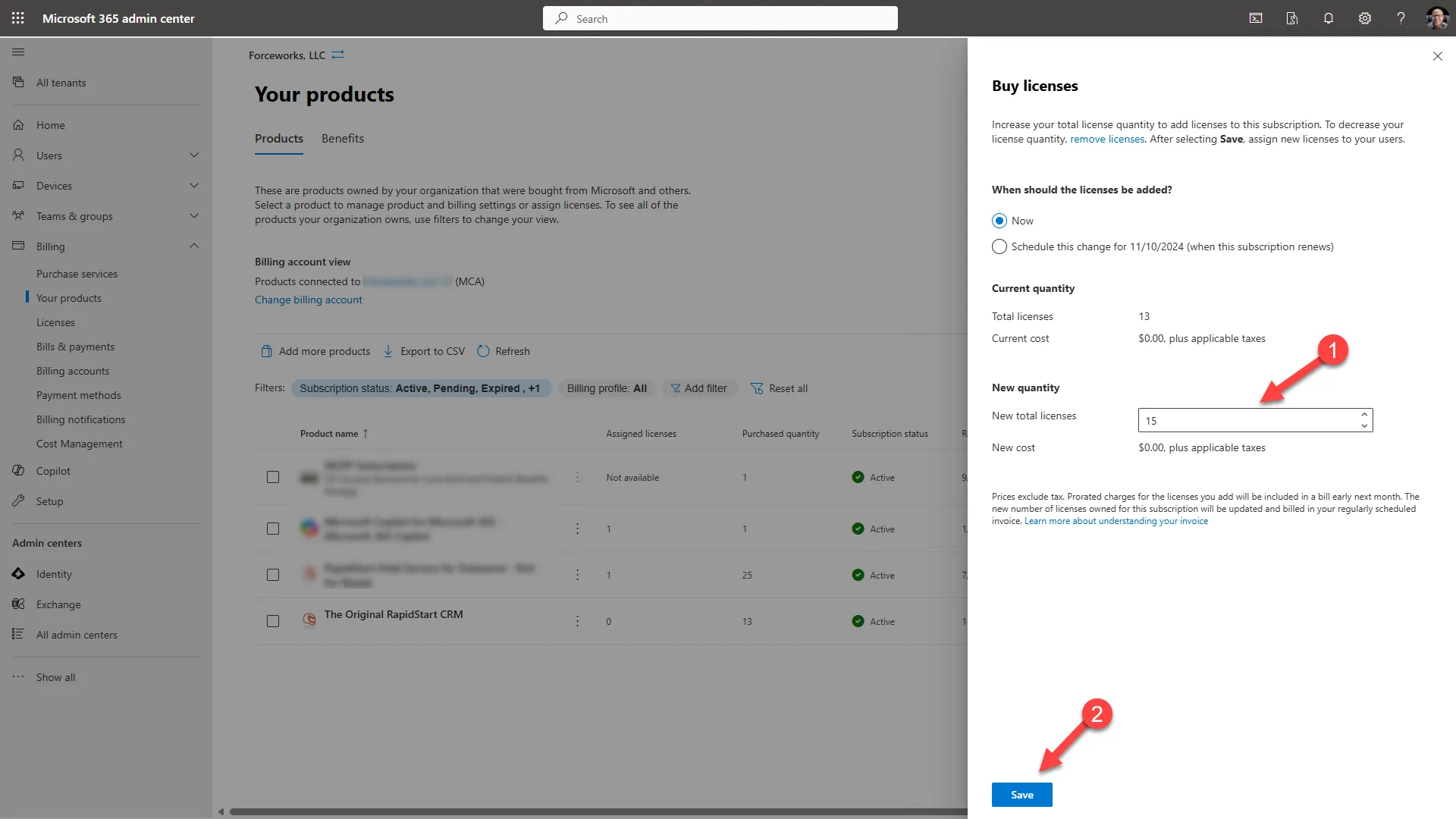
- Enter the number of additional licenses you need.
- Click Save to complete the purchase.
Removing Licenses
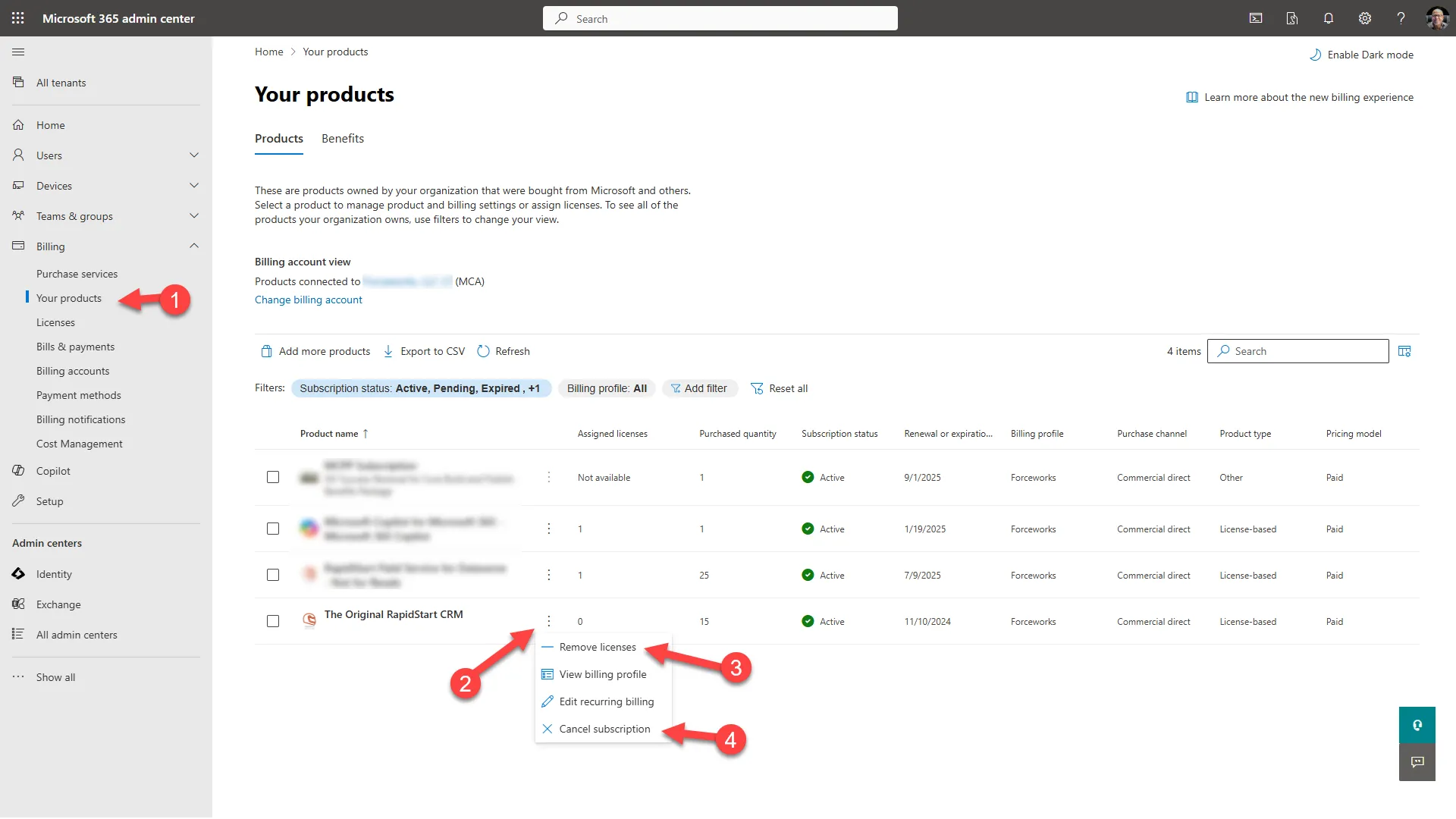
- From Billing → Your products, find your RapidStart subscription.
- Click Remove licenses.
- Enter the number of licenses to remove and click Save.
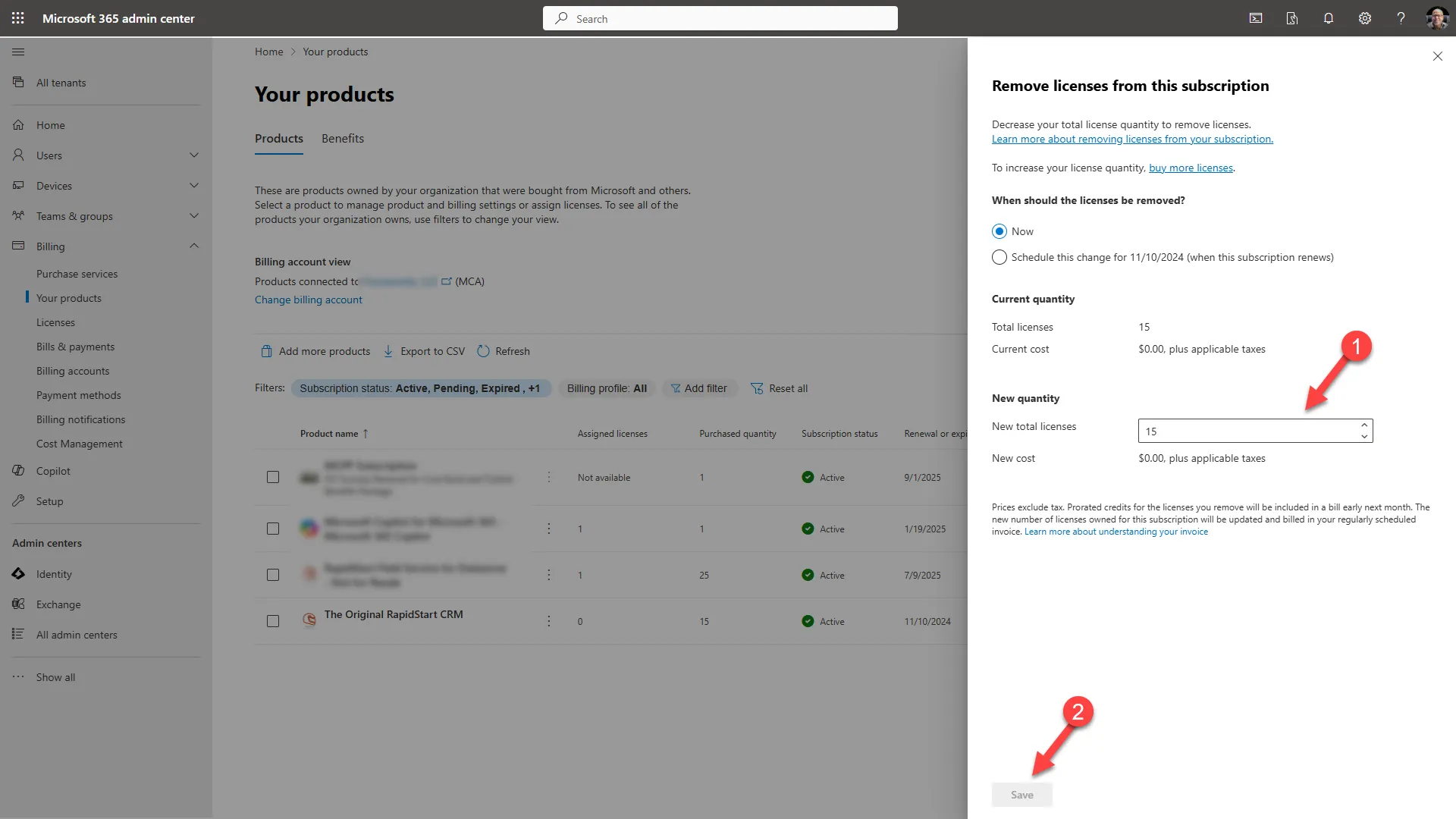
- Confirm the removal. Note: you cannot remove licenses that are currently assigned to users.
Assigning Licenses to Users
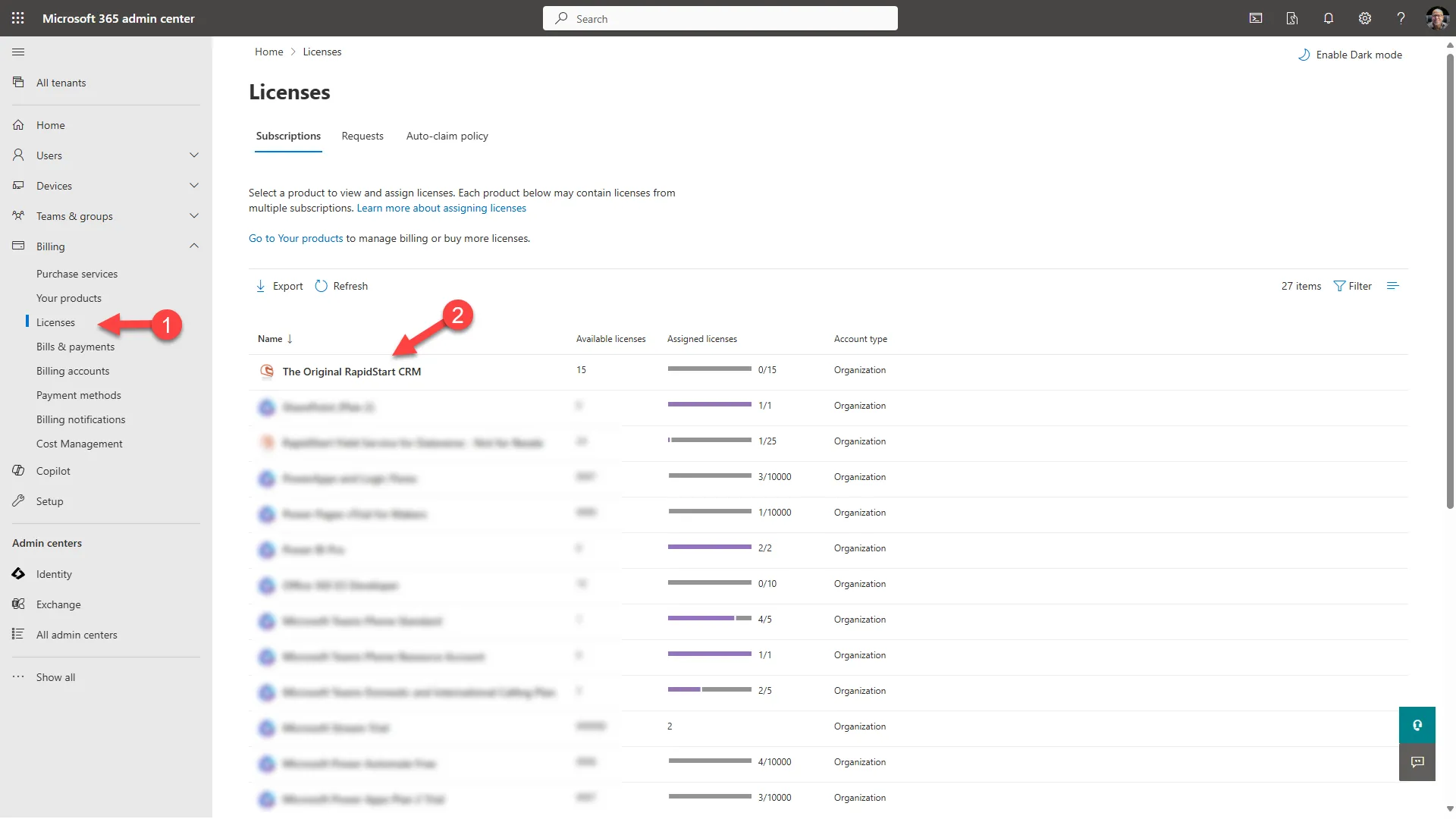
- Go to Users → Active users and click on the user you want to assign a license to.
- Select the Licenses and apps tab.
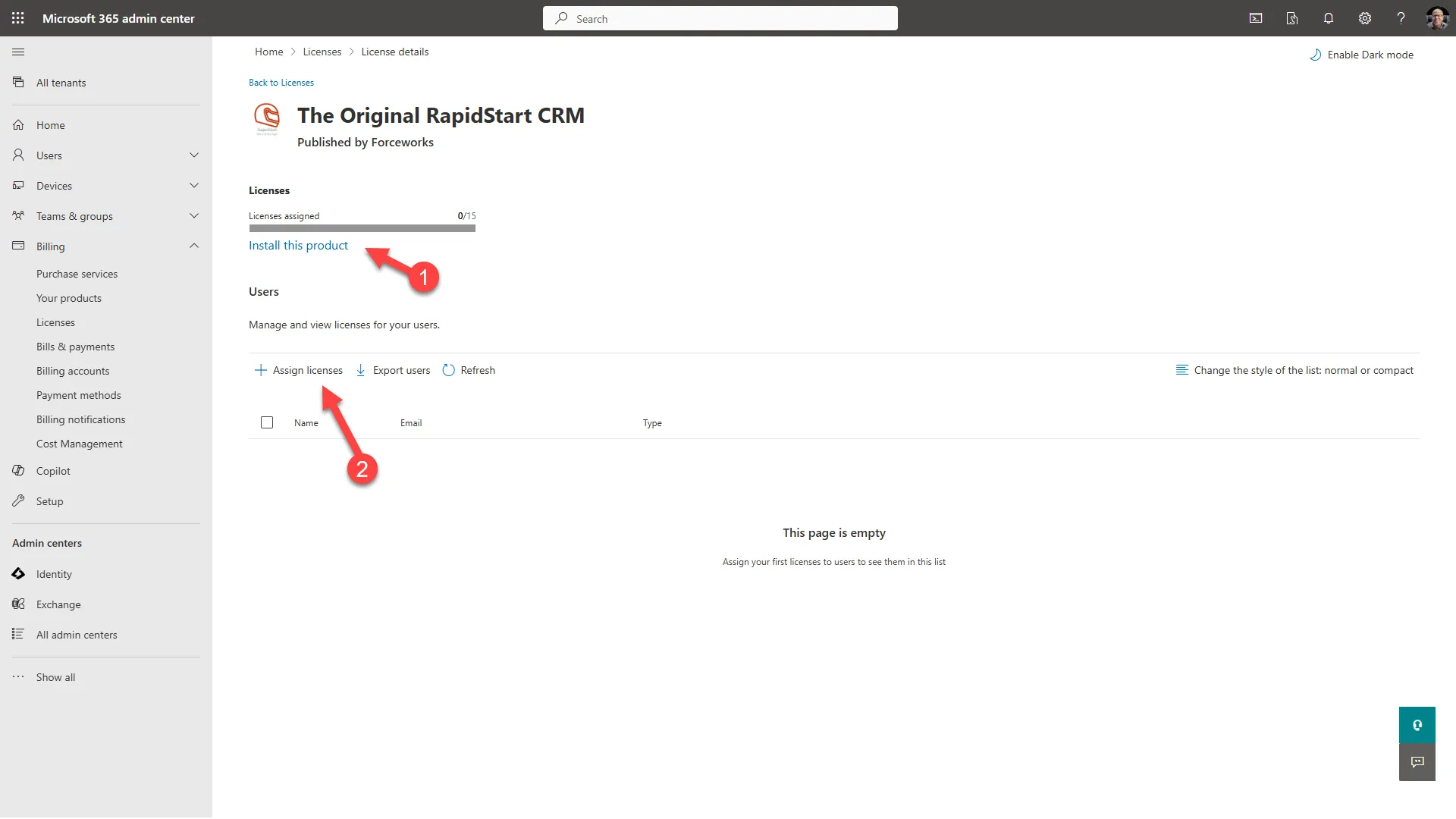
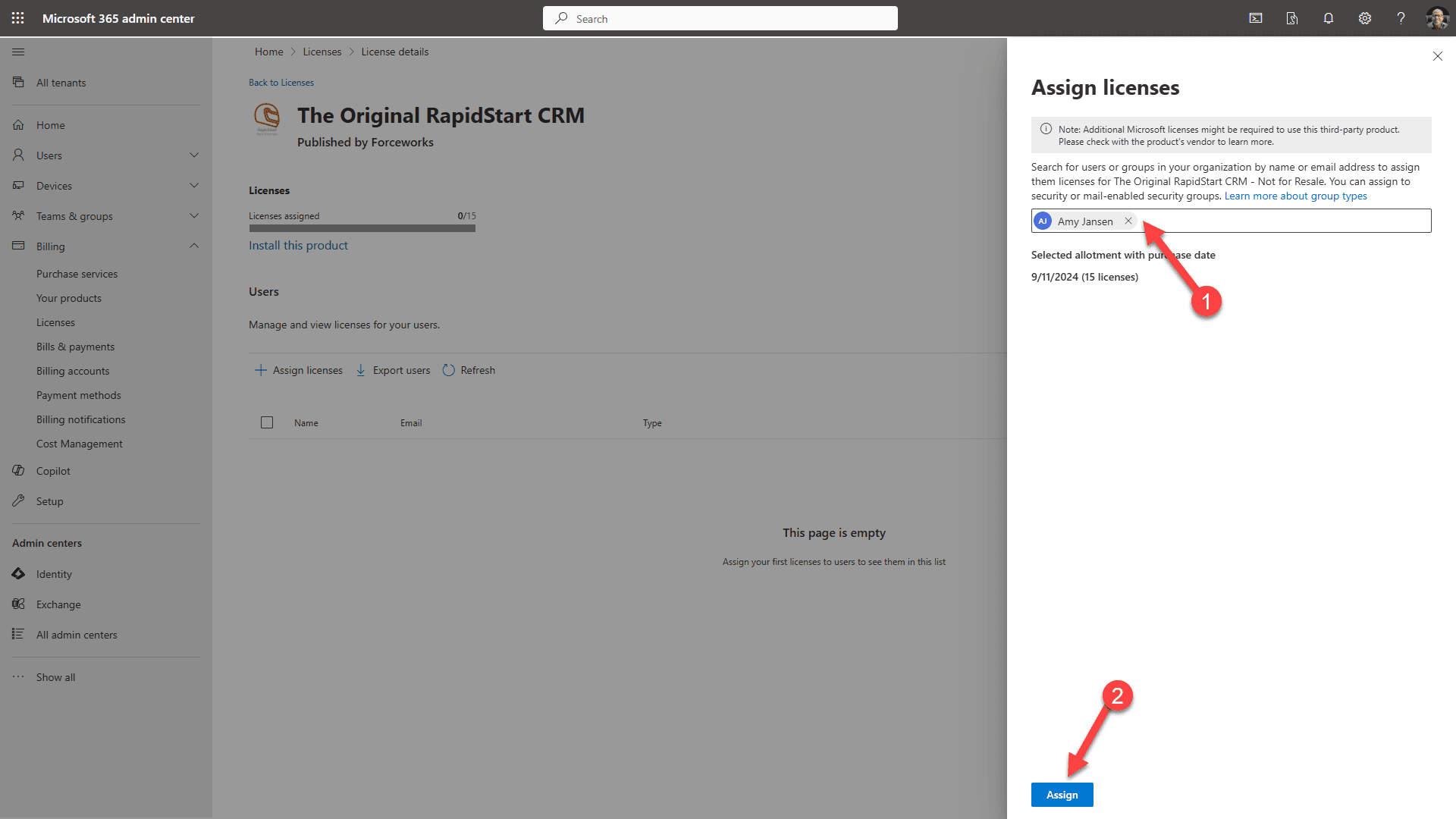
- Tick the checkbox next to the RapidStart license.
- Click Save changes.
Unassigning Licenses from Users
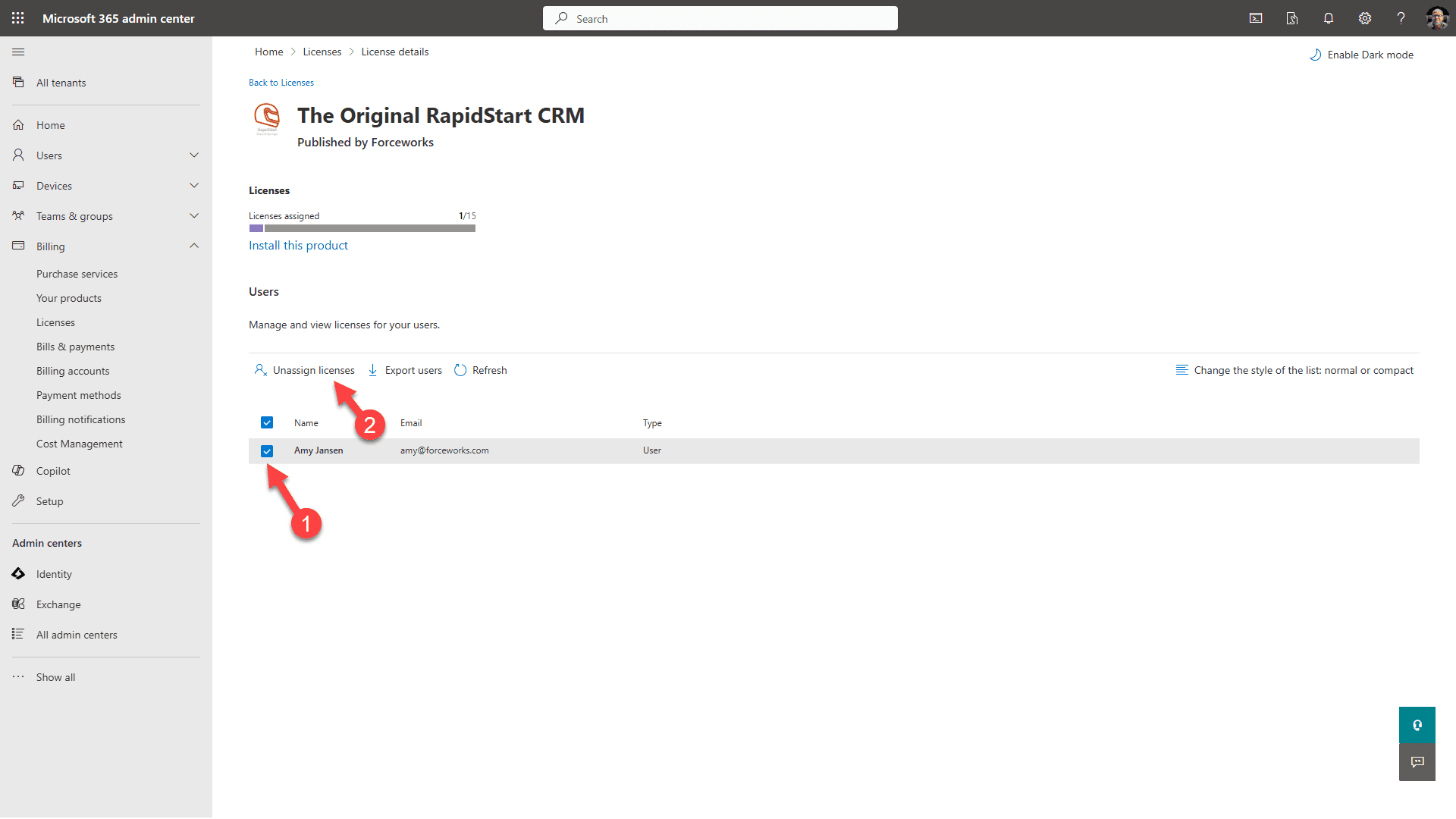
- Follow the same steps as assigning, but untick the checkbox next to the RapidStart license.
- Click Save changes.