Purchase and Installation of RapidStart
Follow these steps to purchase and/or install any RapidStart App or Addon from Microsoft Marketplace into your Microsoft Dataverse environment.
Prerequisites
Before you begin, make sure you have the following:
- A Power Apps Premium or Dynamics 365 subscription (includes Dataverse).
- A Dataverse environment (Production or Sandbox) already created.
- Power Platform Administrator or System Administrator rights in that environment for free addons. Or Global Administrator for Paid Apps.
Step 1: Find the App on AppSource
Go to Microsoft Marketplace and search for the RapidStart app you want to acquire (e.g., "RapidStart CRM"). Click the listing to open it.
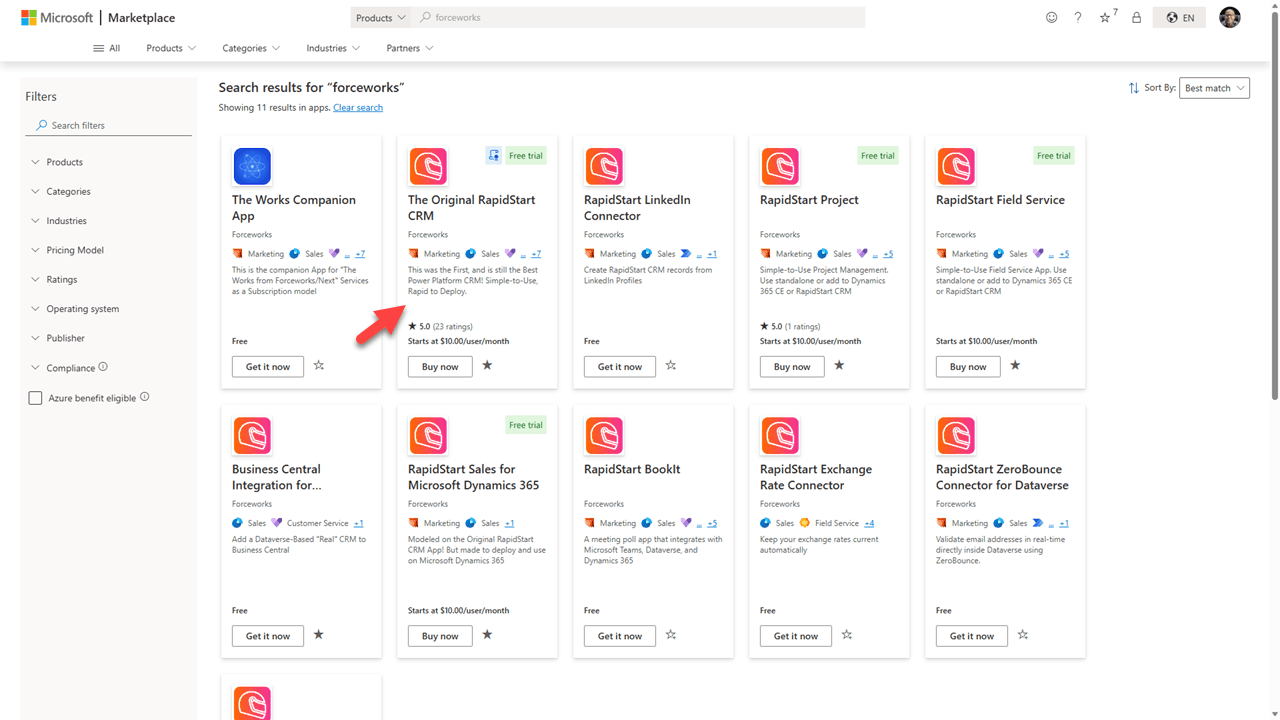
Step 2: Initiate the Purchase
Click Buy now or Get it Now on the listing page. For paid apps, you will be prompted to select a plan. For free addons, you may be taken directly to the installation screen (Step 4).
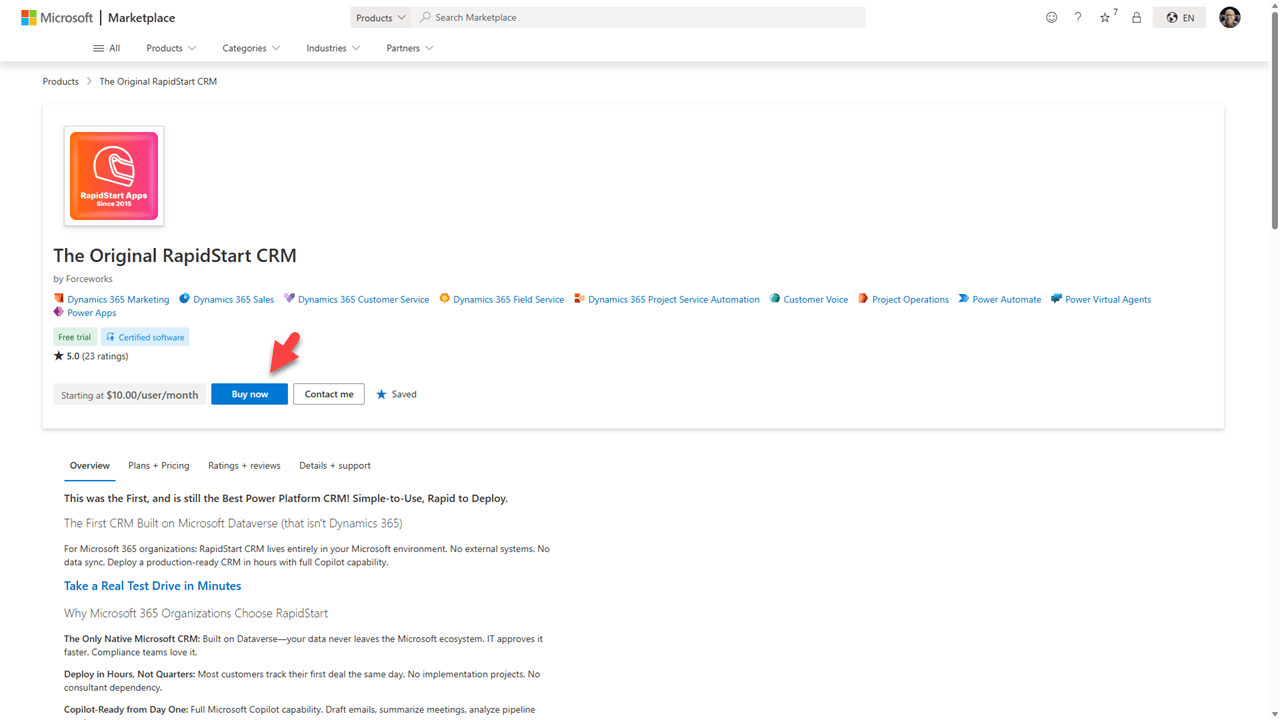
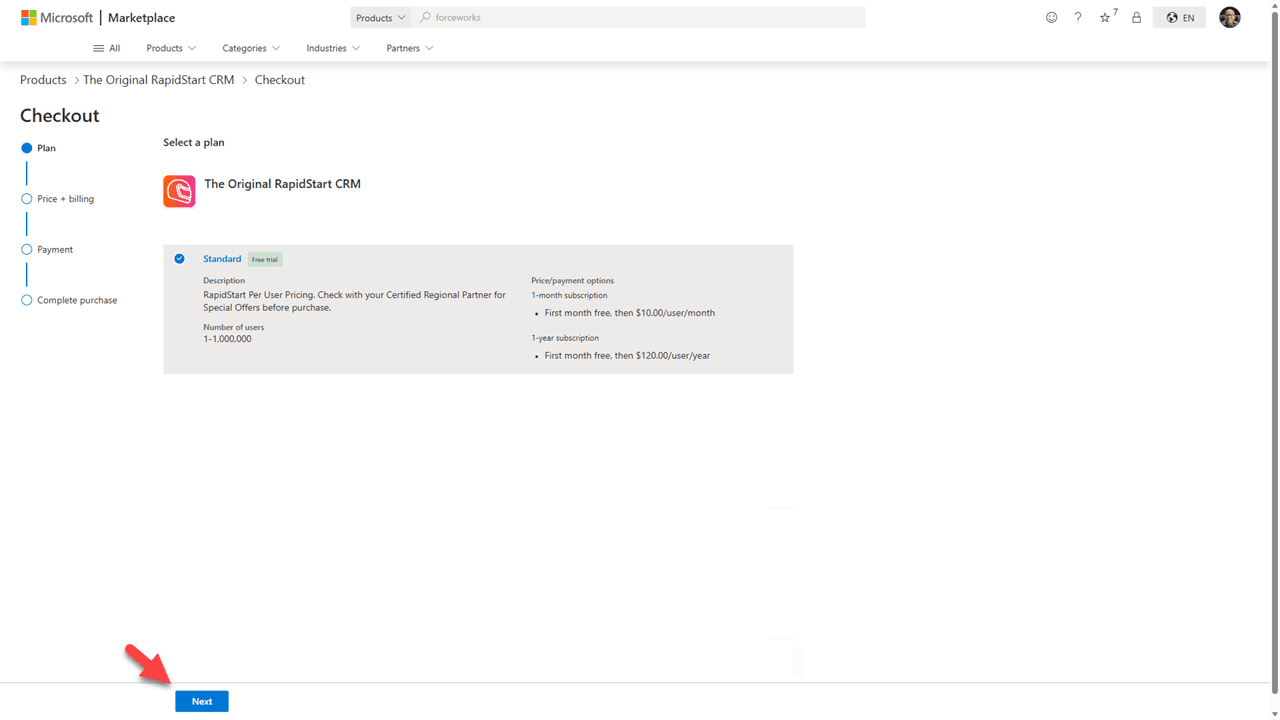
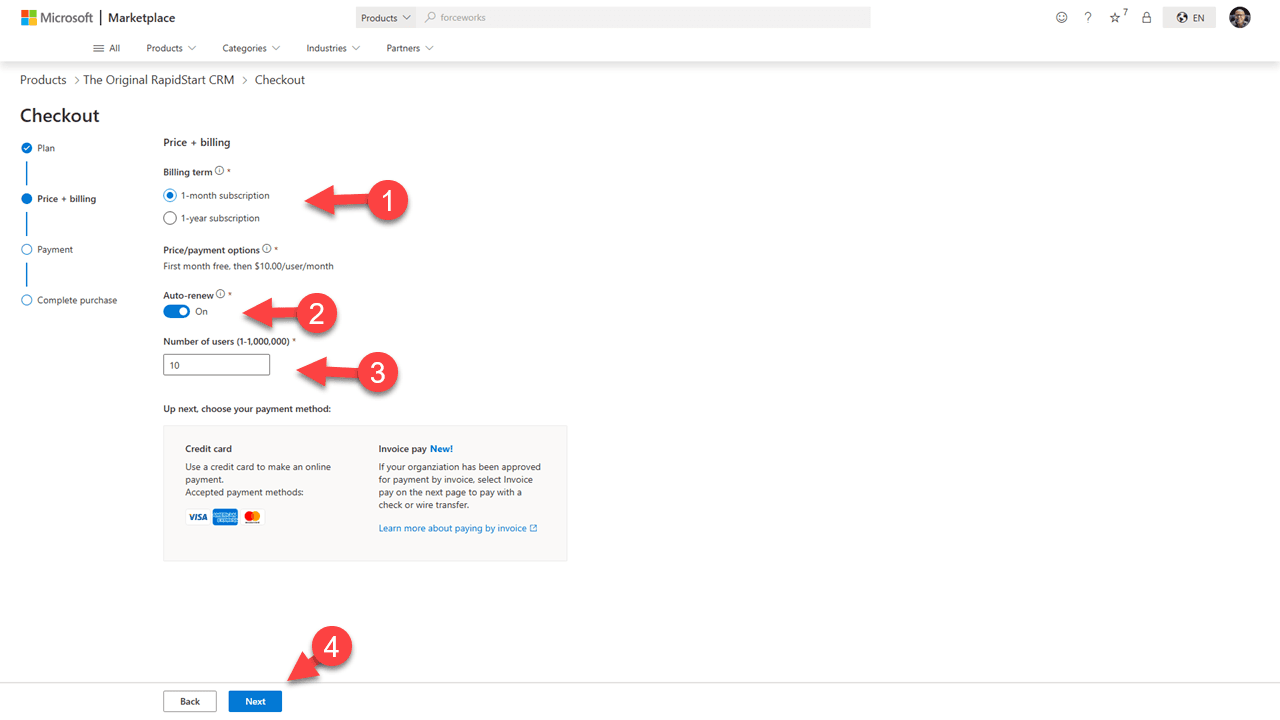
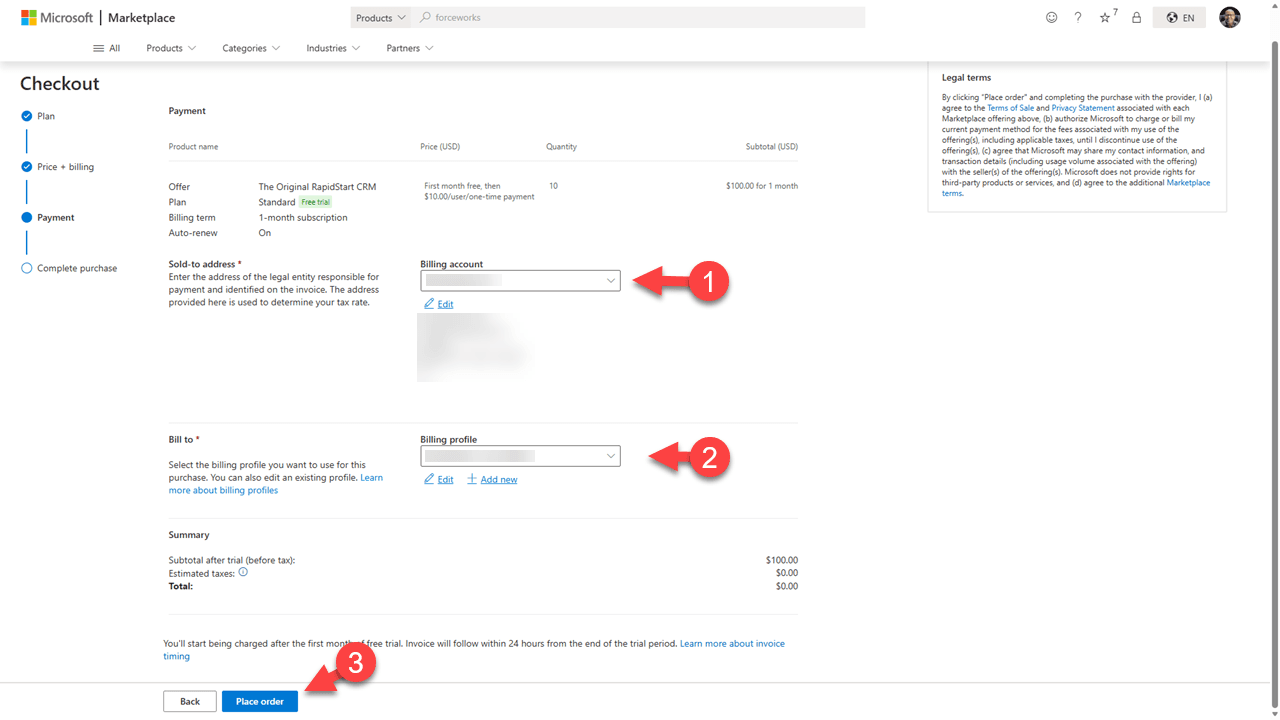
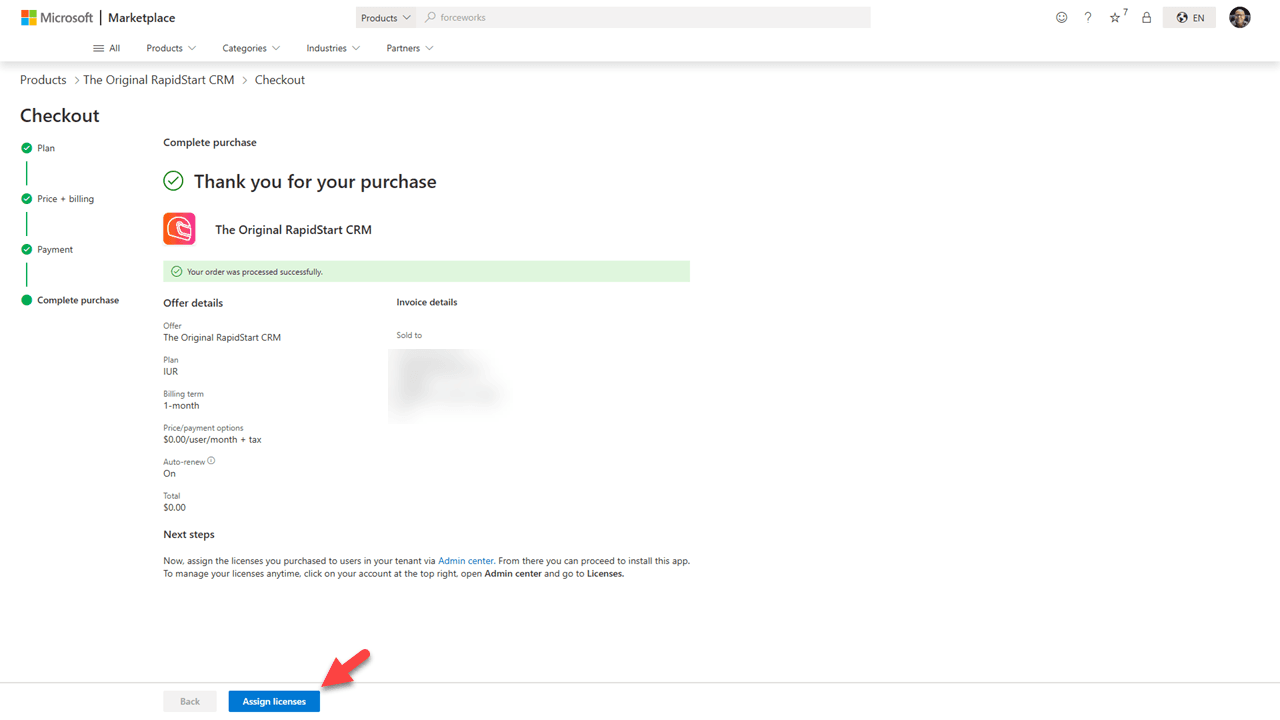
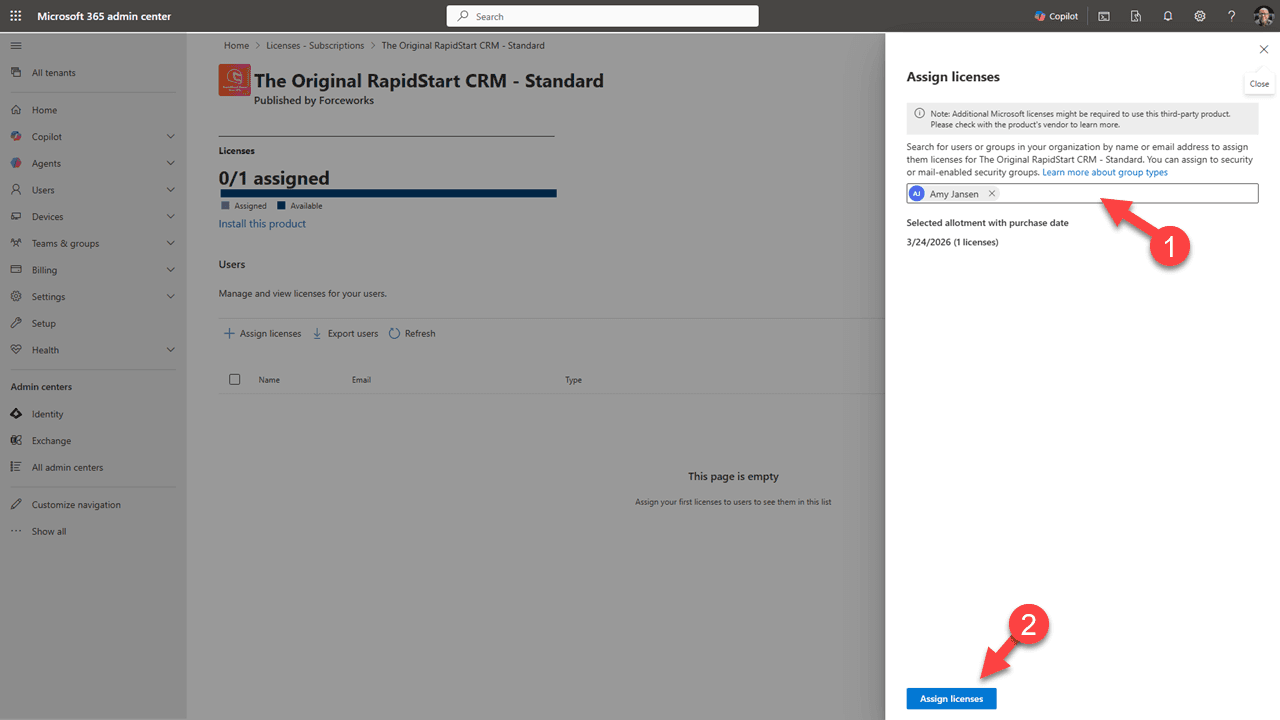
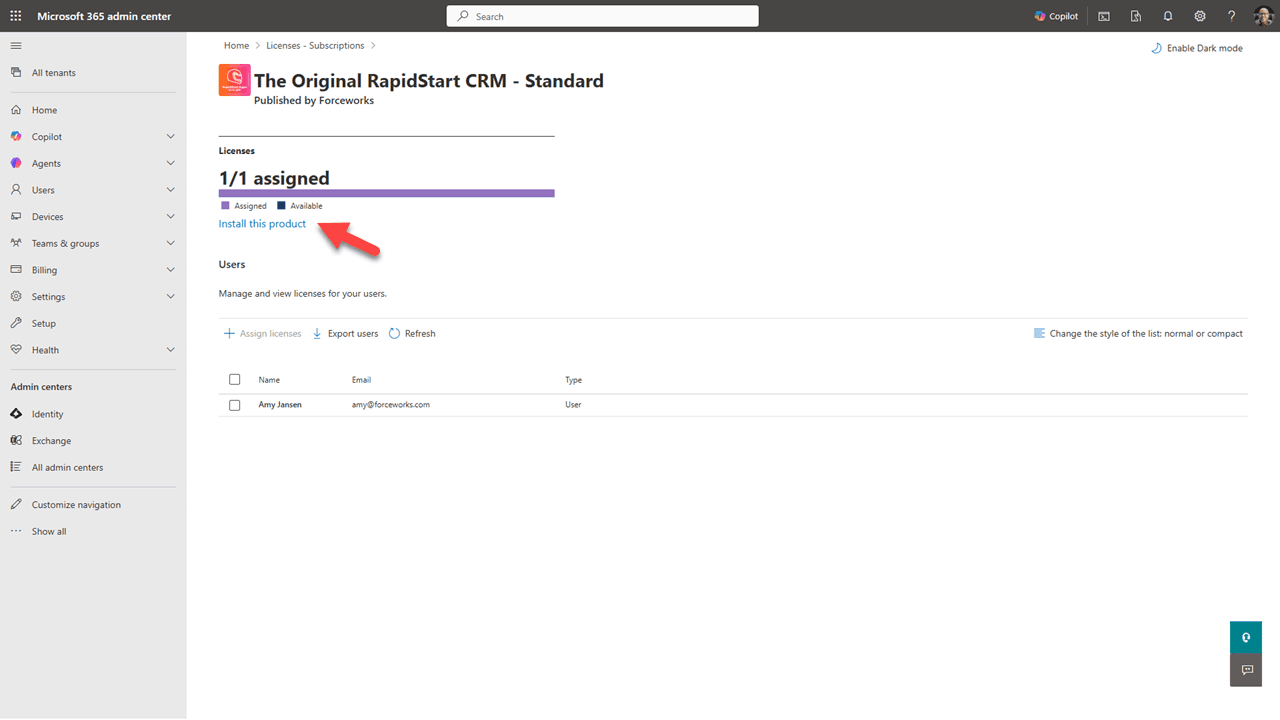
Step 3: Assign Licenses
Follow these screenshots to assign RapidStart Licenses to users (for paid apps).
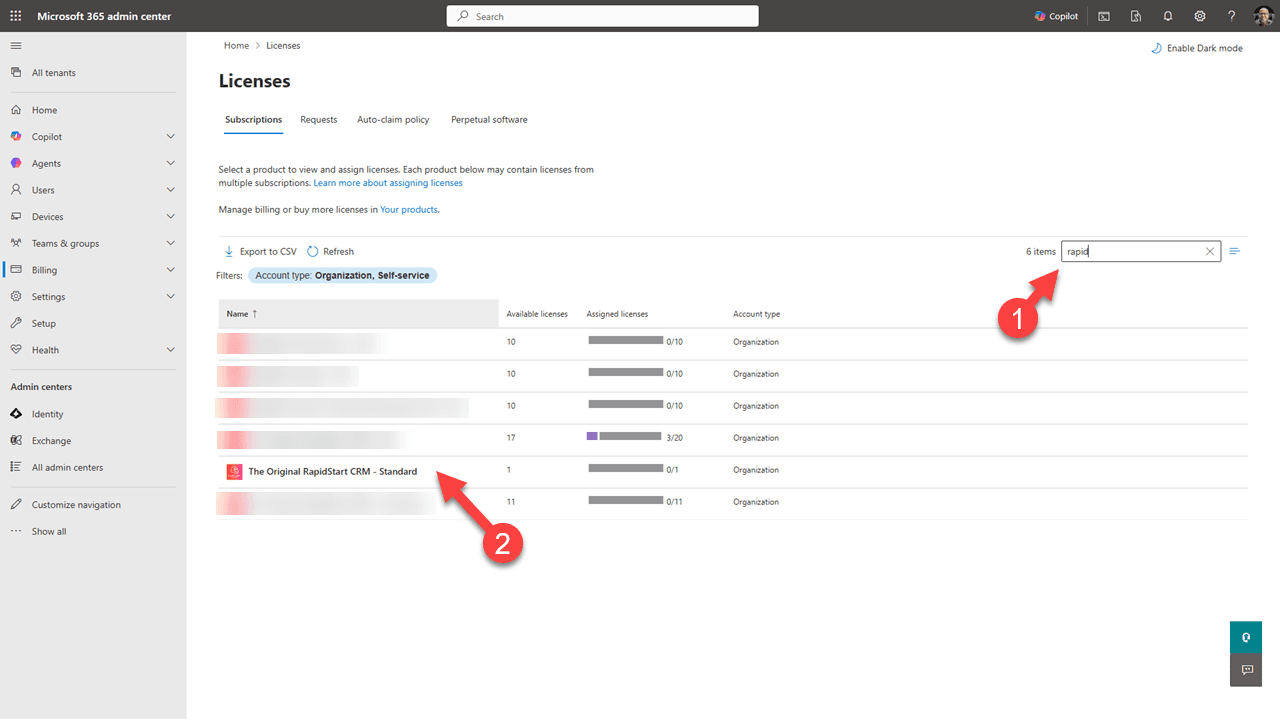
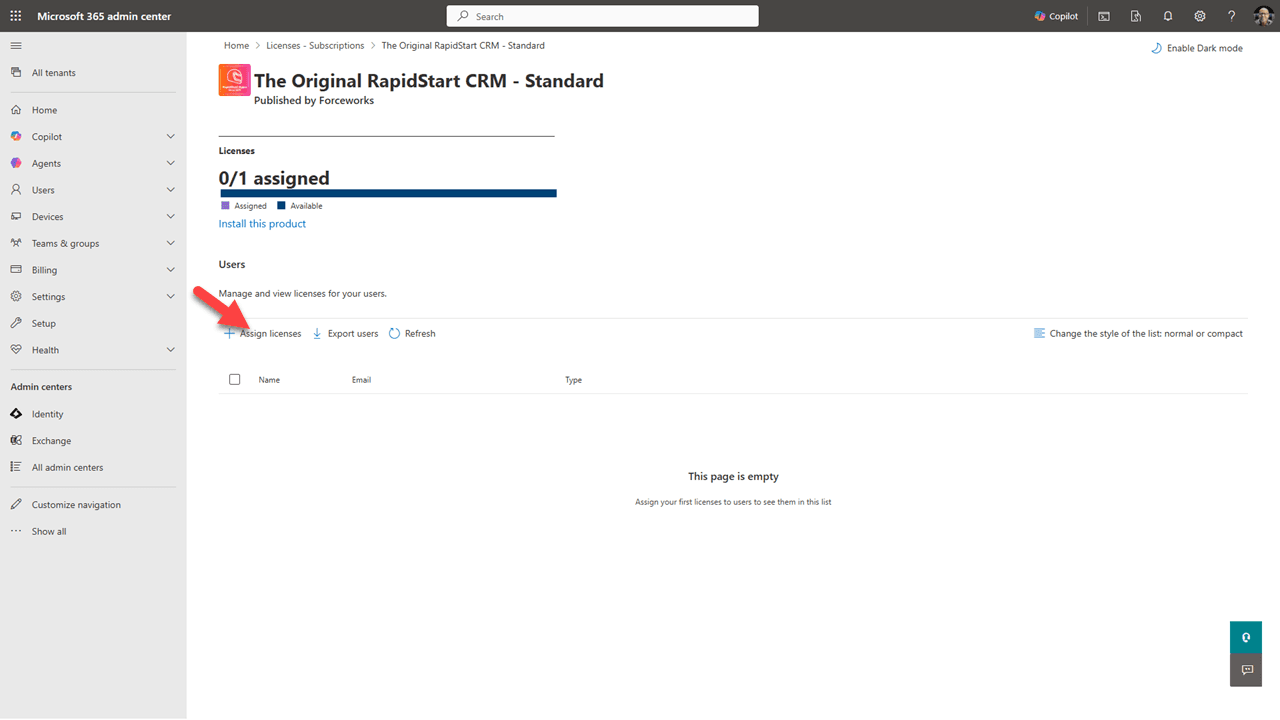
Step 4: Install Application
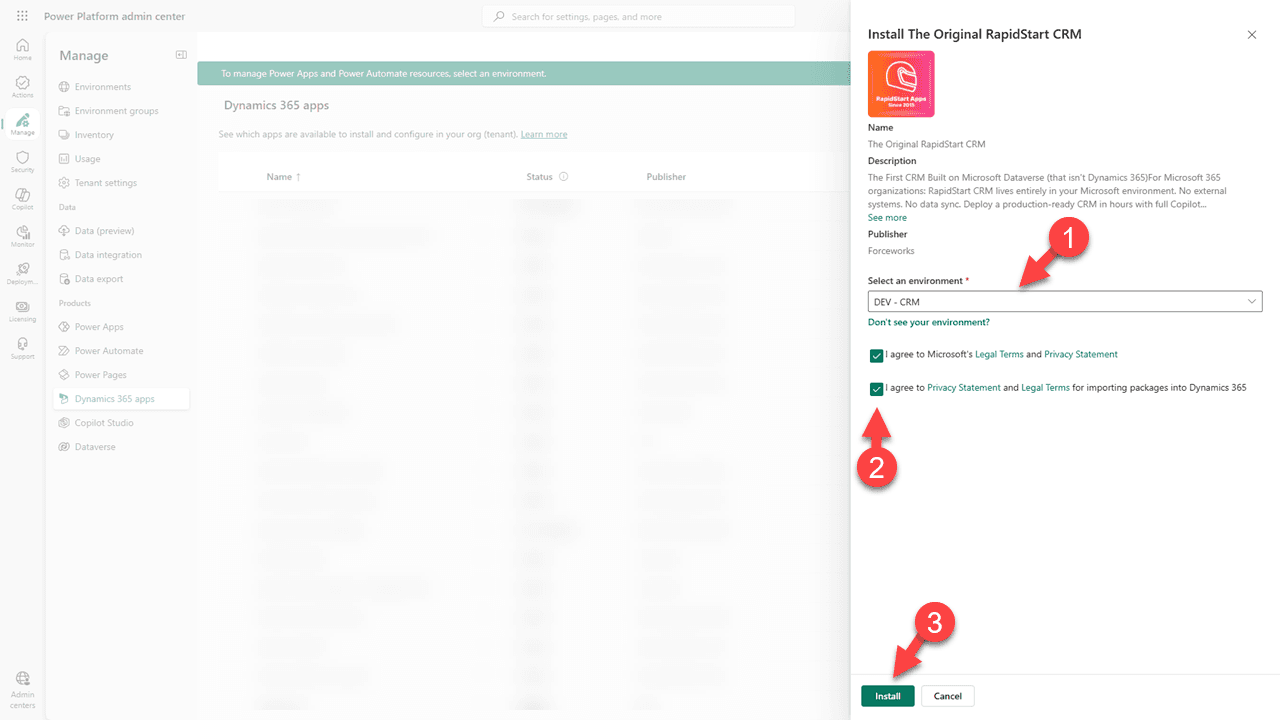
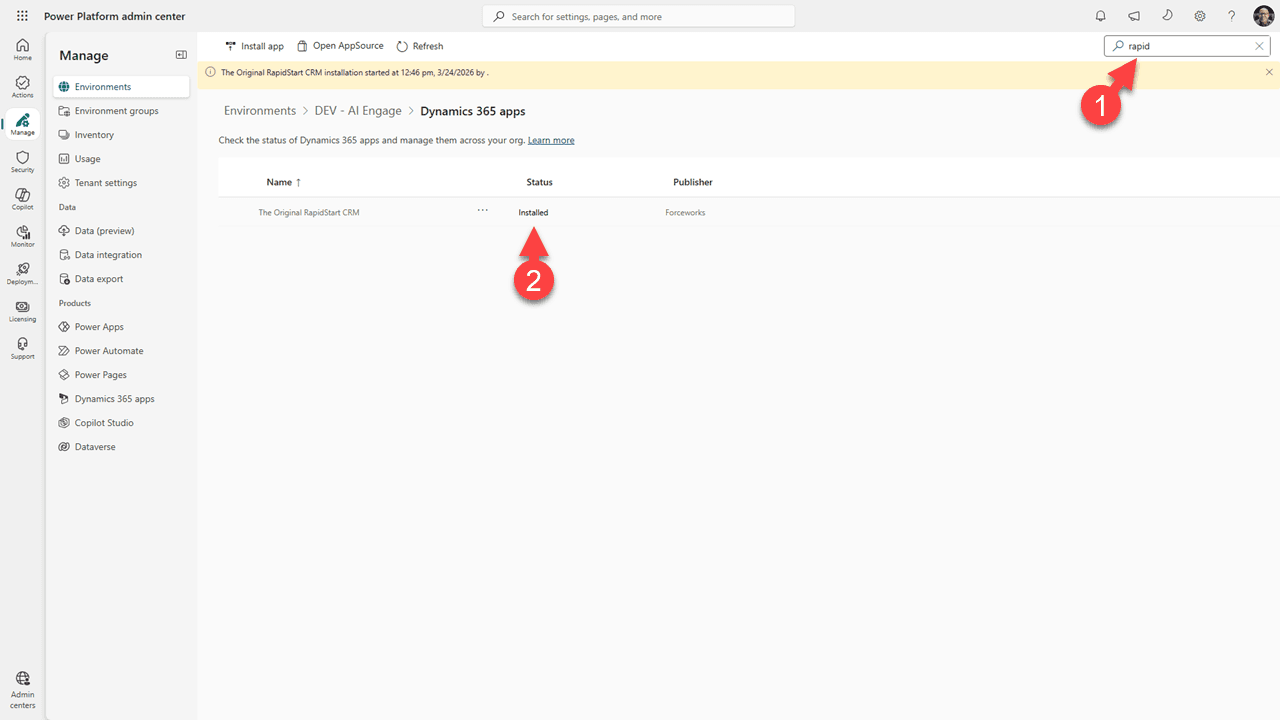
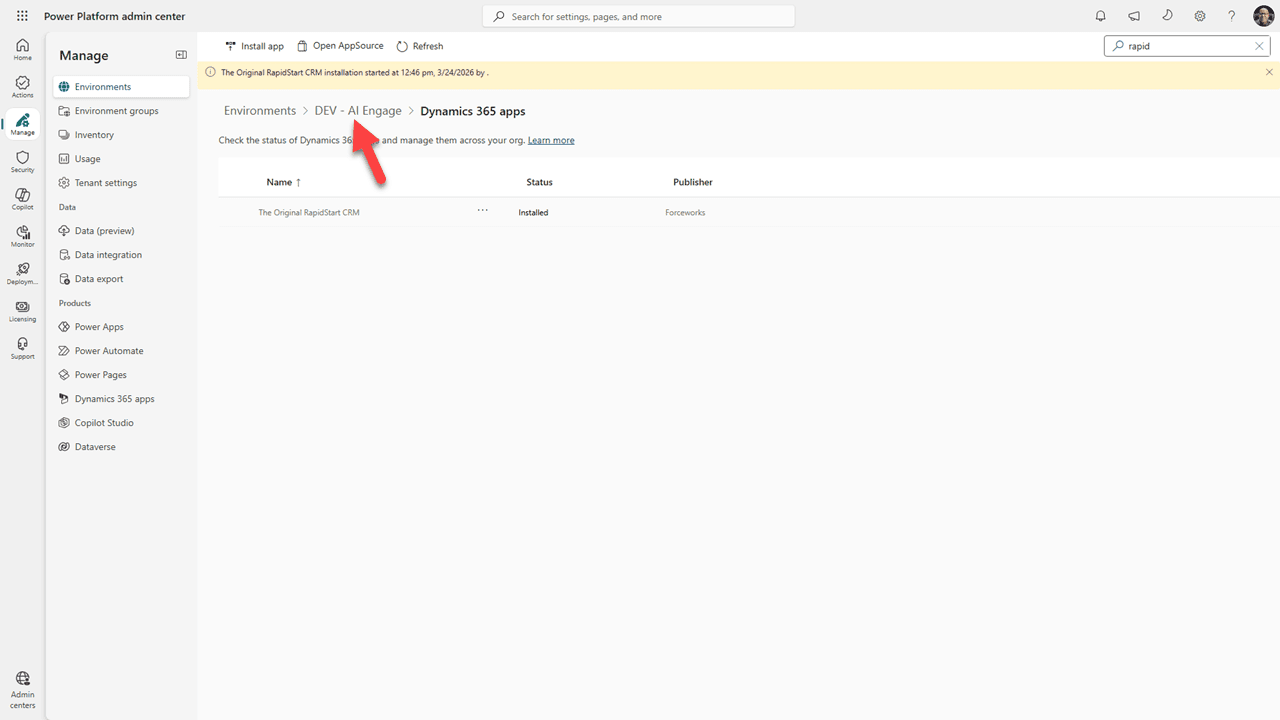
After purchase, you will be redirected to the Power Platform installation page.
Step 5: Assign User Security Roles
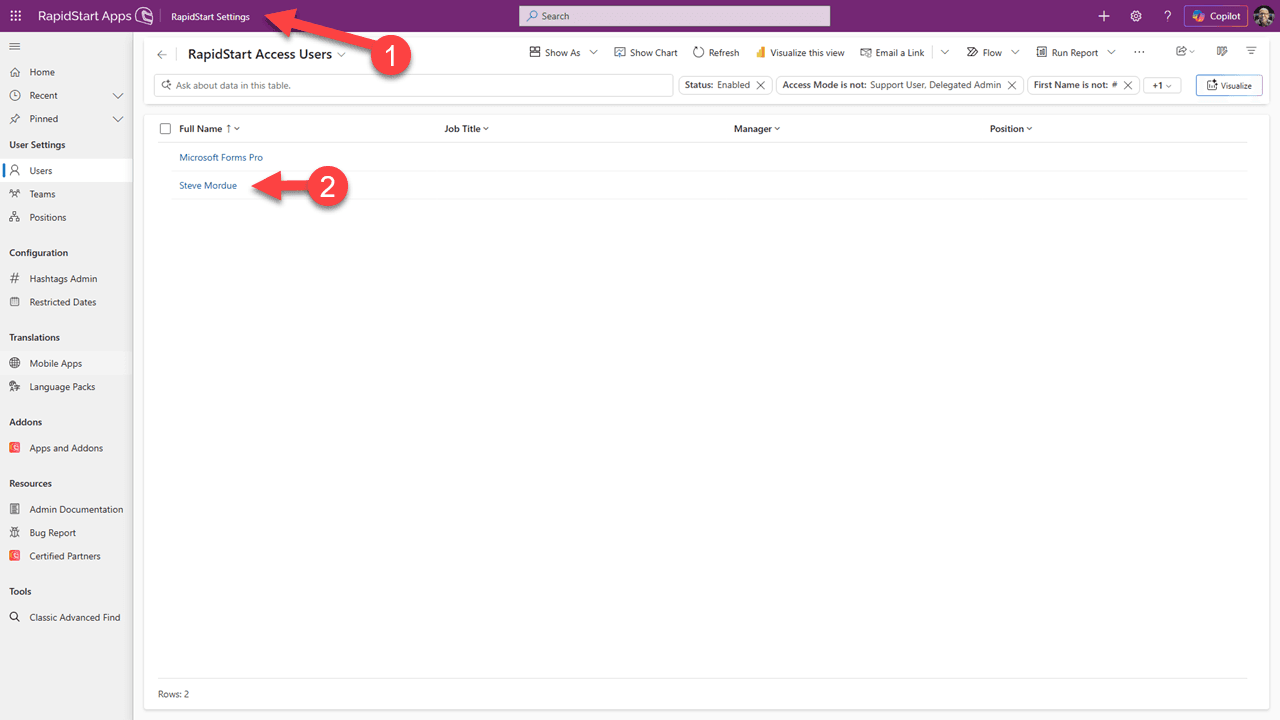
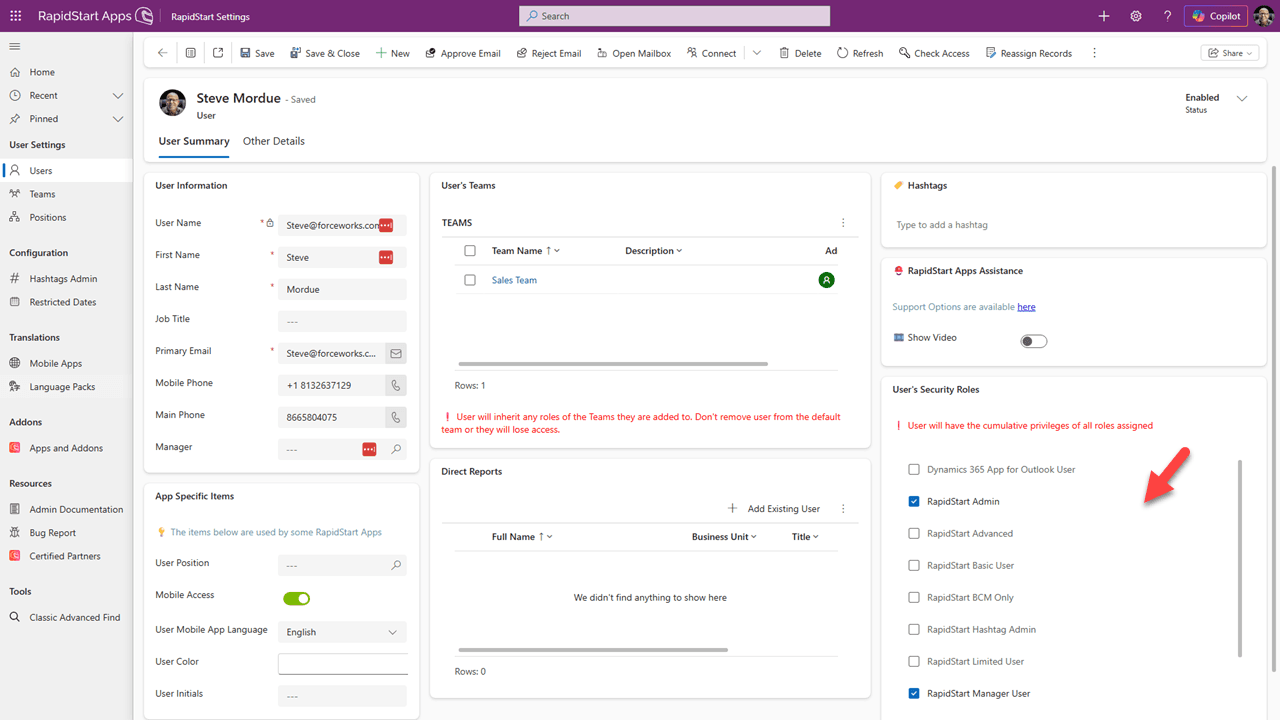
Follow these screenshots to assign security roles to users.
💡 Tip
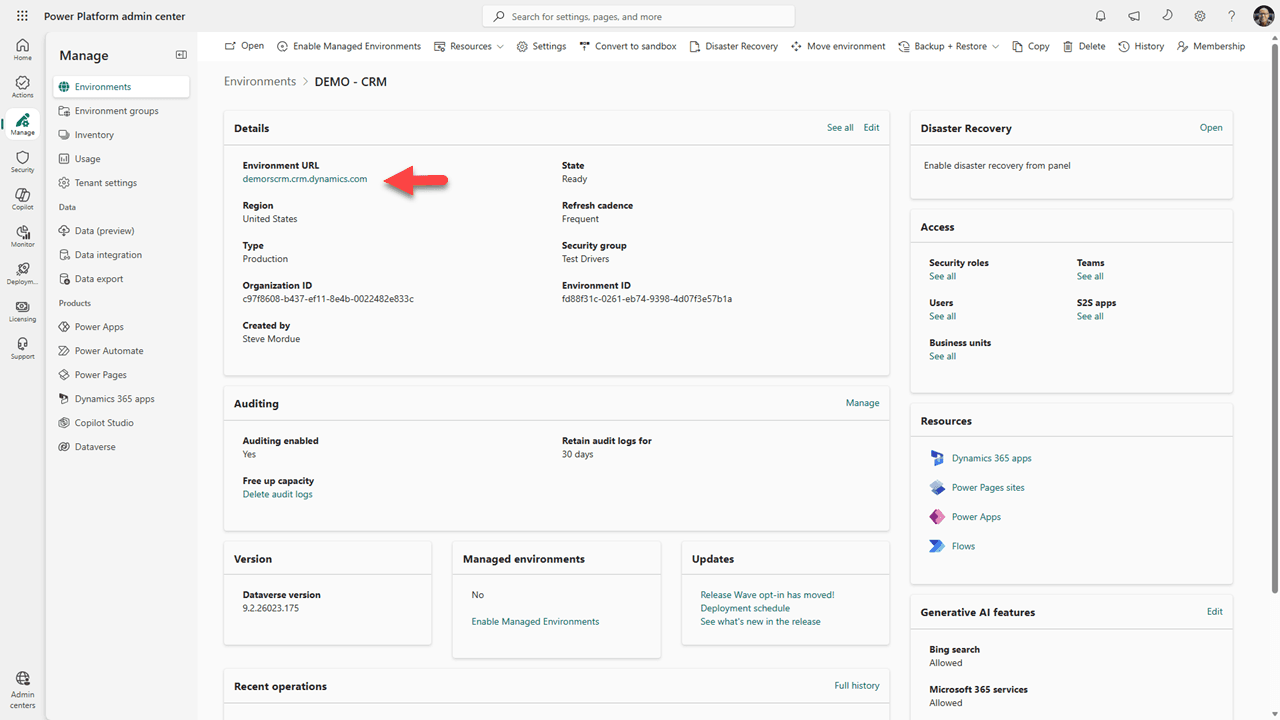
Save this direct application URL to share with your users and recommend they bookmark it in their browsers.
🎉 Installation Complete!
Your RapidStart app is now installed and ready to use.