Registration Failure
How to resolve a registration failure caused by an environment name mismatch.
Sorry for the inconvenience!
The most common reason for registration failure is an environment name mismatch. This can happen if you entered your environment name incorrectly, or if you changed your environment name after installing RapidStart.
If you mistyped it, re-register taking care to enter the exact environment name.
If you changed your environment name after installing RapidStart
Please follow these steps to reinitiate our system.
Replace name.crm below with the information from your environment and paste this entire link in your browser:
https://name.crm.dynamics.com/main.aspx?pagetype=AdvancedFind
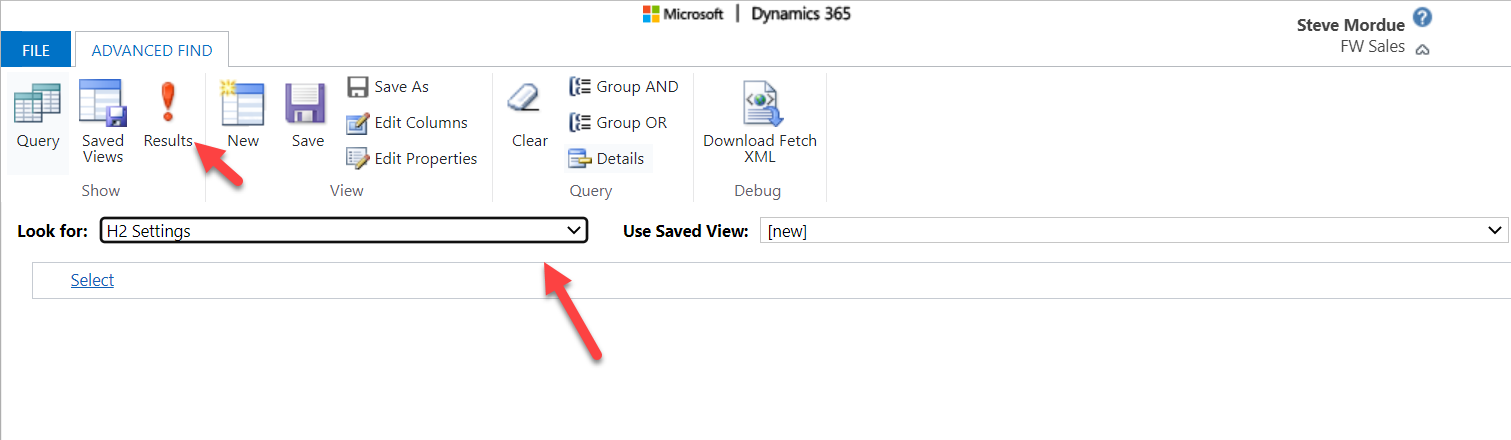
On the page that opens, in the “Look for” box, select “H2 Settings” and click “Results”.
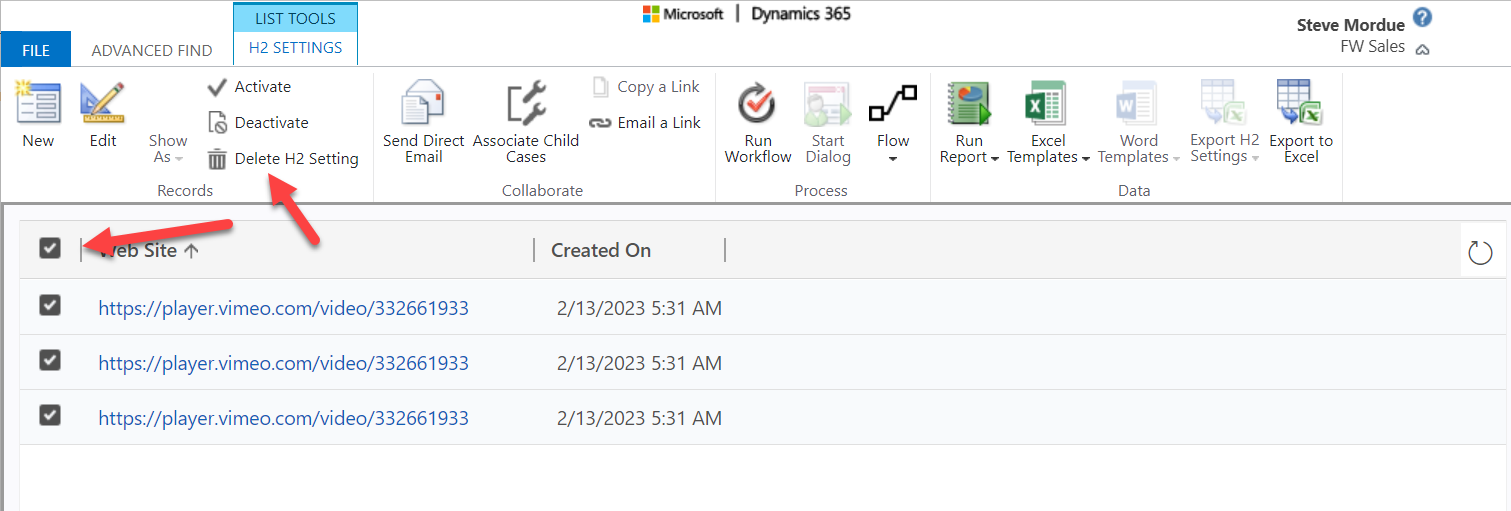
Select All items (there may only be one) and click “Delete H2 Setting”, and Log out.
Re-open the RapidStart App. After using it for a bit, you will see the Register message appear again, as our system has recognized this as a new environment.
Re-register after you see the message.
Note: If you change the environment name again, you will need to repeat this process.