Field Service SMS Alerts Enablement
How to enable SMS text message alerts in RapidStart Field Service using the Microsoft Power Automate Twilio connector.
Prerequisites
By default, RapidStart Field Service can send email alerts with the built-in capabilities of the Power Platform. In order to make the SMS option available so you can send text alerts, you will need to follow these steps.
First, you will need to create an account at Twilio. You will need to create a phone number on Twilio that is enabled for SMS. Instructions for doing this are on the Twilio website.
Once you have created a number and tested its SMS functionality in Twilio, you will need three pieces of information from Twilio: the phone number, of course, but also your Twilio Account ID and an Access token that you create in Twilio.
With this information available, click here to download the RapidStart Field Service SMS Addon solution and save it to your computer somewhere handy.
Step 1. Solution Installation
Start by going to the Power Apps Studio at https://make.powerapps.com/.
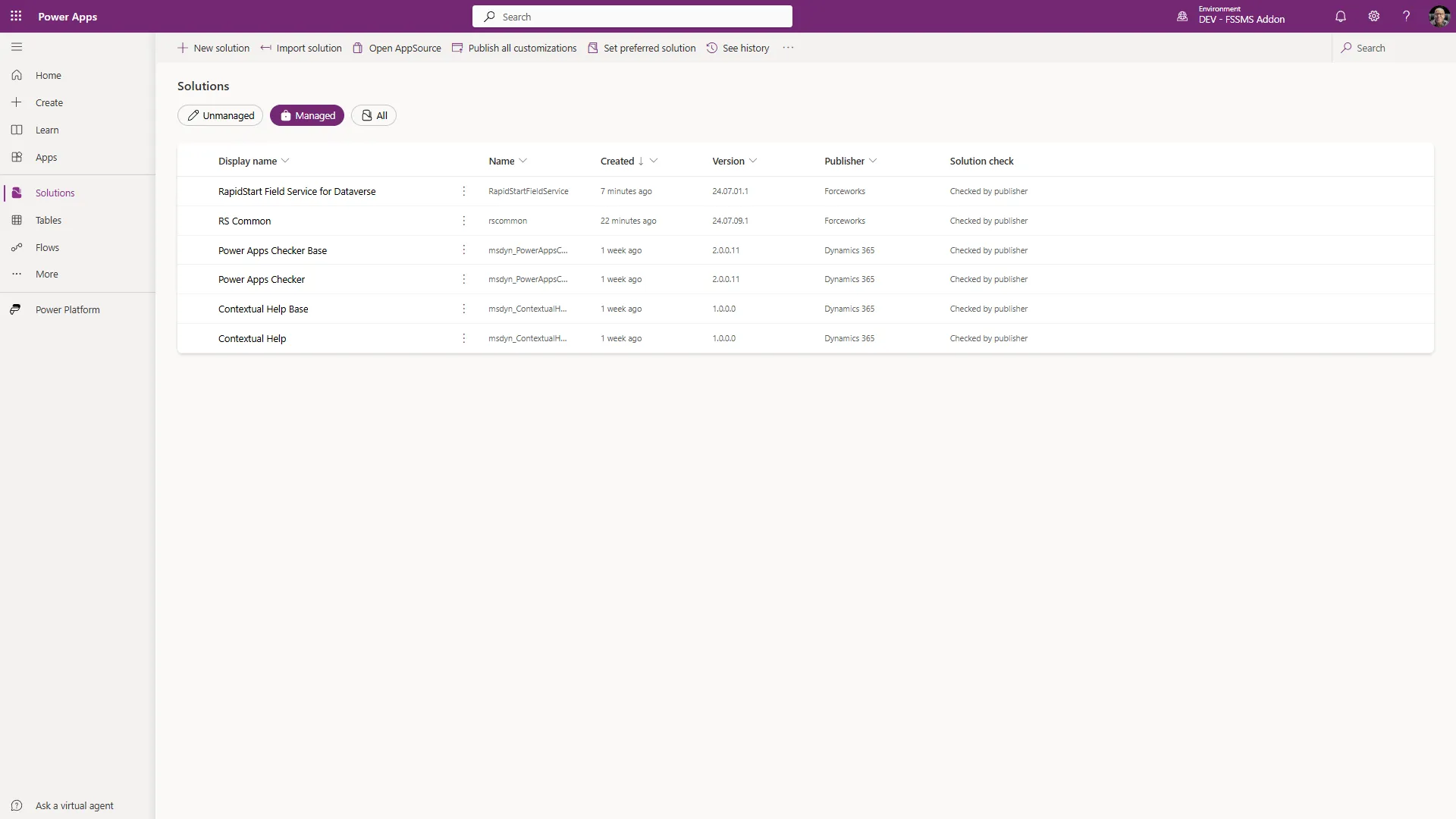
Confirm that you are in the desired environment, and that RapidStart Field Service is already installed. Select “Import Solution” in the top navigation. Select the file you saved earlier, and click “Next”, then “Next” again.
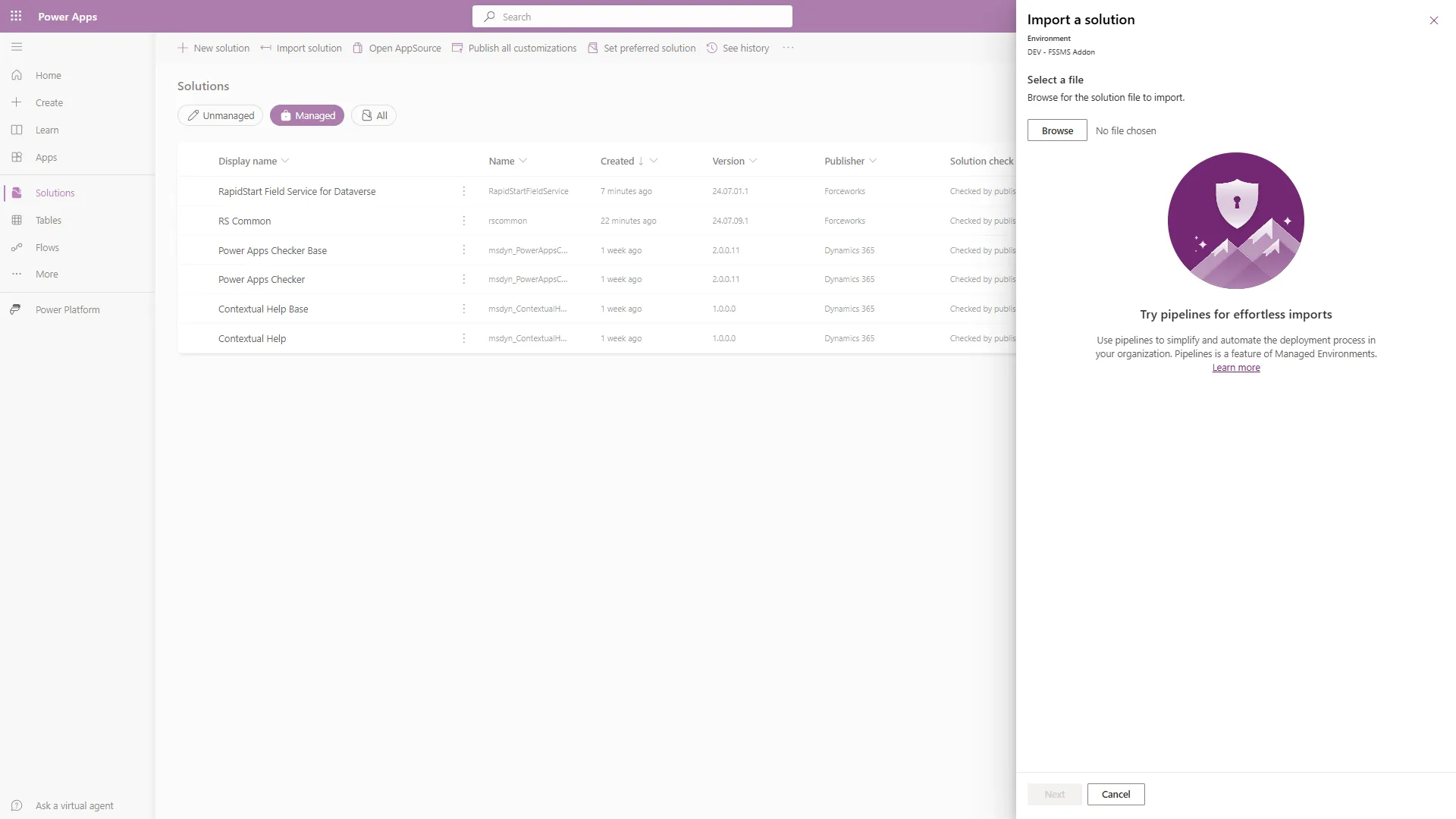
Step 2. Connection to Twilio
Since our solution contains a Power Automate flow that requires the Twilio connector, you will be presented with this screen:
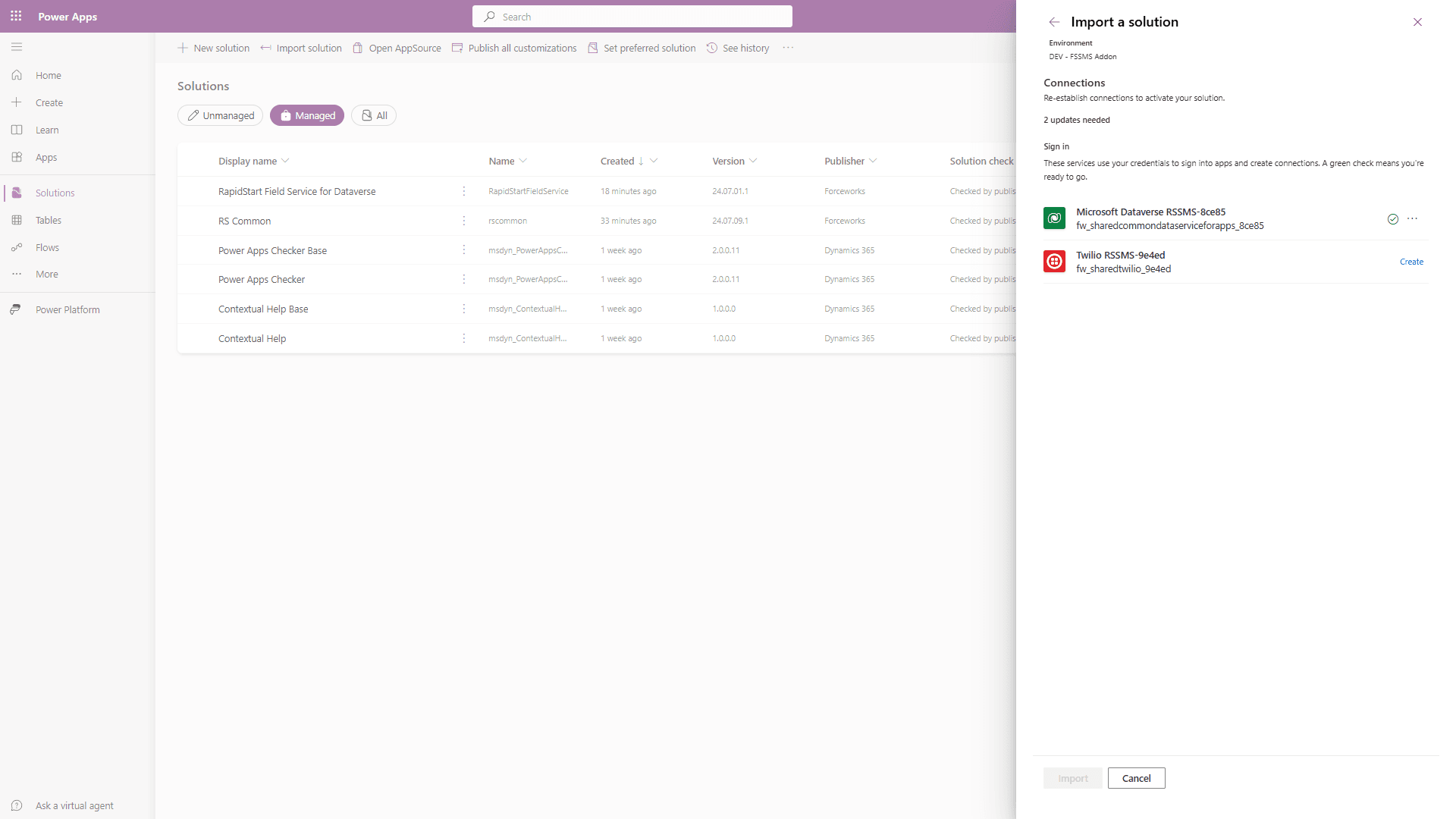
Select “Create” next to the Twilio connection.
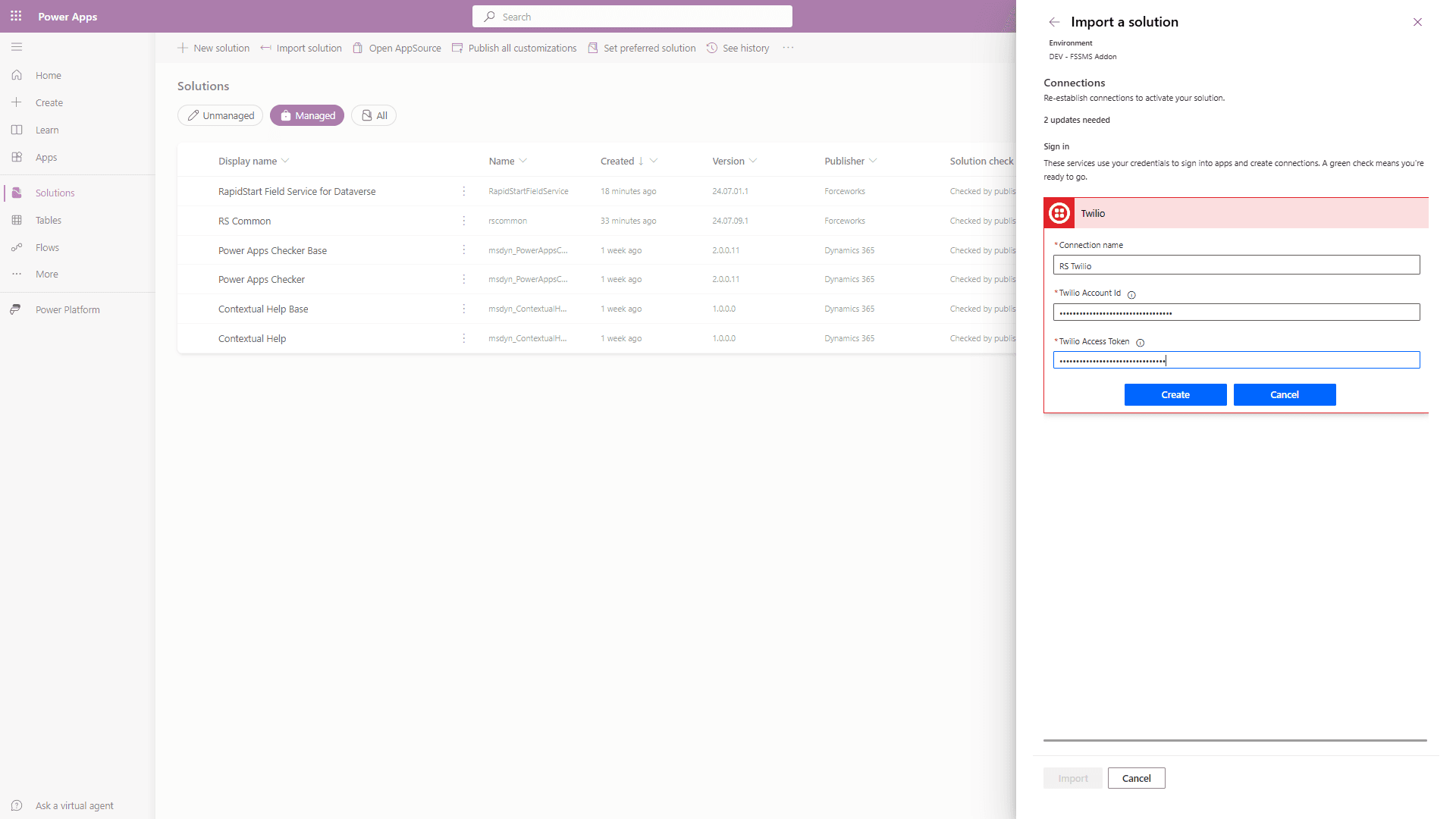
The Connection name can be whatever you like. Add your Twilio ID and Access Token in the provided boxes, and click “Create.”
This will create a connection to your Twilio account.
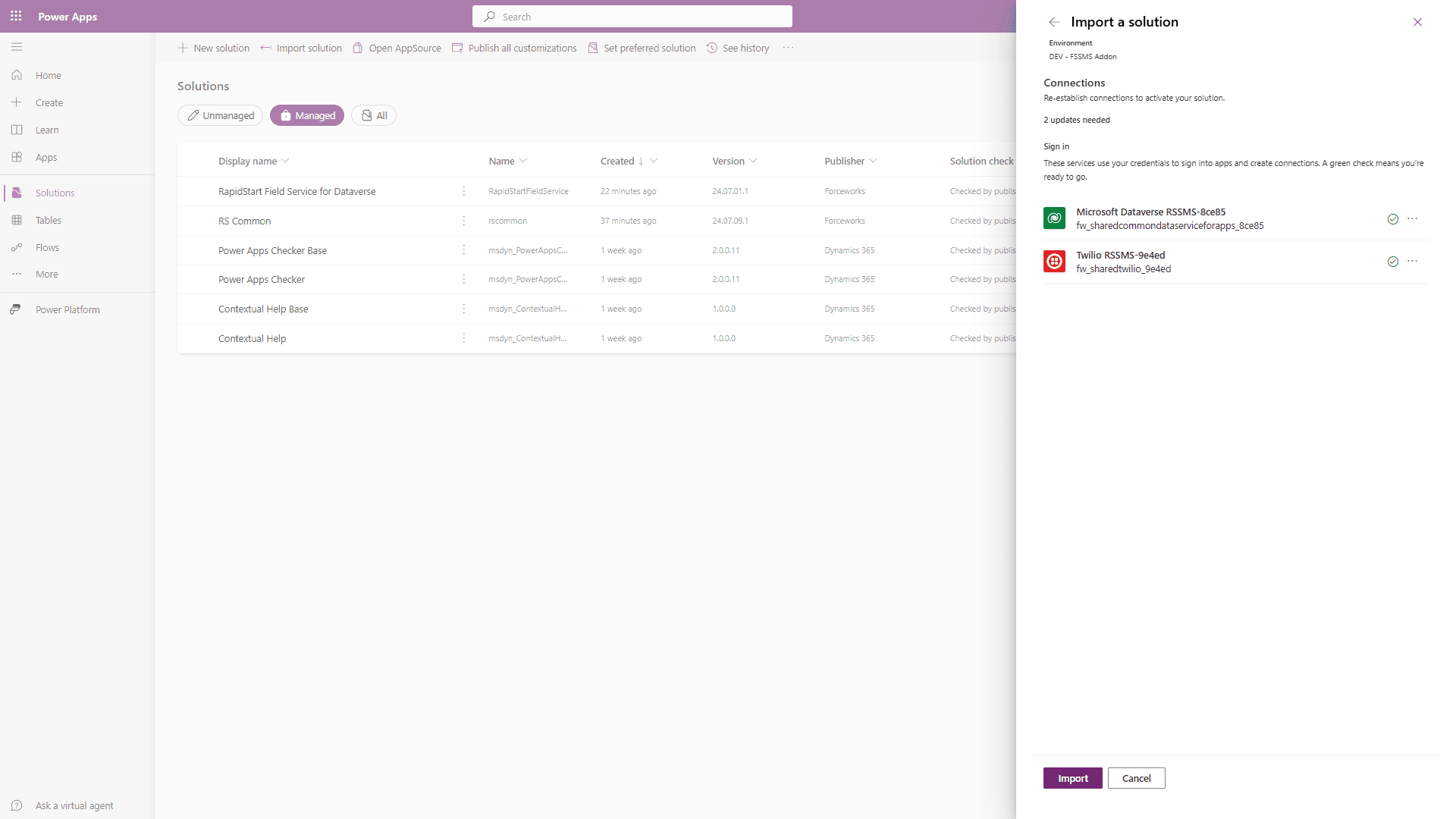
You should see a green check. Click “Import” and the Solution installation will continue.
Step 3. Create Message Templates
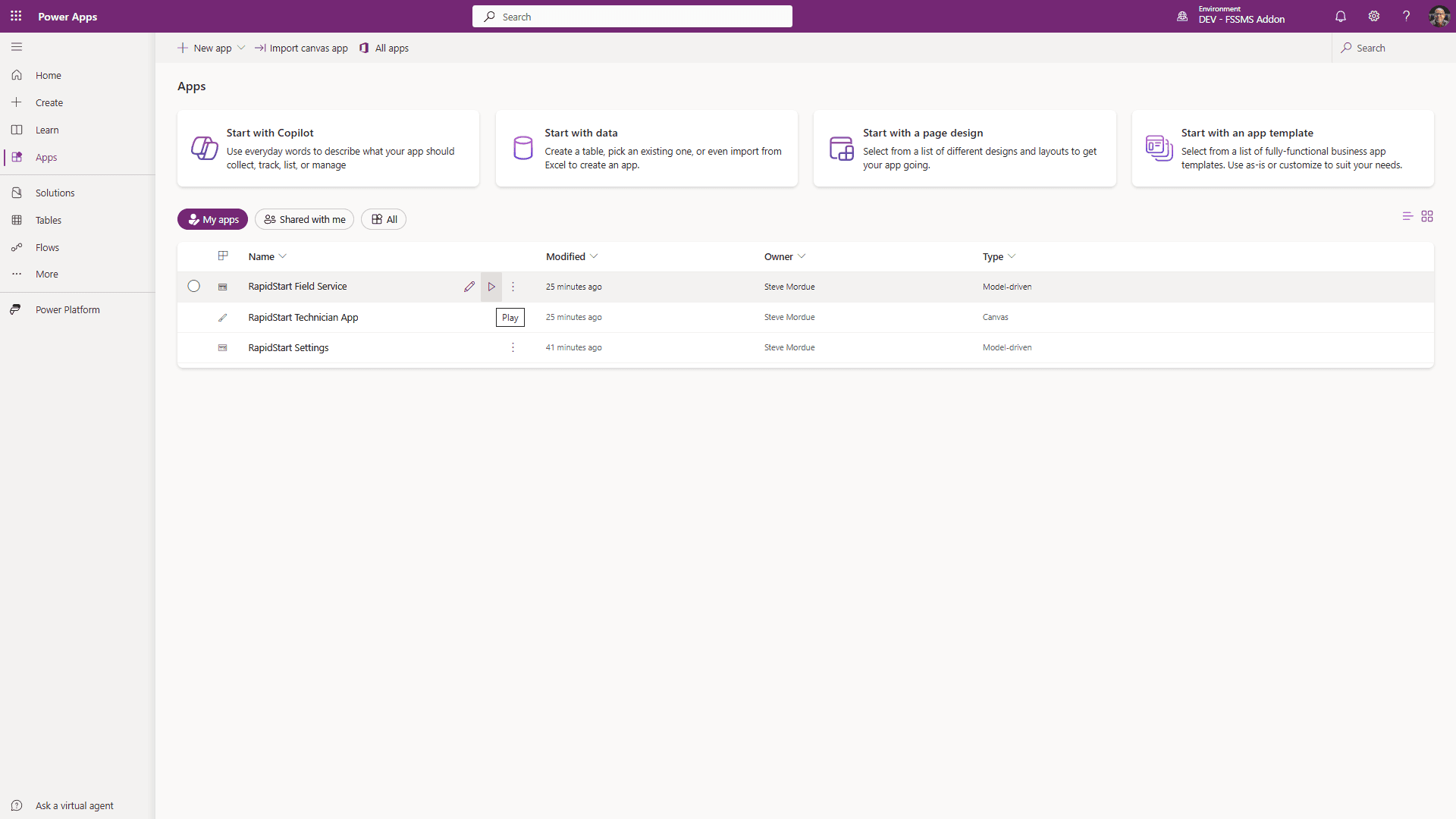
Select Apps in the sidebar and click Play to open the RapidStart Field Service app.
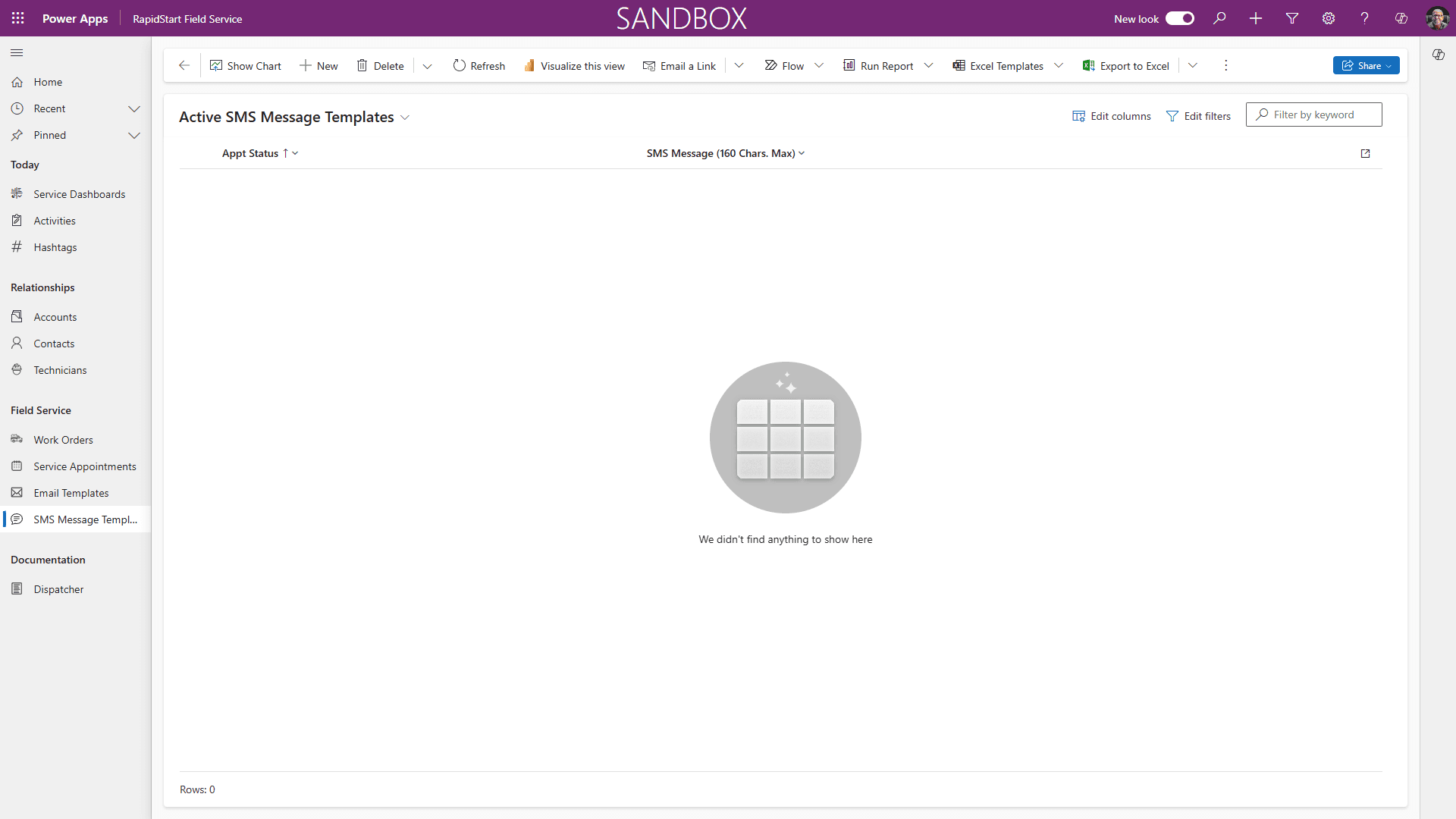
In the app sidebar you will see a new item: SMS Message Templates. Click that to open the screen below.
Click “+ New” in the top navigation.
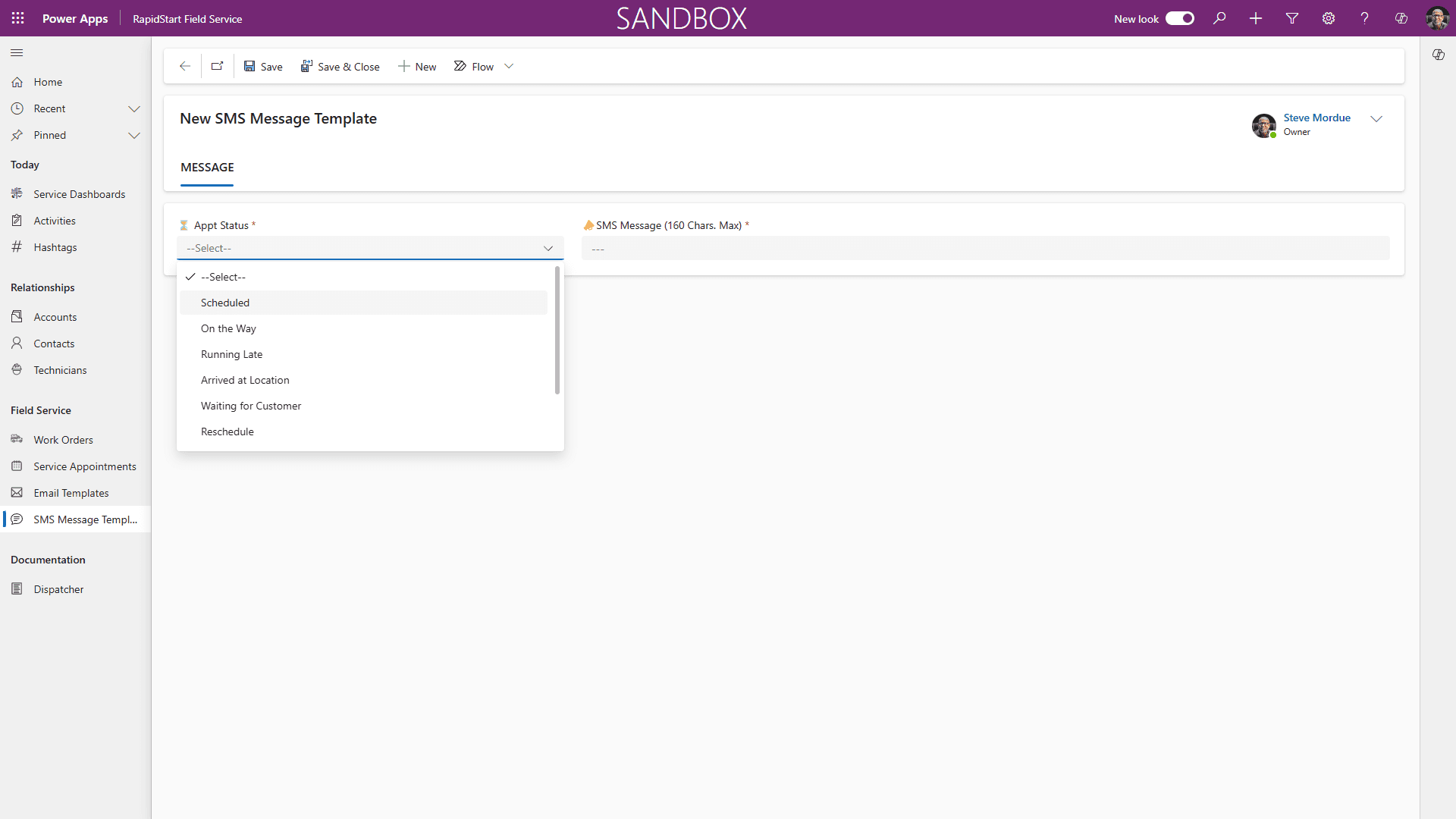
Select an Event from the Appointment Status dropdown. For example “On the Way”.
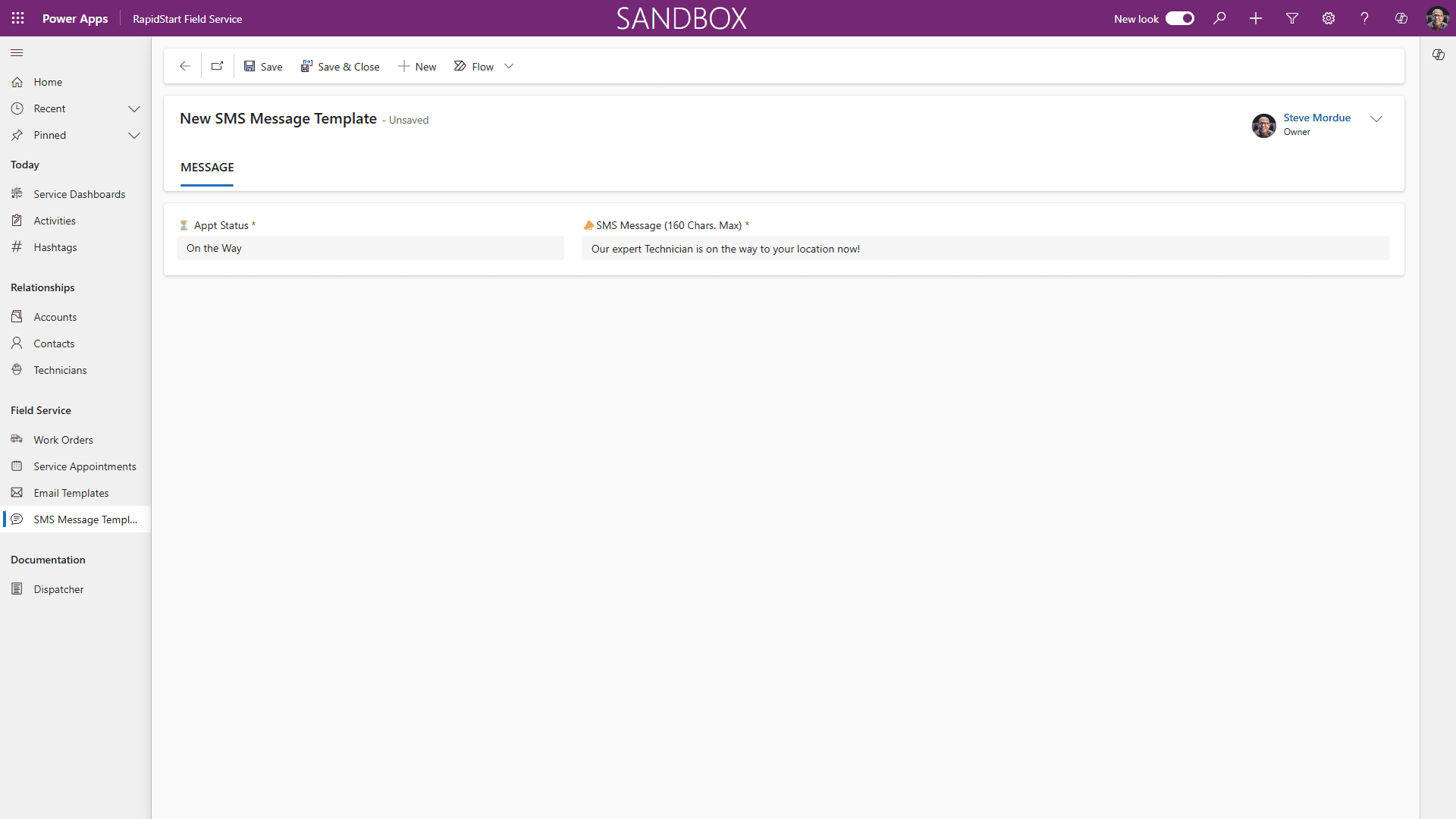
Type the message (160 characters max.) that you want to be sent to the customer for the event, then “Save and Close”. Repeat this for each event.
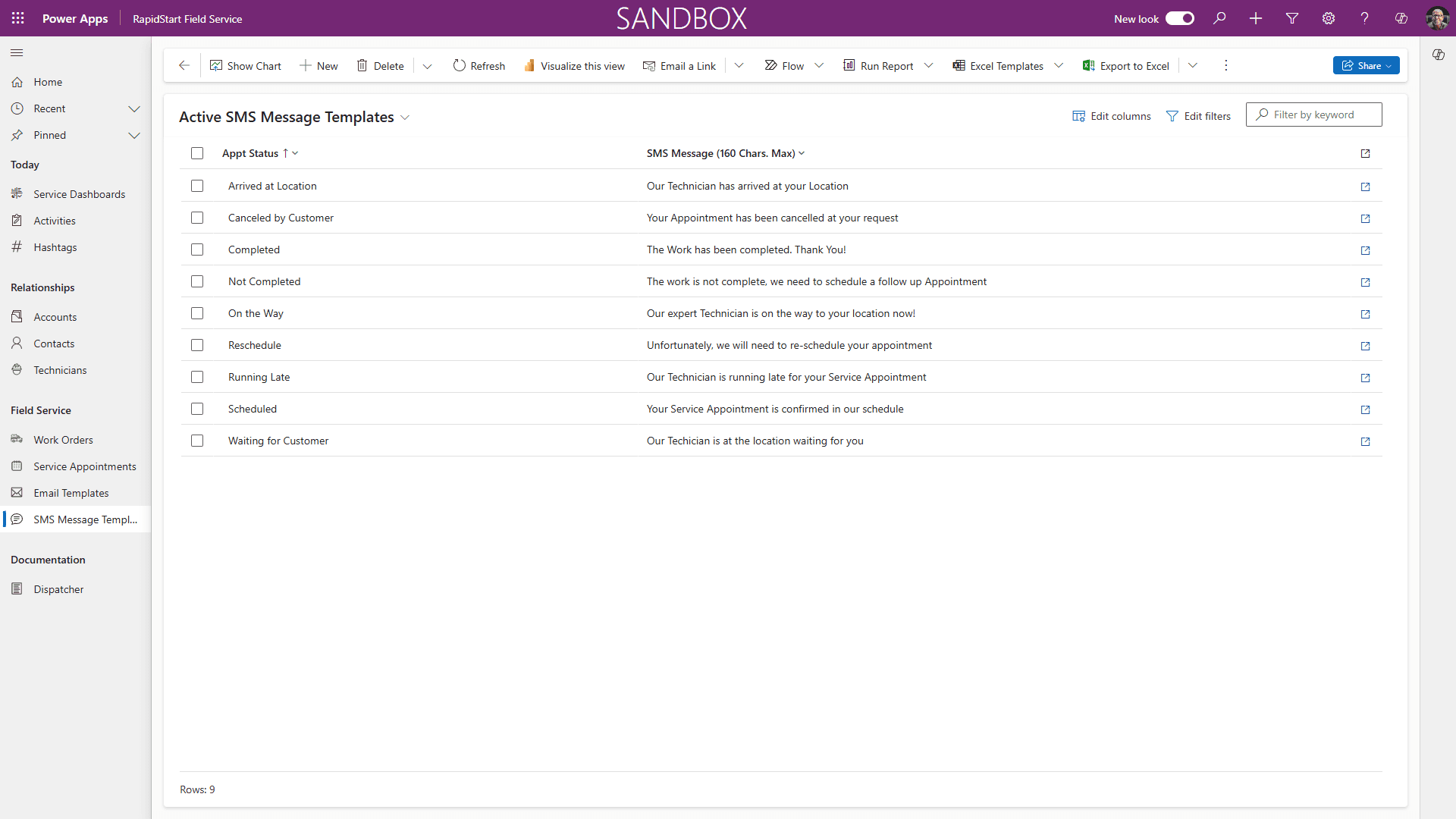
When your screen looks similar to the above, you are all done.
Your users may need to log out and back in to see the updates.
Now when you select either “SMS” or “Both” from the Alert Method field on the Work order, your customer will receive text message alerts.
Note
Twilio requires a full phone number, including the country code (+1 8888888888). Make sure all of your Customers' mobile numbers on their contact records comply.