RapidStart CRM in Microsoft Teams
How to add RapidStart CRM as a tab inside Microsoft Teams so your team can access CRM data without leaving Teams.
Overview
You can pin RapidStart CRM directly inside a Microsoft Teams channel as a tab. This allows your team to access CRM data without switching applications.
Step 1: Open the Channel
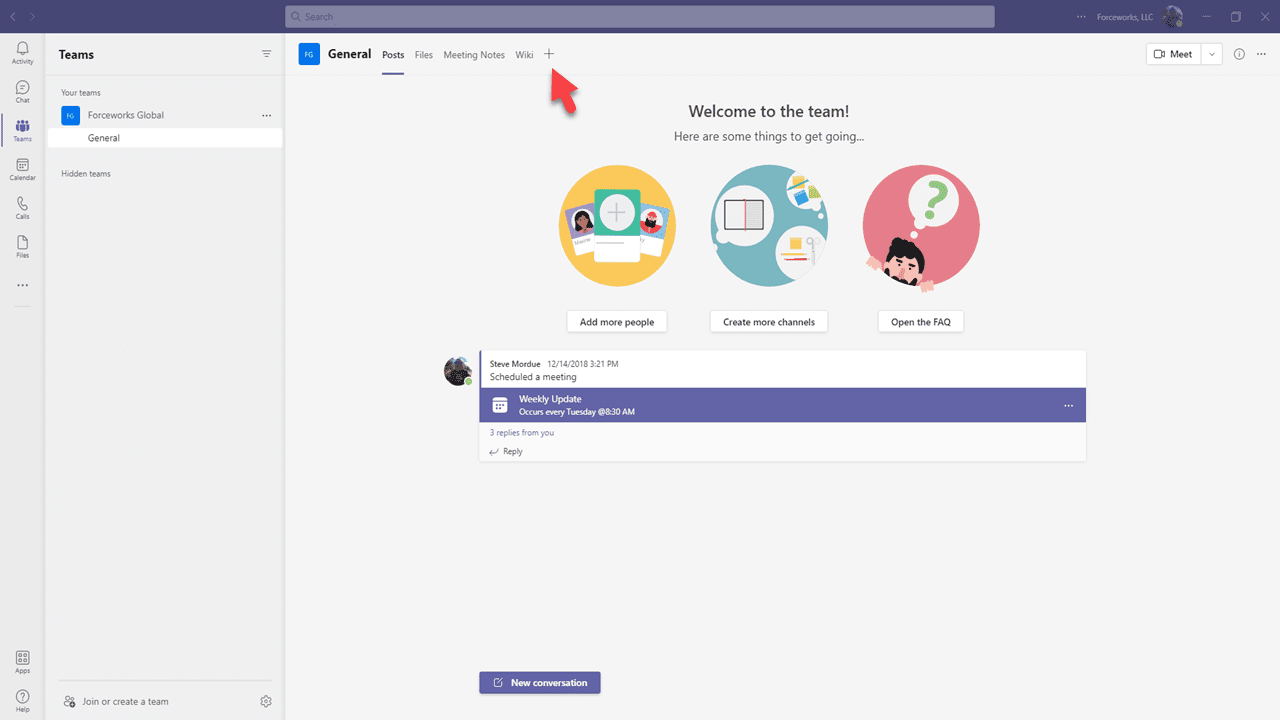
In Microsoft Teams, navigate to the channel where you want to add RapidStart CRM. Click the + icon next to the existing tabs at the top of the channel.
Step 2: Search for Power Apps
In the tab search dialog, search for Power Apps and select it.
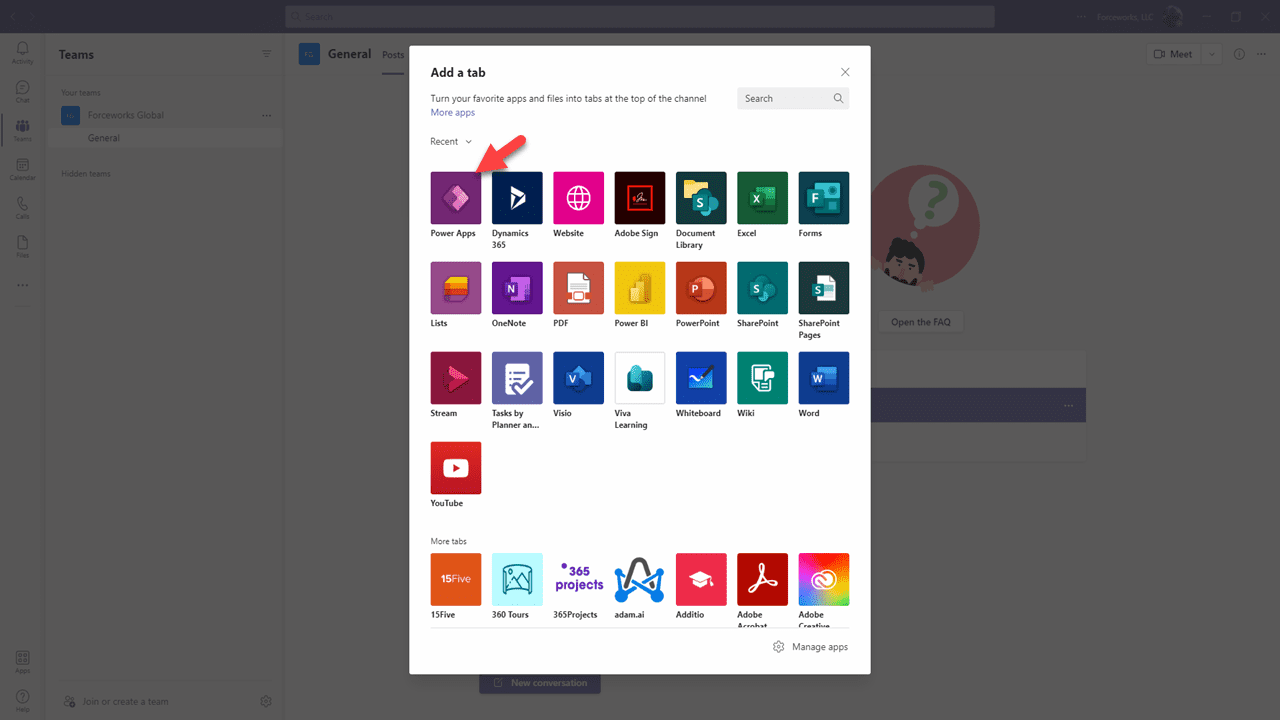
- Type Power Apps in the search box.
- Click the Power Apps result.
- Click Add to add the Power Apps connector.
Step 3: Select RapidStart CRM
After adding the Power Apps connector, you will be prompted to select which app to display.
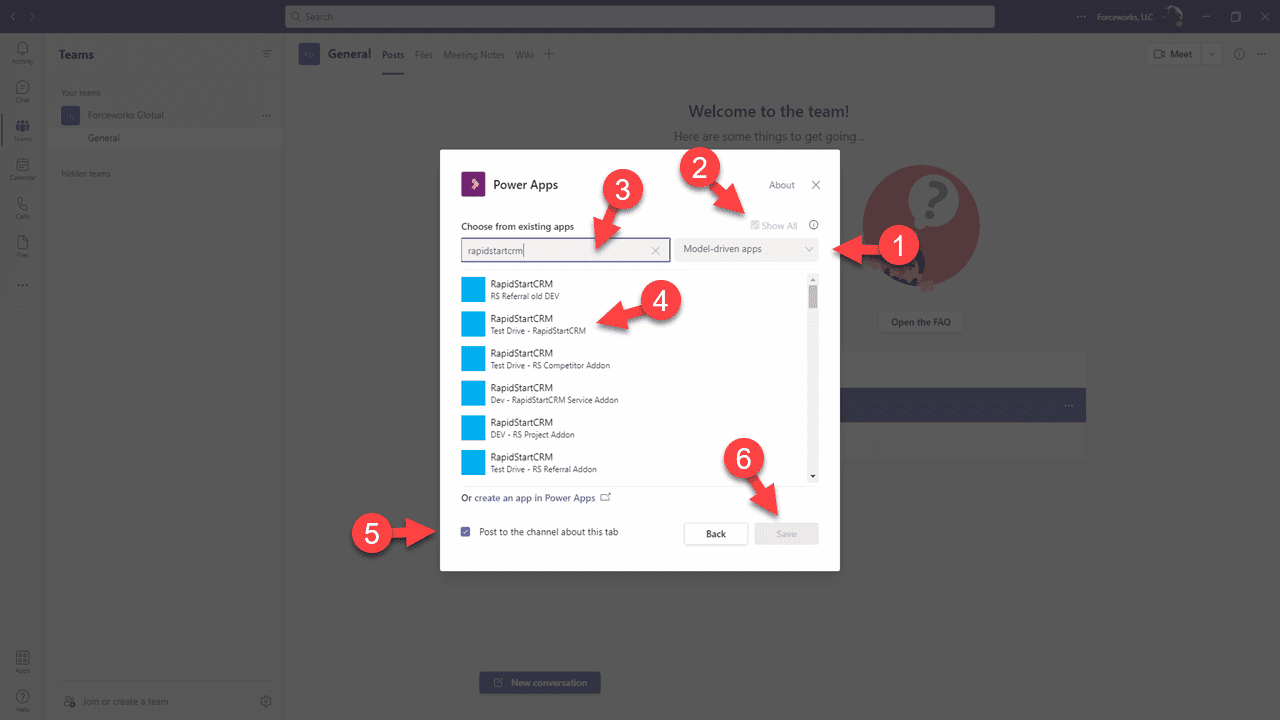
- Select RapidStart CRM (or whichever RapidStart app you use) from the list.
- Click Save.
Step 4: Use RapidStart CRM in Teams
RapidStart CRM will now appear as a tab in your Teams channel. Your team can access it directly from Teams.
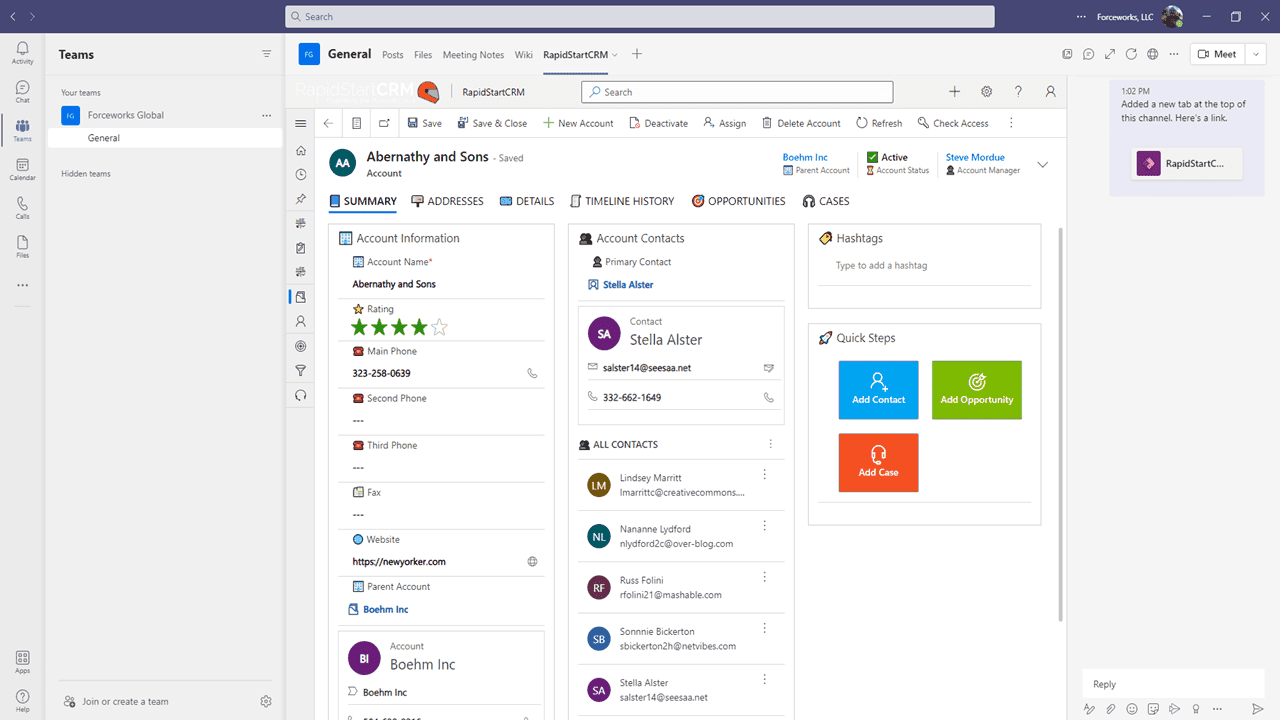
✅ Success
RapidStart CRM is now available as a tab in your Microsoft Teams channel. All team members with access to the channel and the appropriate RapidStart security roles can use it.