Import Your Data into RapidStart
A step-by-step guide to importing your existing data into RapidStart — get your data, clean it, import it, fix errors, and update existing records.
Overview
Importing data is one of the first things most customers want to do after installing a RapidStart App. The good news is that the Power Platform has a built-in data import tool that makes this straightforward.
Step 1: Get Your Data
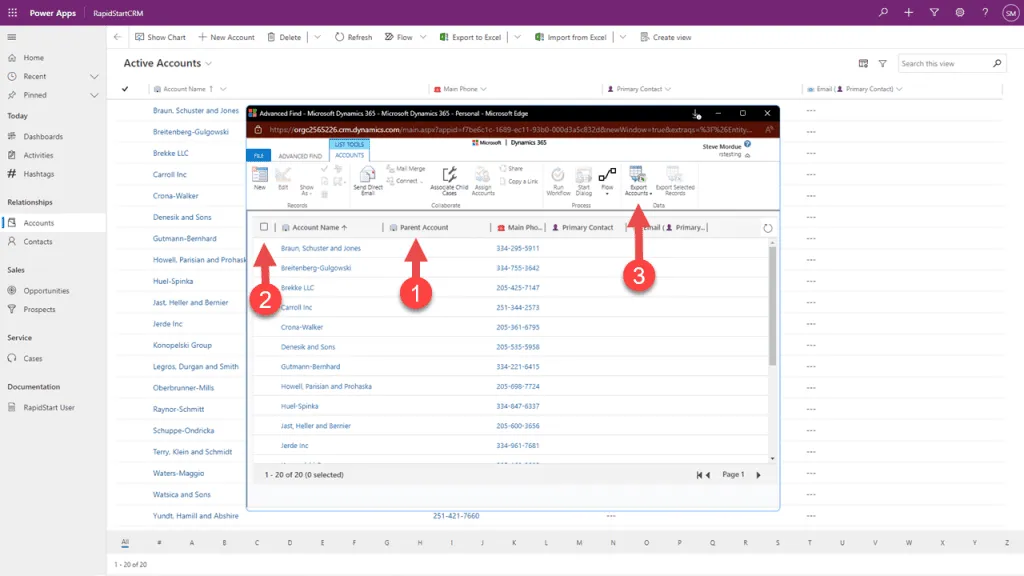
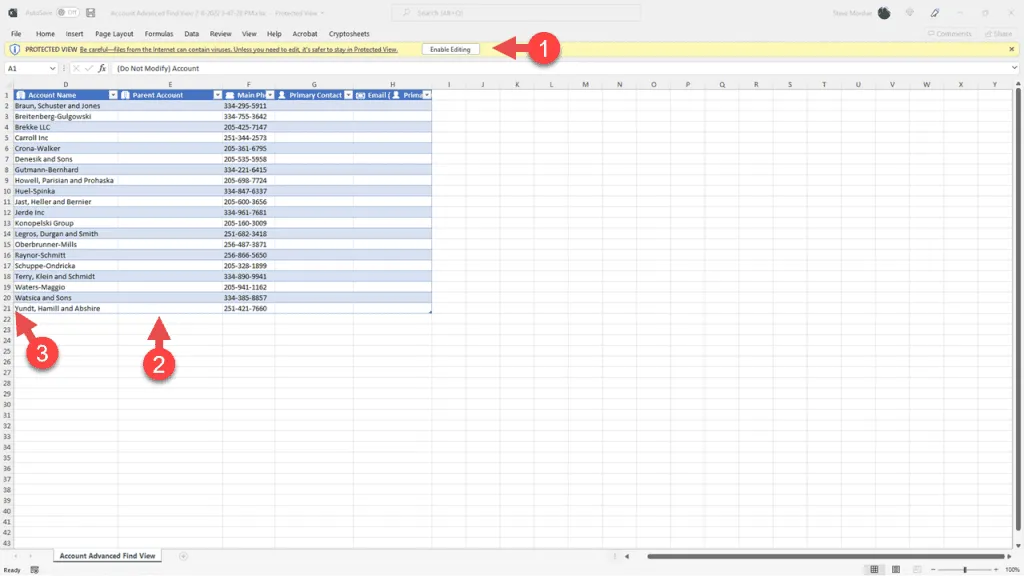
Export your existing data from your current system into a CSV or Excel file. Each table (Accounts, Contacts, etc.) should be in a separate file.
- Export each entity (Accounts, Contacts, Leads, etc.) as a separate CSV file.
- Make sure the first row contains column headers.
- Remove any columns you don't need.
Step 2: Clean Your Data
Before importing, clean your data to avoid errors:
- Remove duplicate records.
- Standardize phone number formats.
- Ensure email addresses are valid.
- Check that required fields are populated.
- Make sure option set values match the values in RapidStart CRM.
Step 3: Import Accounts First
Always import Accounts before Contacts, since Contacts are linked to Accounts.
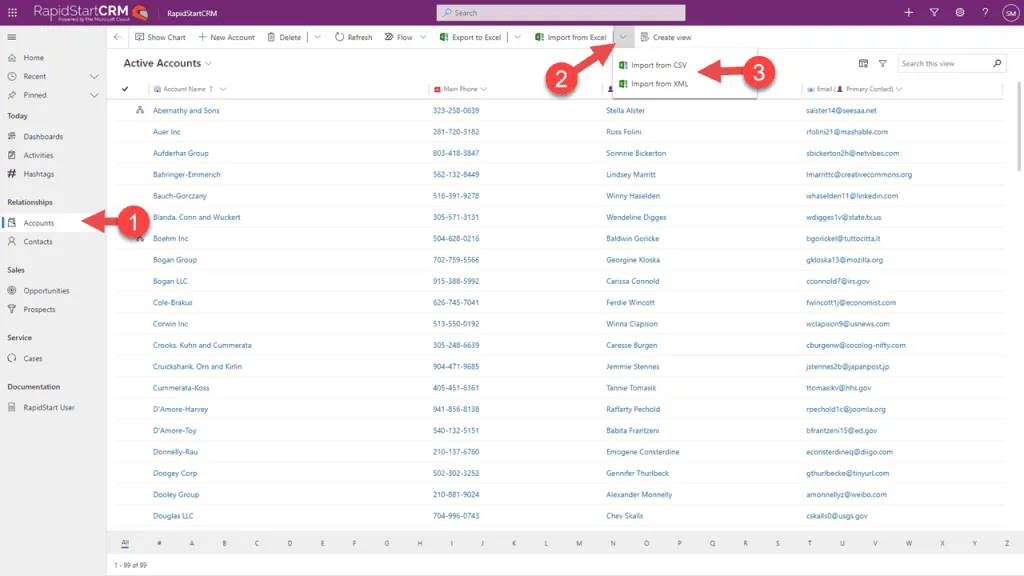
- In RapidStart CRM, go to Settings → Data Management → Imports.
- Click Import Data in the top navigation.
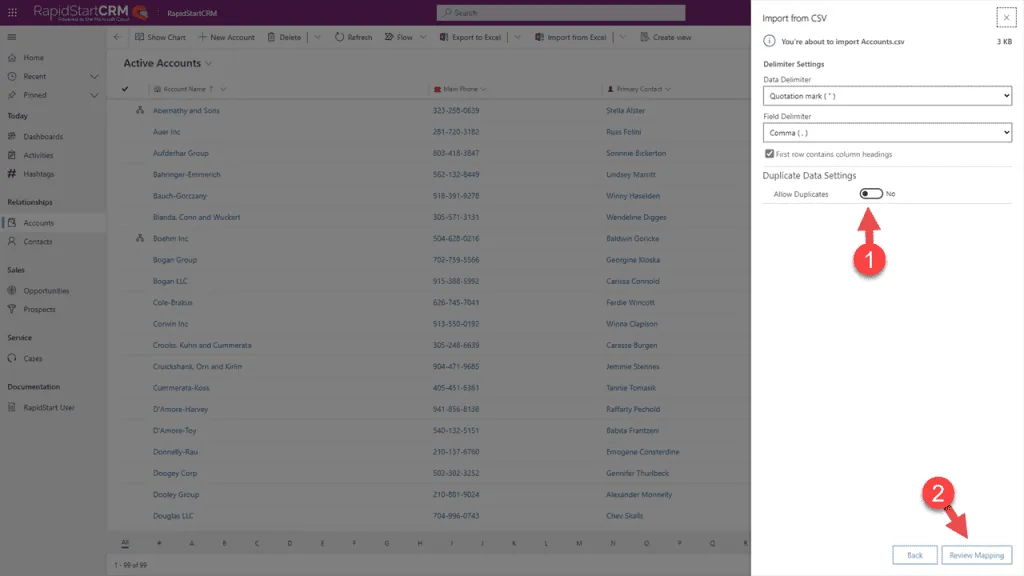
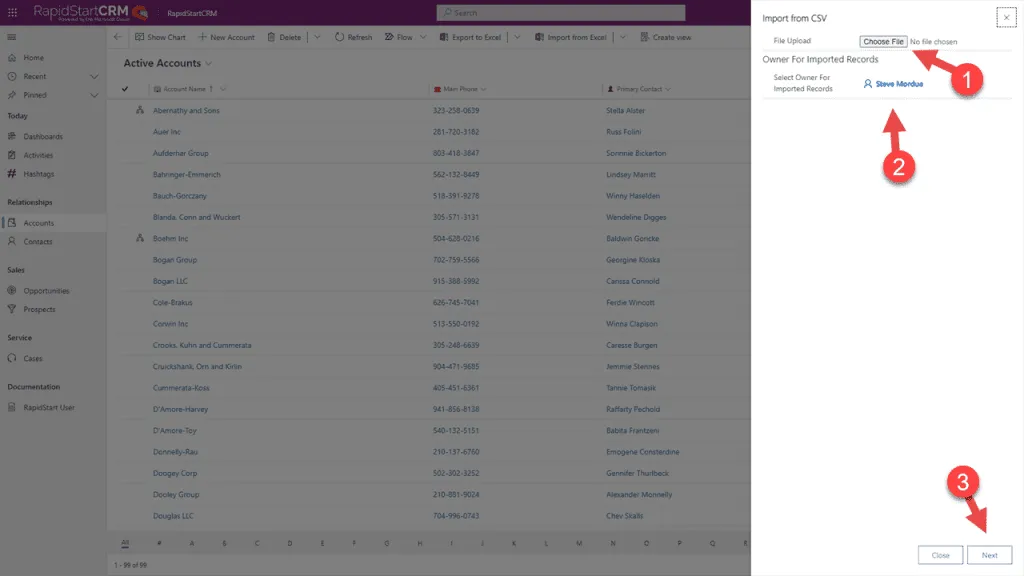
- Click Choose File and select your Accounts CSV file.
- Click Next.
Step 4: Map Your Columns
The import wizard will ask you to map your CSV columns to the corresponding fields in RapidStart CRM.
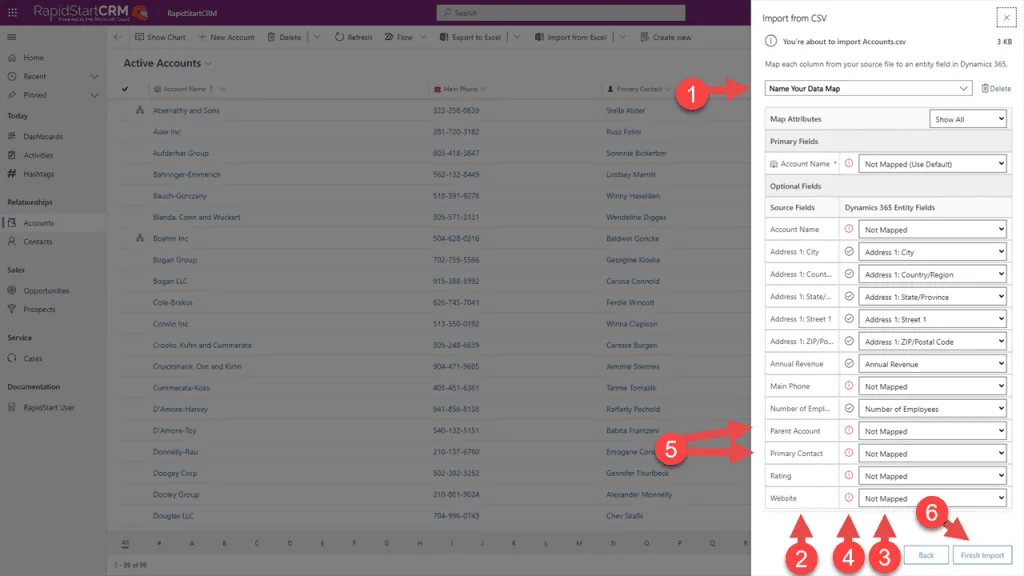
- For each column in your CSV, select the corresponding field in RapidStart CRM.
- If a column doesn't map to any field, you can ignore it.
- Click Next when all columns are mapped.
- Review the mapping summary.
- Click Submit to start the import.
Step 5: Monitor the Import
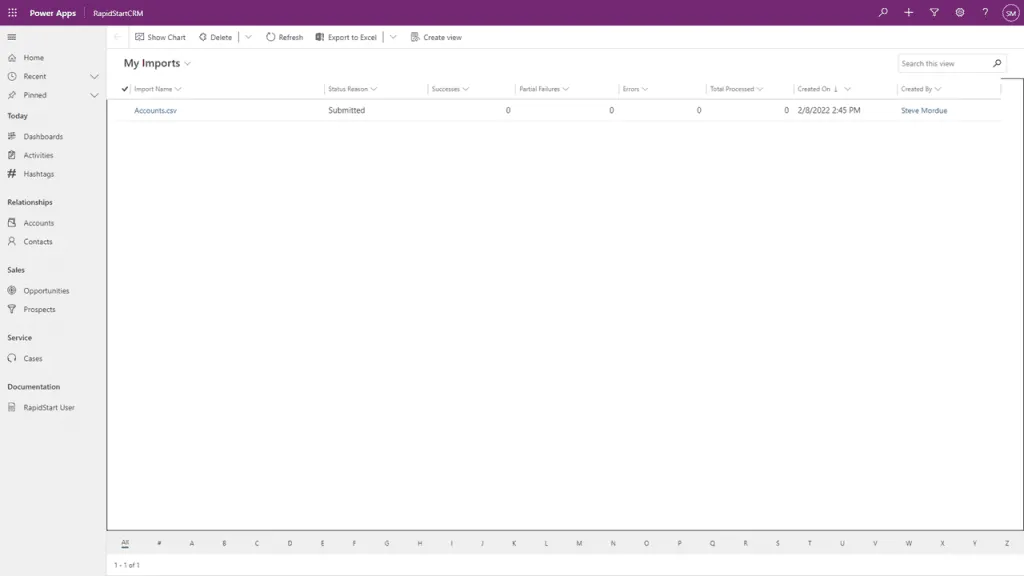
- The import will run in the background.
- Refresh the page periodically to check the status.
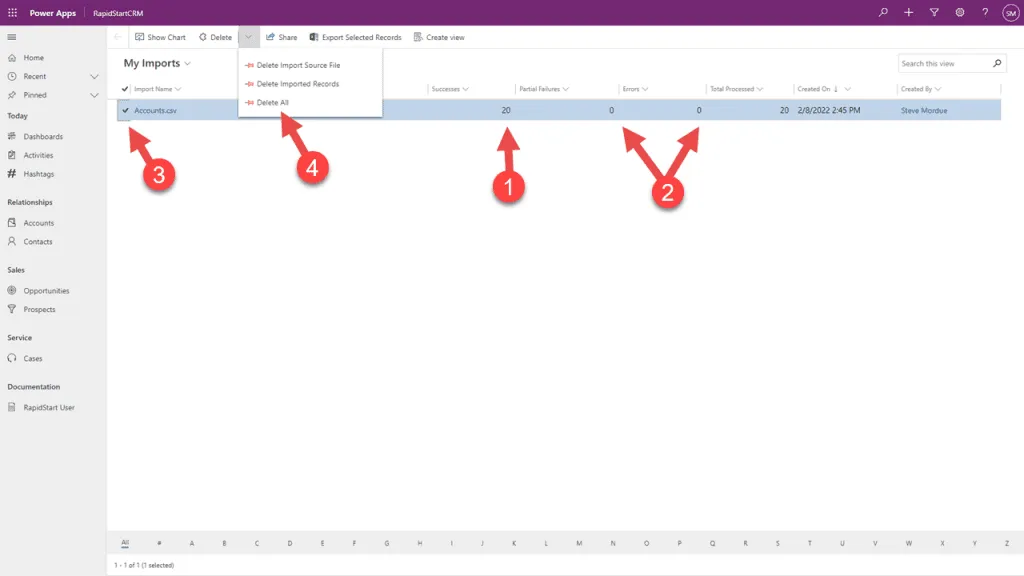
- When complete, you will see the number of records imported and any errors.
Step 6: Fix Import Errors
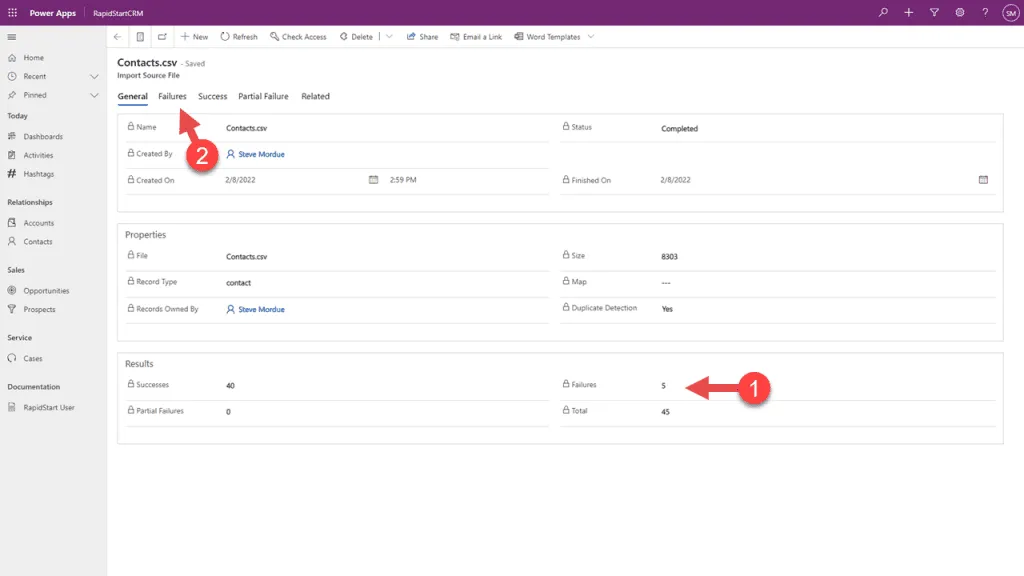
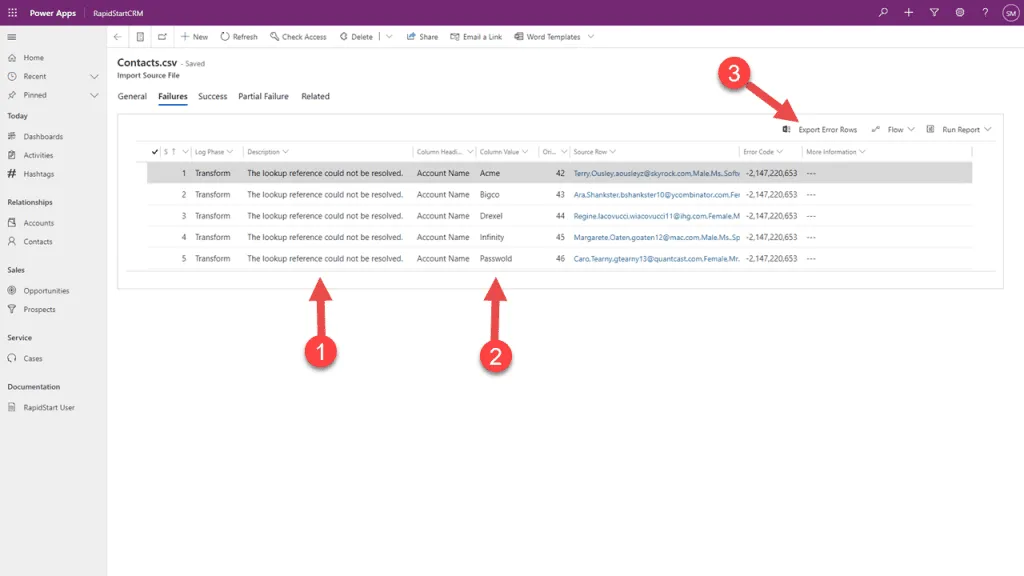
If there are errors, you can download the error file to see which records failed and why.
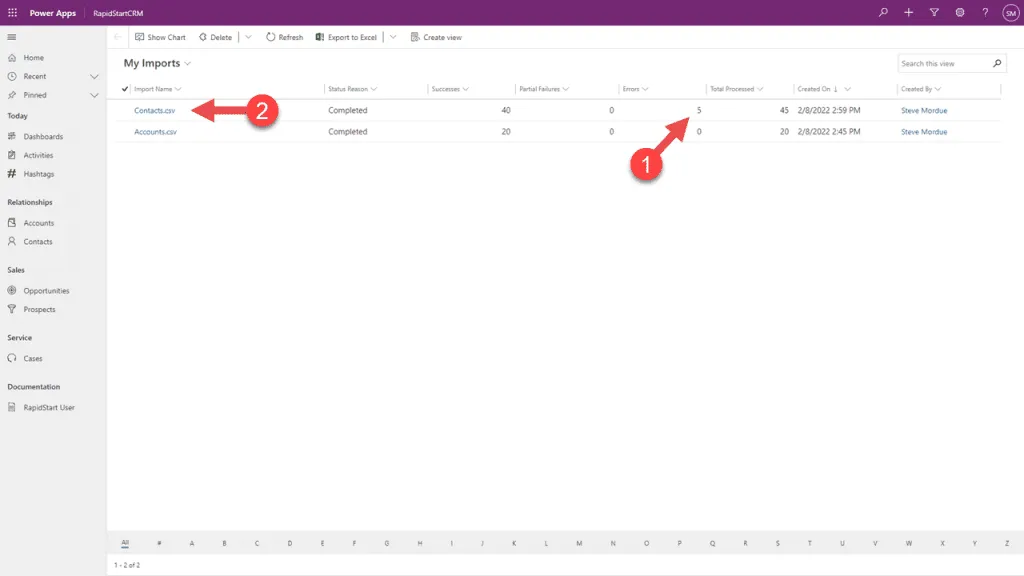
- Click Download Error File to get a CSV of failed records.
- Fix the errors in the CSV file.
- Re-import the corrected file.
Step 7: Import Contacts
After Accounts are imported, import your Contacts. The process is the same, but you will need to map the Account Name column to link contacts to their accounts.
- Follow the same steps as importing Accounts.
- When mapping columns, make sure to map the Account Name column to the Company Name field.
- This will link each contact to their account.
Step 8: Update Existing Records
If you need to update existing records (rather than create new ones), you can use the import tool with the Update option.
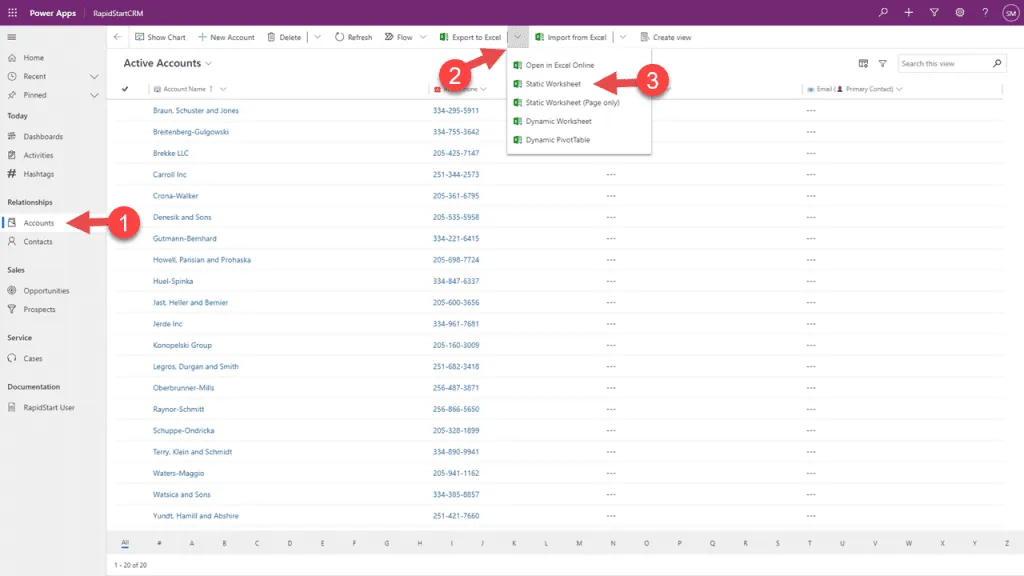
- Your CSV must include the Record ID column for the records you want to update.
- In the import wizard, select Update instead of Create.
- Map the Record ID column to the ID field.
- Complete the import as normal.
Additional Tips
- Import in small batches (500–1000 records) to make error fixing easier.
- Always test with a small sample file first.
- Back up your environment before a large import.
- Import during off-peak hours to avoid impacting users.