Business Central Addon for RapidStart CRM Setup
Steps to install, configure, and validate the Business Central Addon for RapidStart CRM. This addon uses both RapidStart cloud flows and Microsoft's native Business Central-Dataverse synchronization, so administrators should validate both sides before testing customer or quote scenarios.
⚠️ Partner Recommended
Due to the complexity, we suggest using one of our RapidStart Certified Partners for this. However, if your Business Central partner is also skilled in the Power Platform, they can perform these steps for you. We do not recommend that an end-user attempt this process.
High Level Steps
- Create or use an existing Dataverse enabled environment.
- Install RapidStart CRM from AppSource on the Dataverse enabled environment.
- Obtain the Business Central Company System ID.
- Configure the Integration from within Business Central.
- Verify the Business Central integration application user role
- Setup Record Mapping
- Link Environments (Optional)
- Install the Business Central Addon for RapidStart CRM from AppSource on the Dataverse enabled environment.
- Complete in RapidStart Settings app
We have already created a document that covers steps 1 & 2 here. Once those steps are complete, return here to continue with Step 3.
Make sure the Dataverse and BC environment types match: Production to Production, or Sandbox to Sandbox.
Before You Begin
Confirm these requirements before starting the Business Central Addon setup:
- Business Central and Dataverse must be in the same Microsoft Entra tenant for Business Central virtual tables.
- Use a human setup administrator with the required Business Central permissions and Dataverse System Administrator access during setup.
- Confirm RapidStart CRM is installed in the Dataverse environment you plan to connect.
Step 3: Obtain Company ID
To obtain your company ID, search Companies in Business Central. Select the target company and press Ctrl+Alt+F1 to open Page Inspection. Copy the ID shown and save it for later.
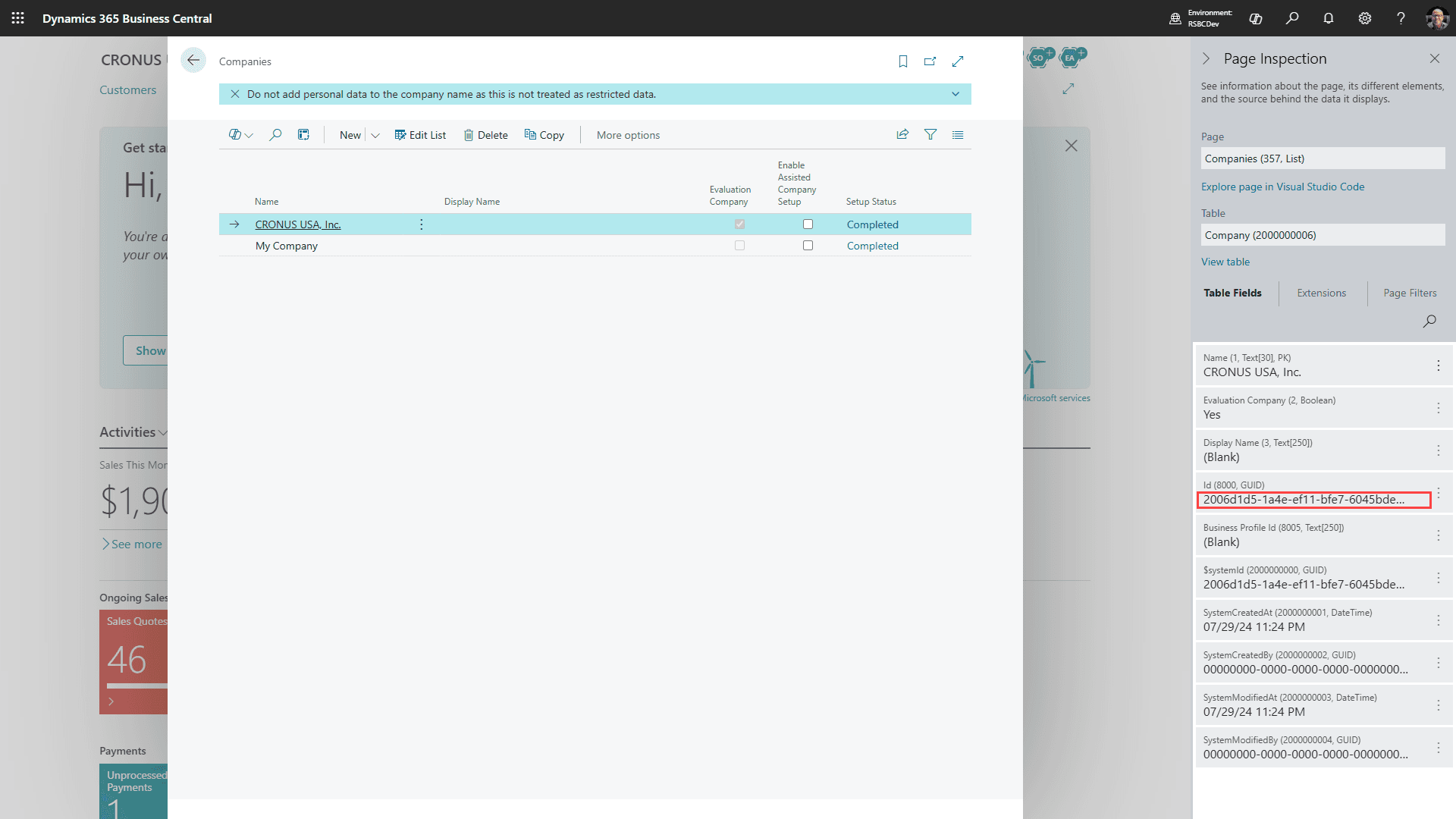
Use the Company System ID GUID
The company ID you need for the RapidStart environment variable is the Business Central Company System ID GUID. Do not use the editable company display name from the address bar. If you cannot open Page Inspection, ask your Business Central administrator or partner to provide the company ID.
Step 4: Configure the Integration from within Business Central
Log into the Business Central Environment that you want to connect to.
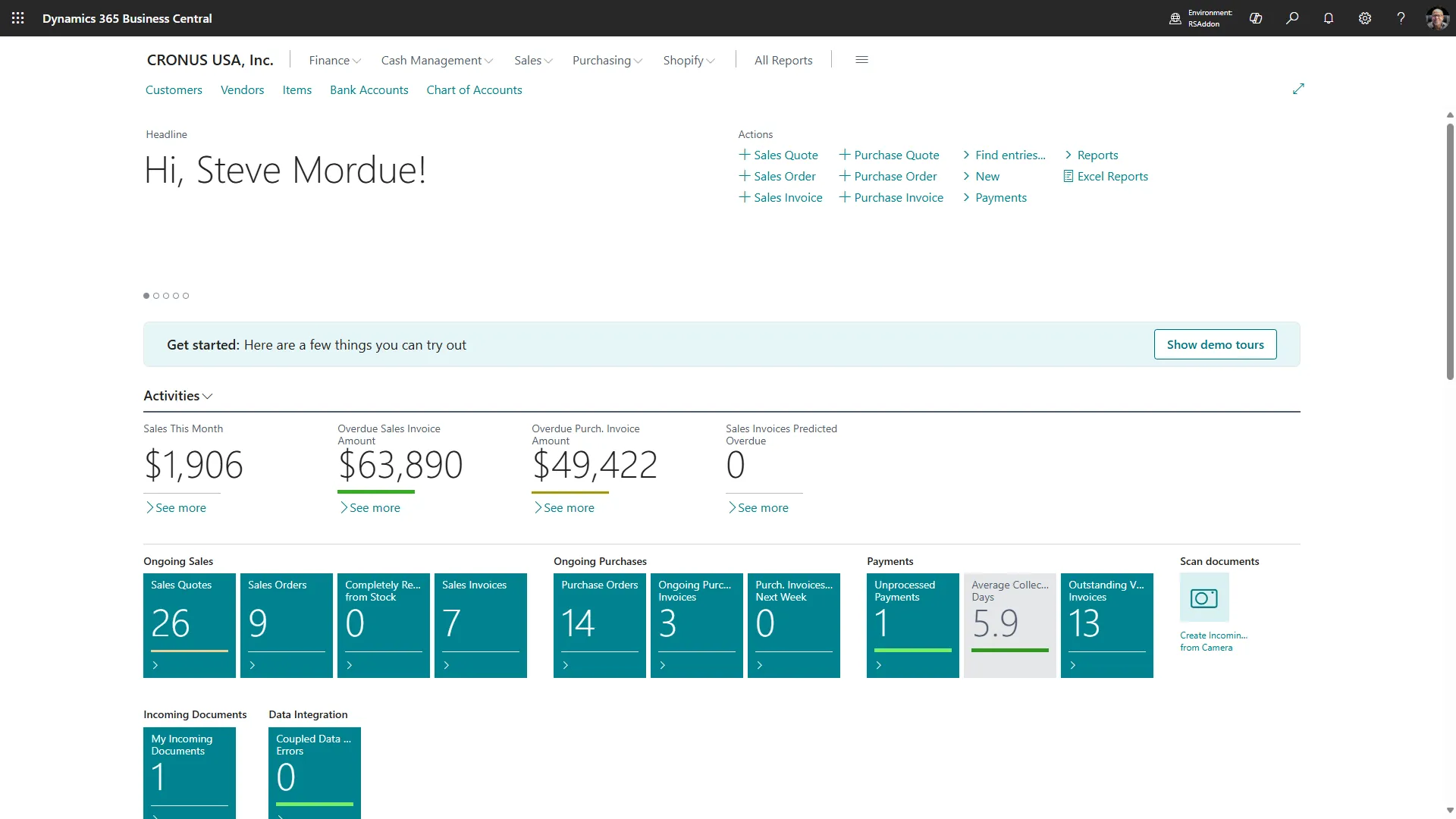
Take note of the Business Central environment name in the address bar. The URL may also show the company display name, but you already captured the Company System ID GUID in the previous step.

Copy the Business Central environment name to the same notes where you saved the Company System ID GUID.
Company ID already captured
Use the Company System ID GUID from Step 3 for BC Company System ID. The editable company display name is only a backward-compatible fallback for older deployments that do not contain a valid GUID.
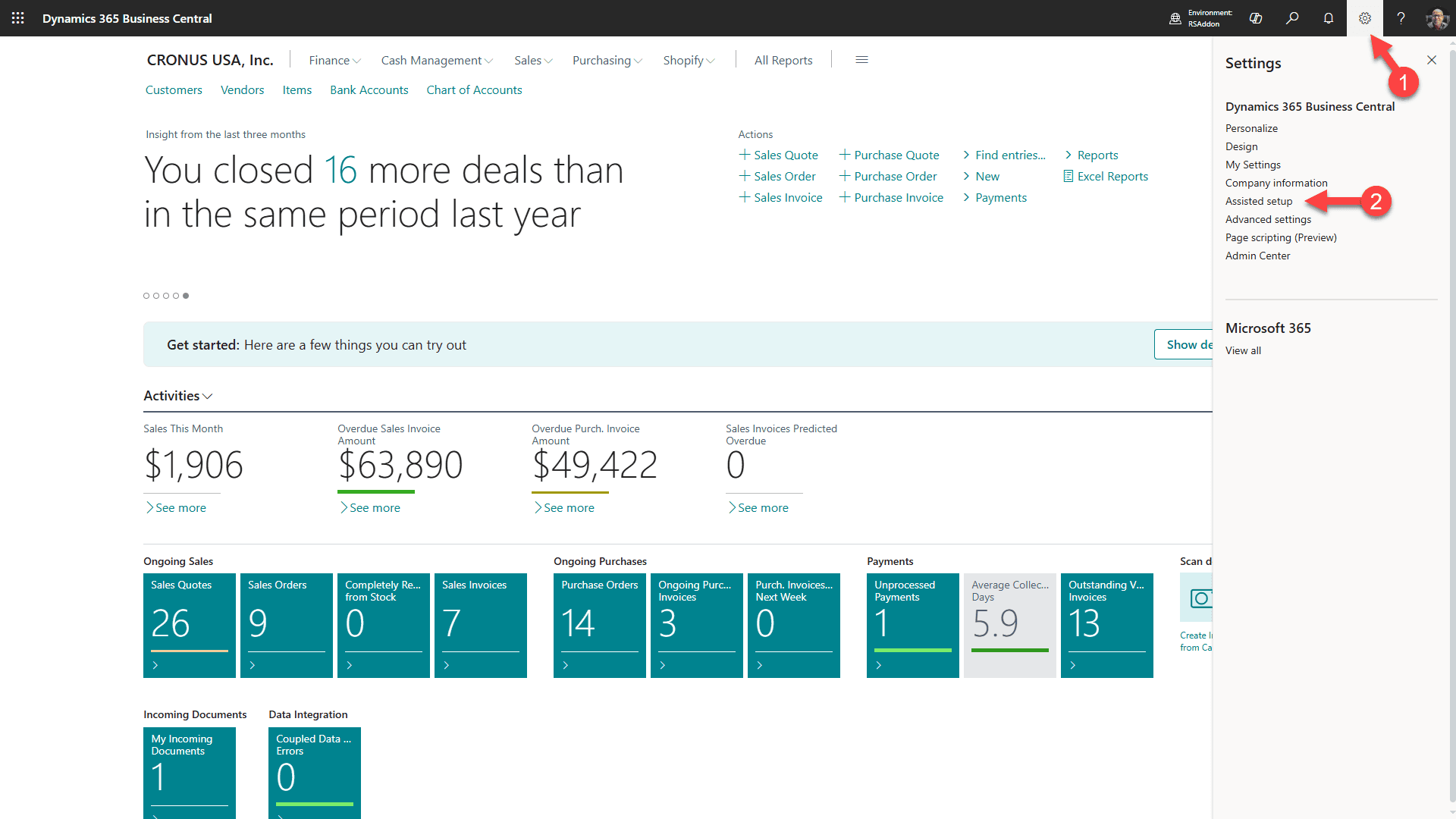
1. Click on the gear
2. Select “Assisted Setup”
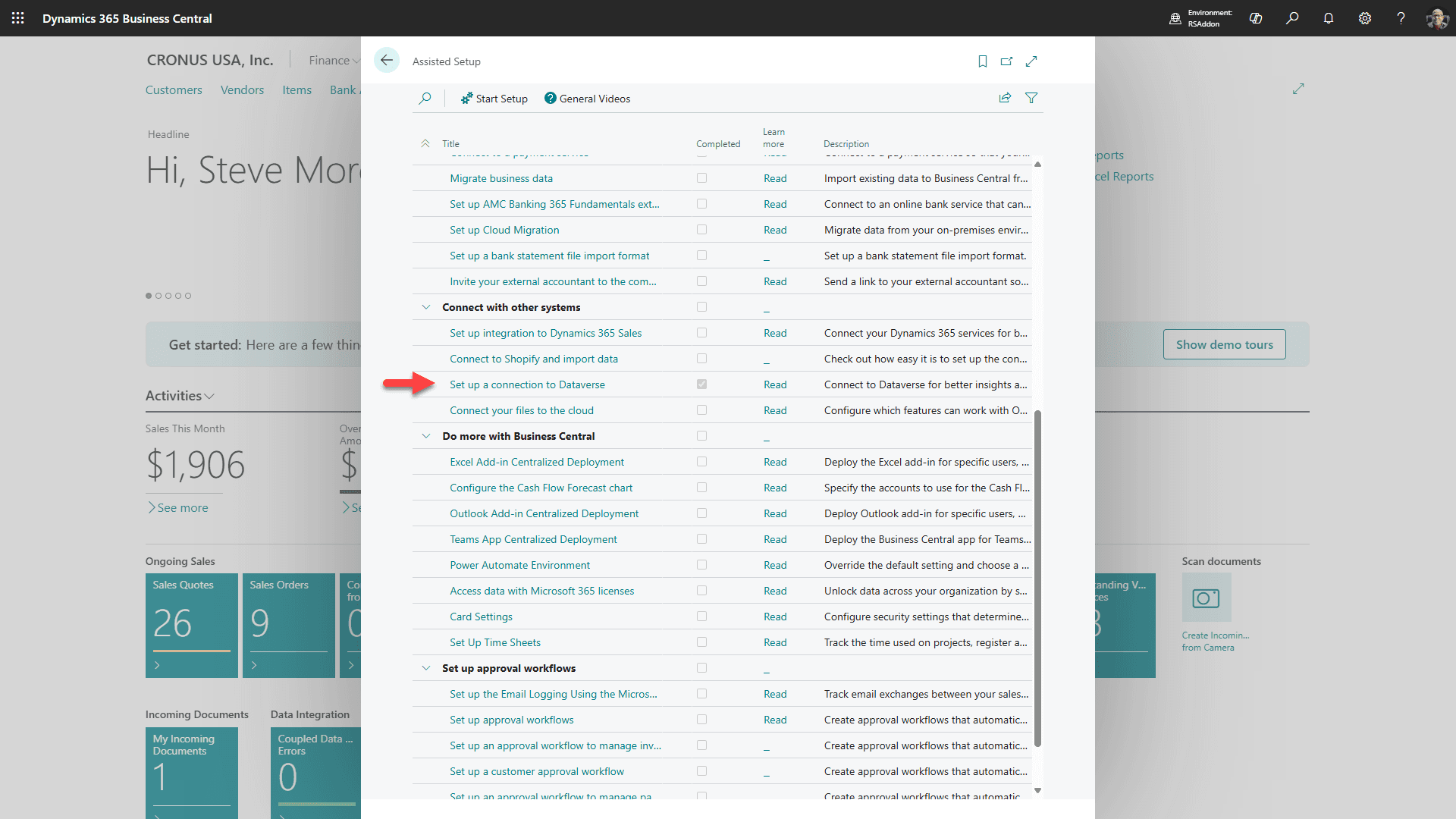
Scroll down to the “Connect with other systems” section and click on “Setup a connection to Dataverse”.
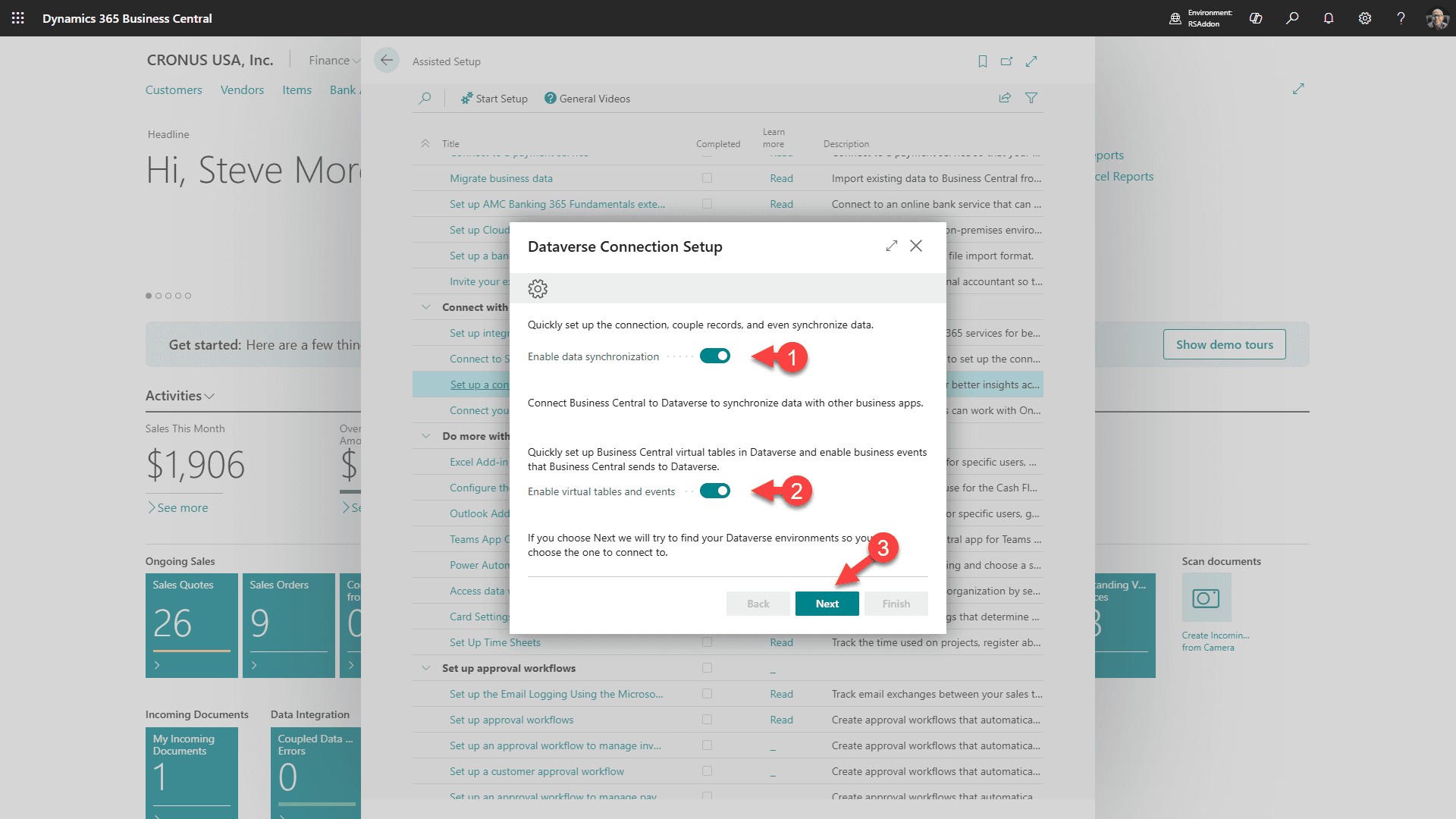
1. Select to Enable data synchronization
2. Select to enable virtual tables and events
3. Click “Next”
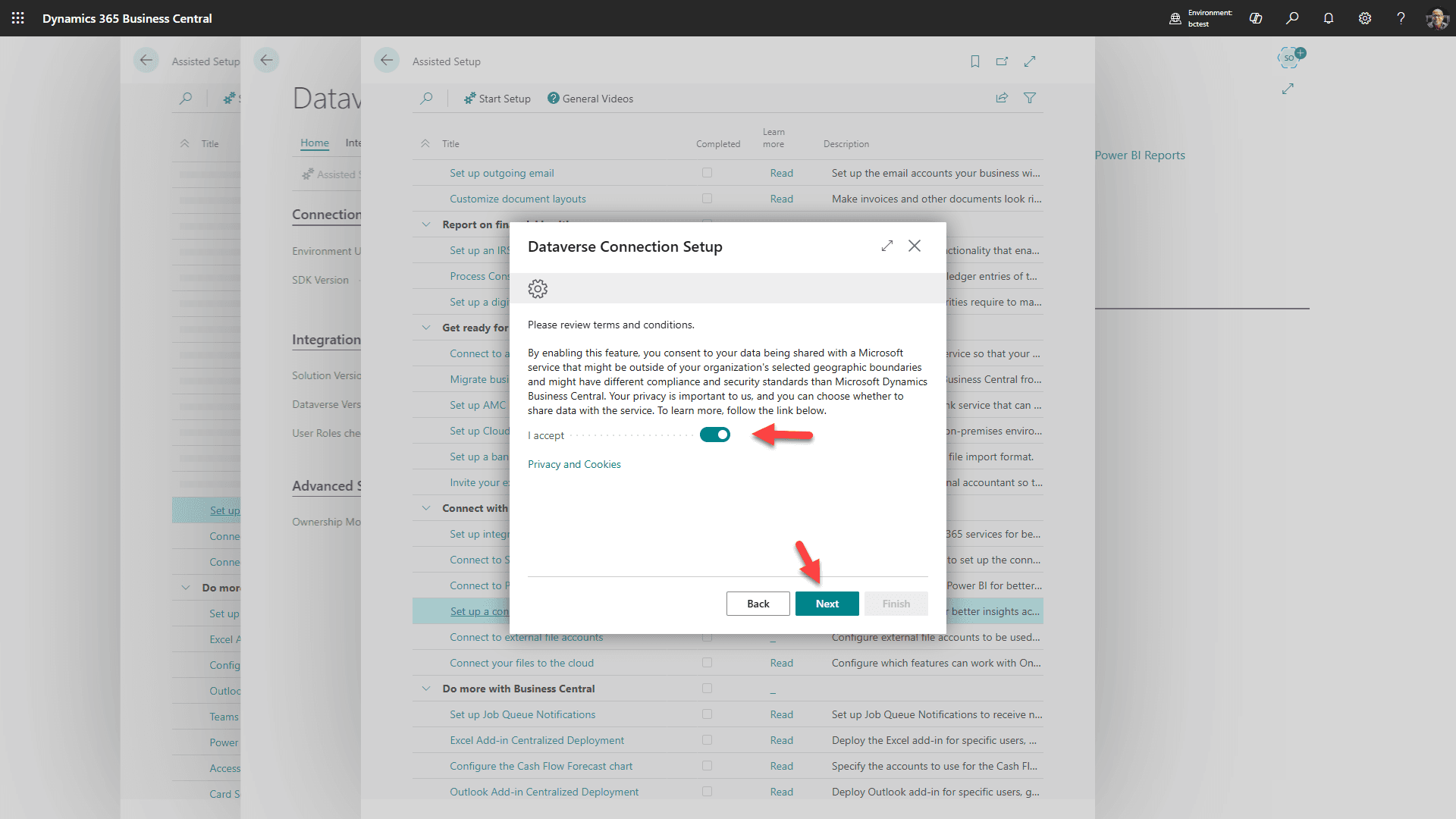
Accept the Terms and click “Next”
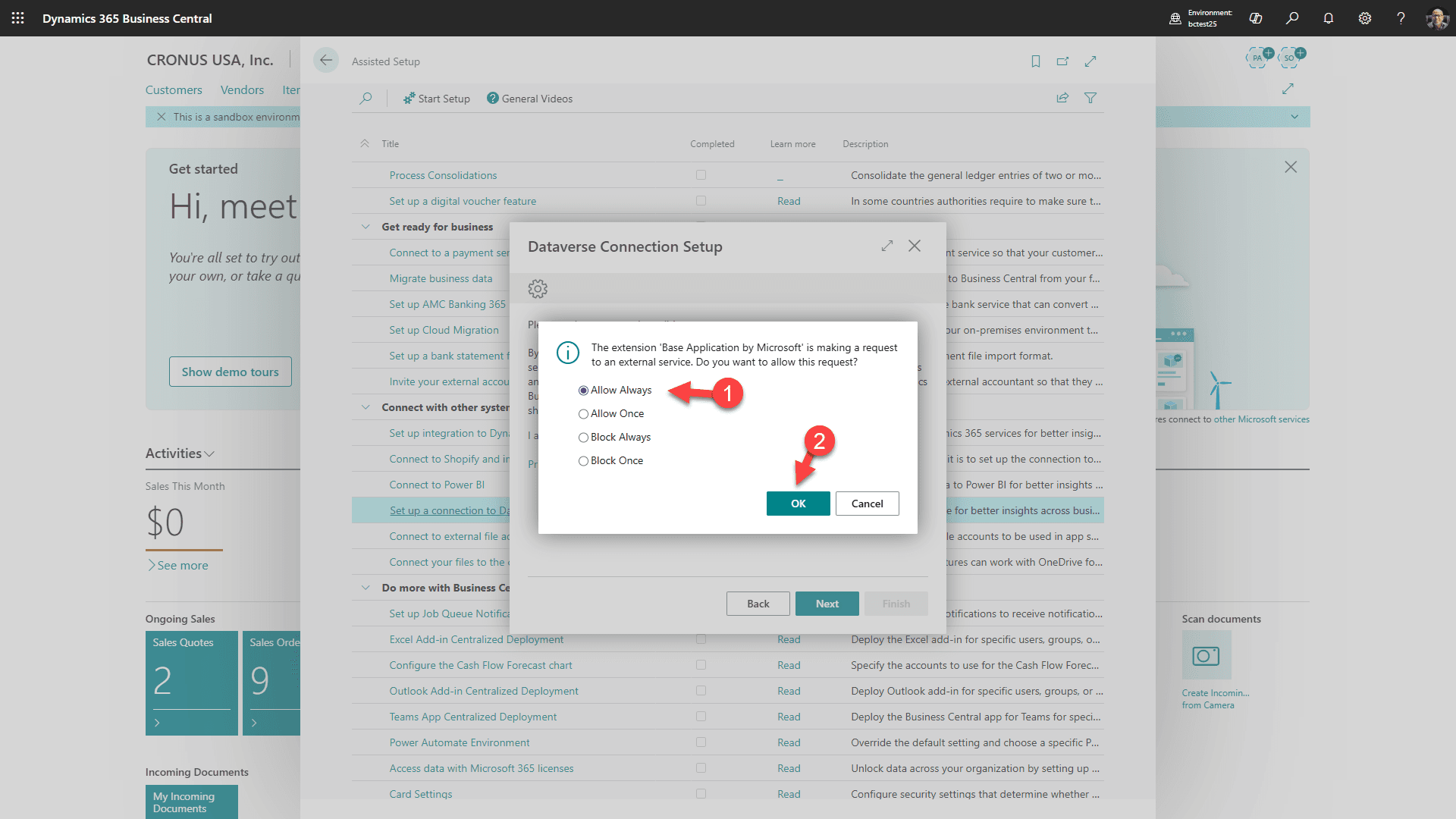
Accept the connection to Dataverse “Allow Always”, and click OK
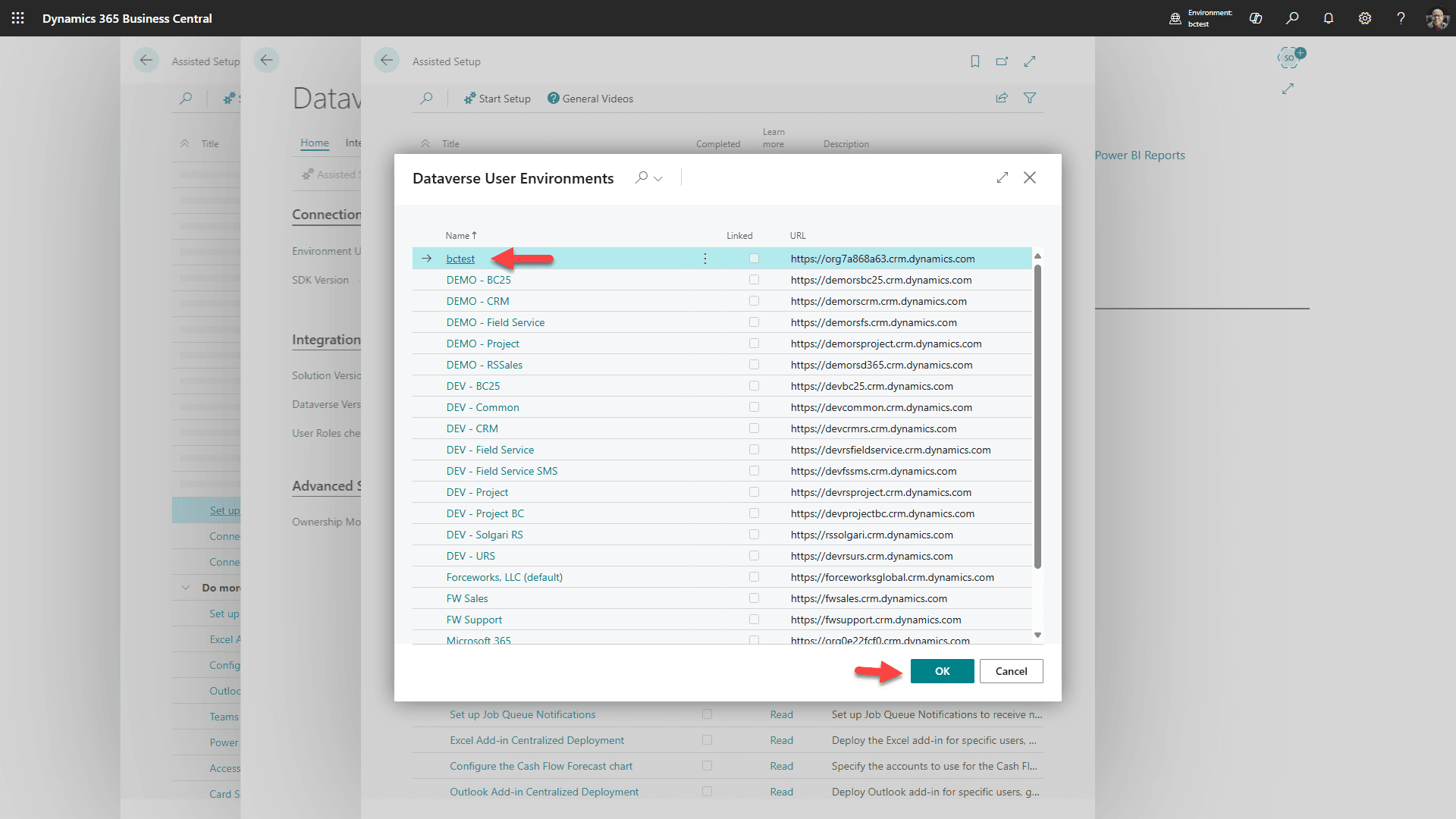
Select the target Dataverse enabled environment, and click “Ok”
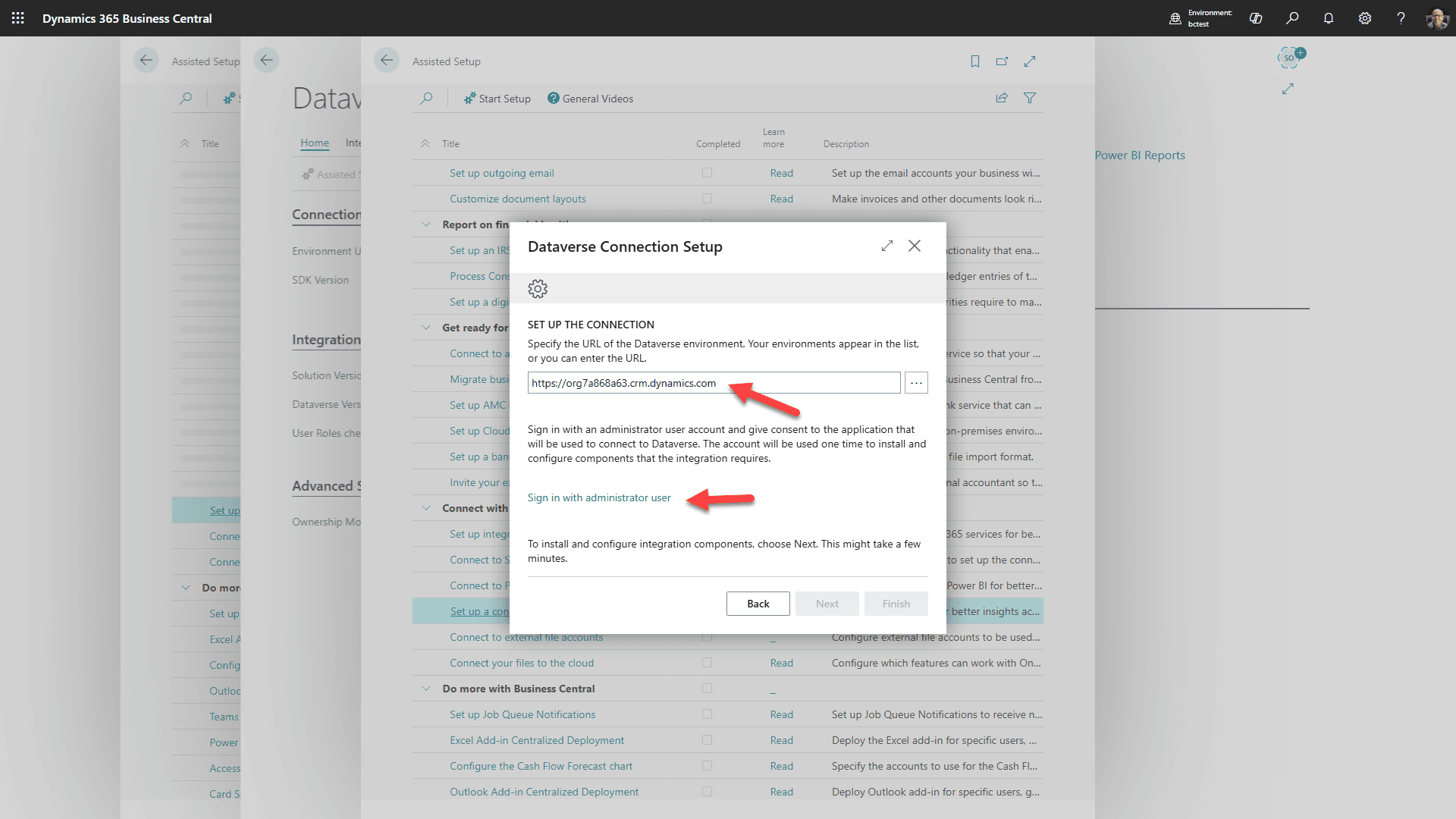
Confirm the environment is correct, then click the link to Sign in to the Dataverse environment. After signing in click “Next”
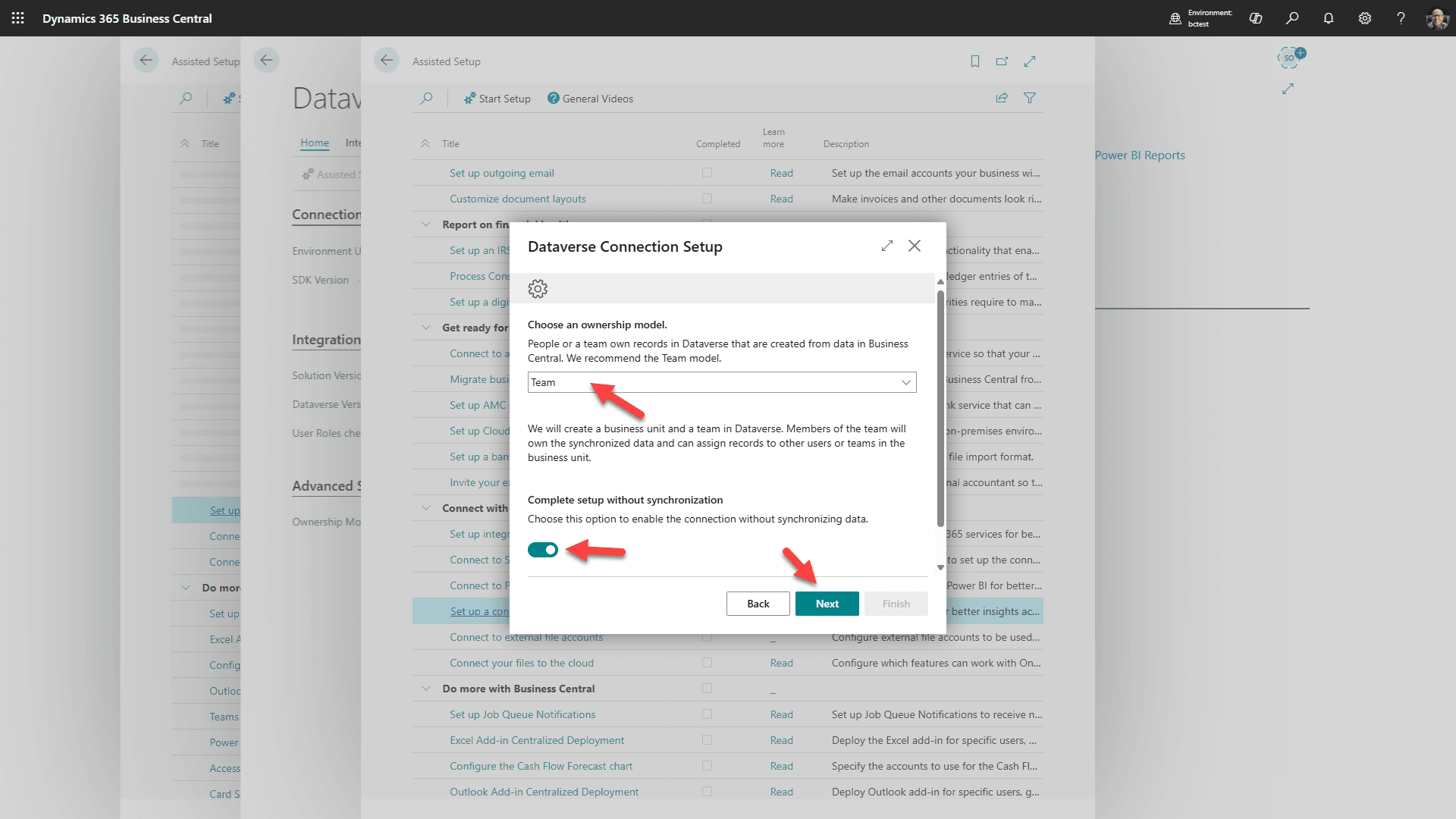
Select the recommended Team ownership, toggle to Complete without synchronization (we'll do this later) and click “Next”
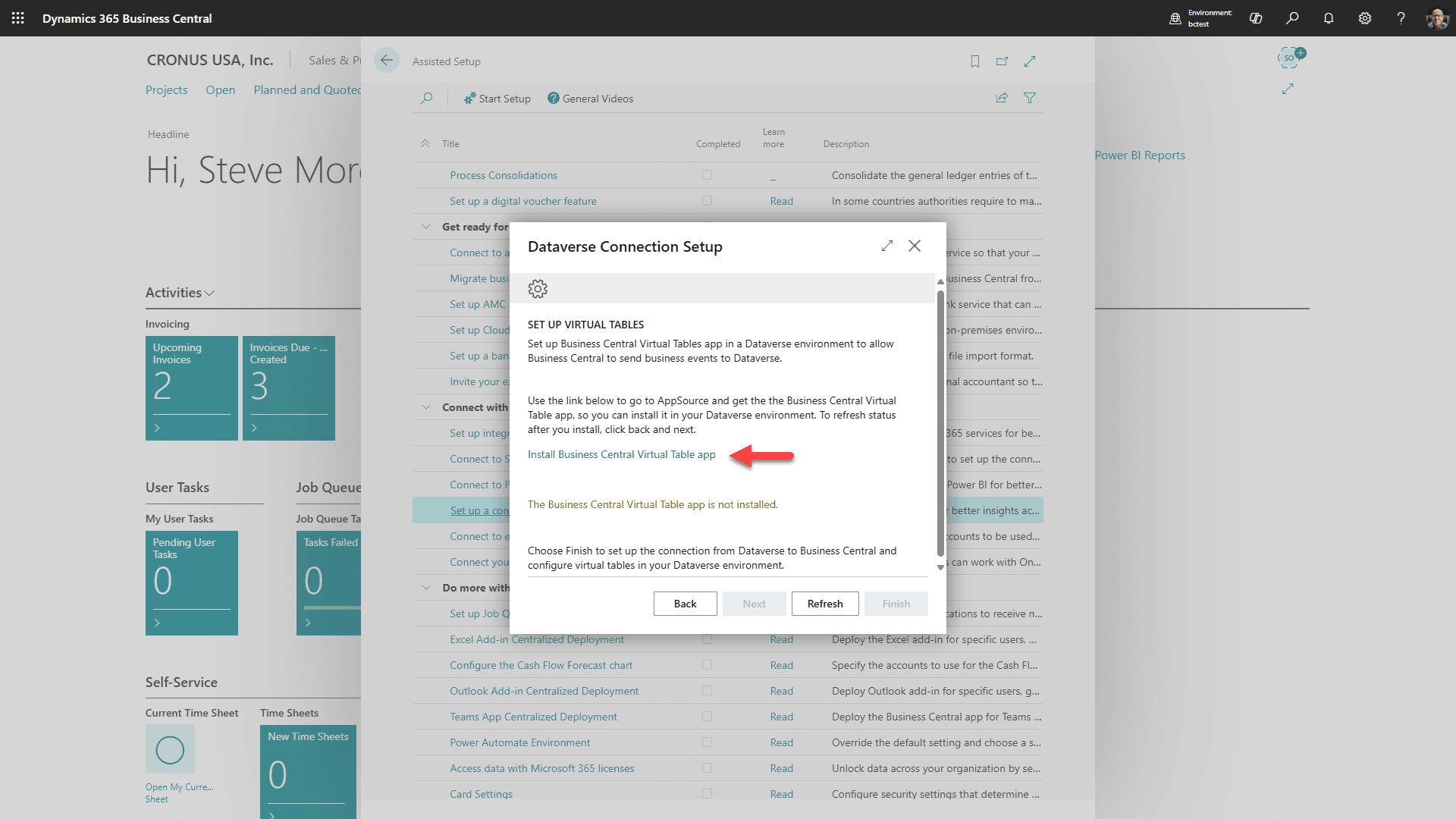
1. Click Link to Install Business Central Virtual Table app
2. Click “Next” (A new tab will open to AppSource)
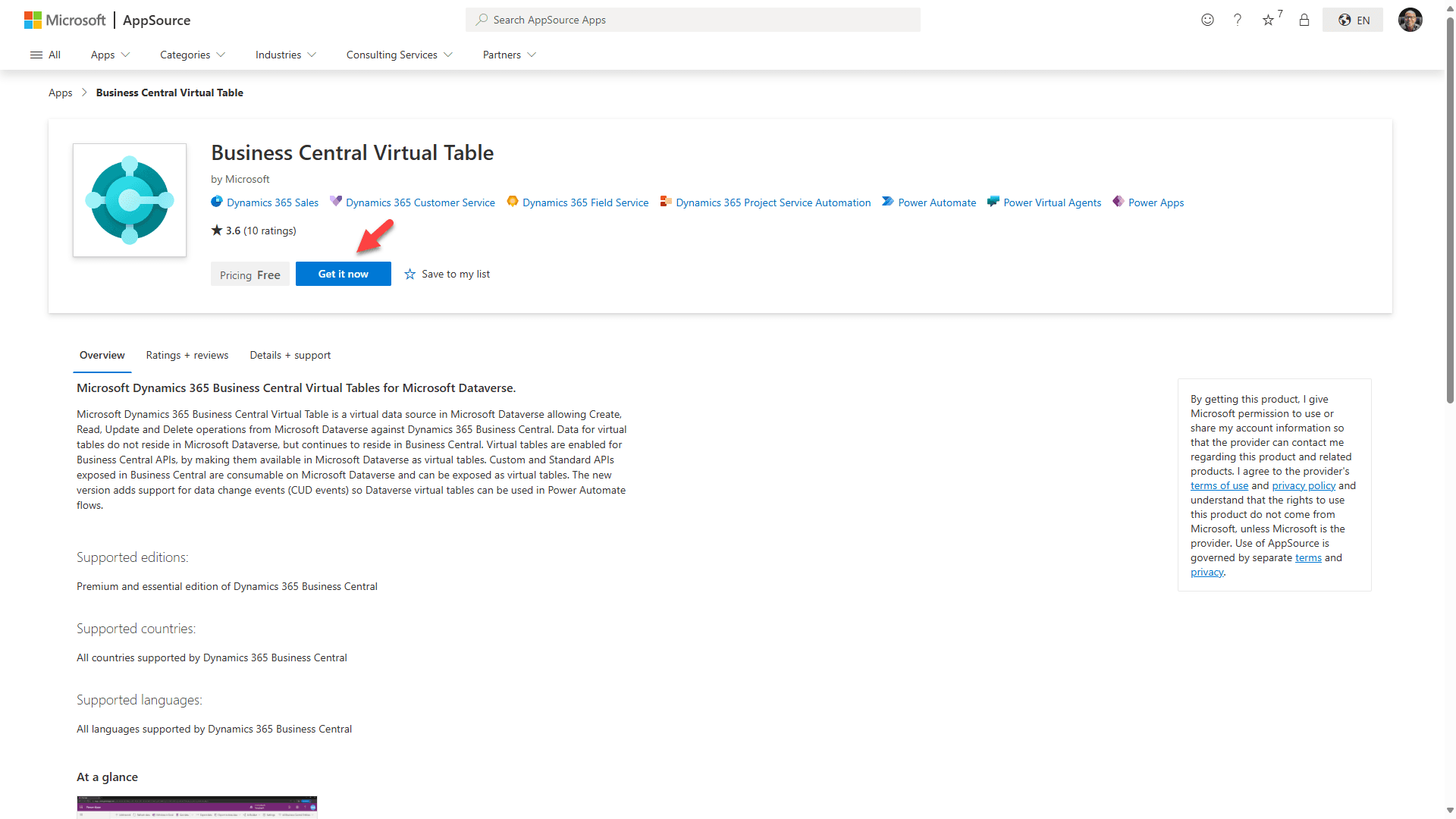
Click the “Get it now” button (This addon is free), and the following page will open:
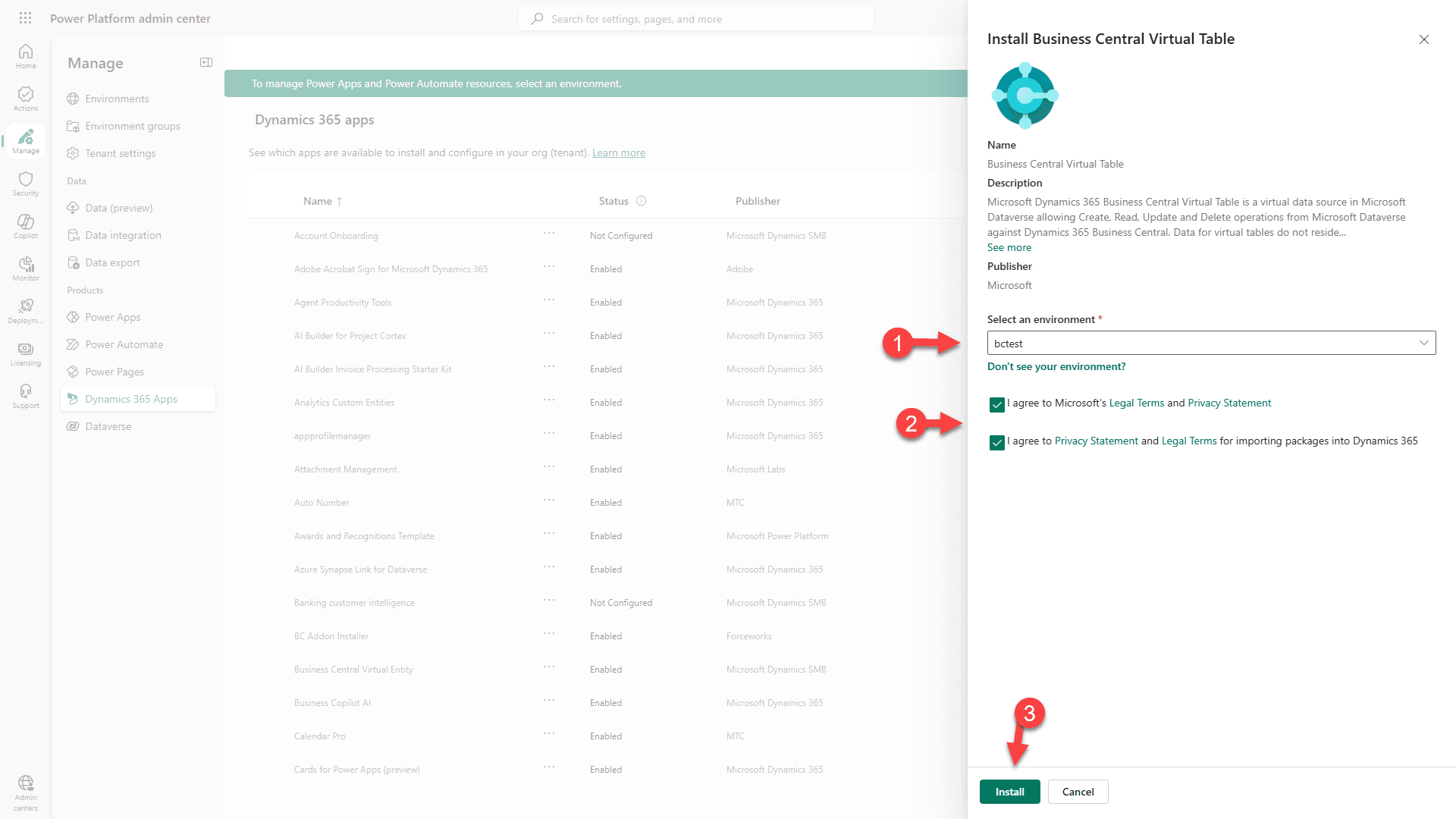
1. Select the target environment (where you have installed RapidStart CRM).
2. Agree to the terms.
3. Click “Install”.
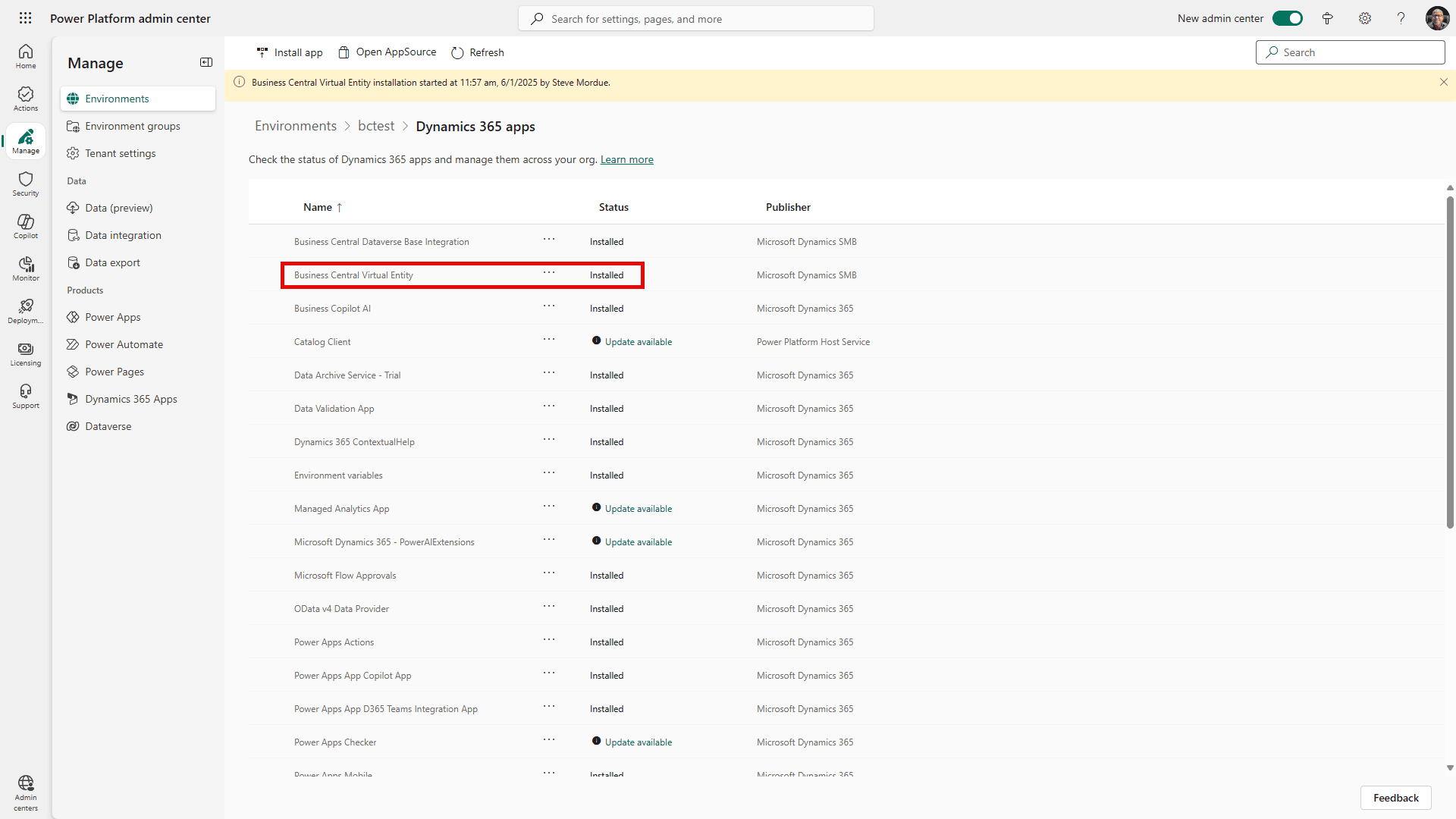
You will see that the solution is “Installing”. This could take several minutes to complete. Occasionally click “refresh” until you see that it is “Installed”, then go back the Business Central Browser tab to continue.
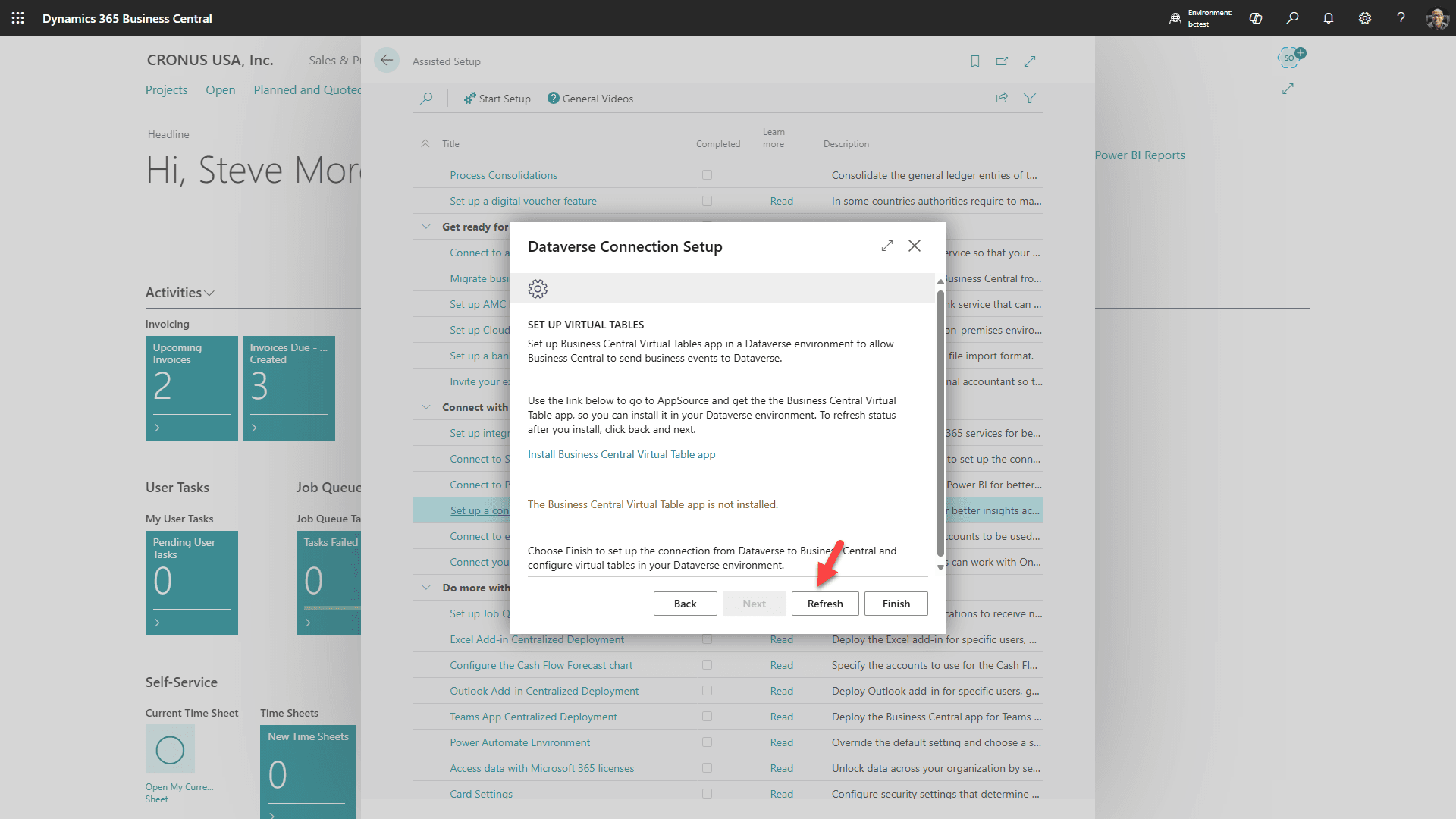
Click “Refresh”
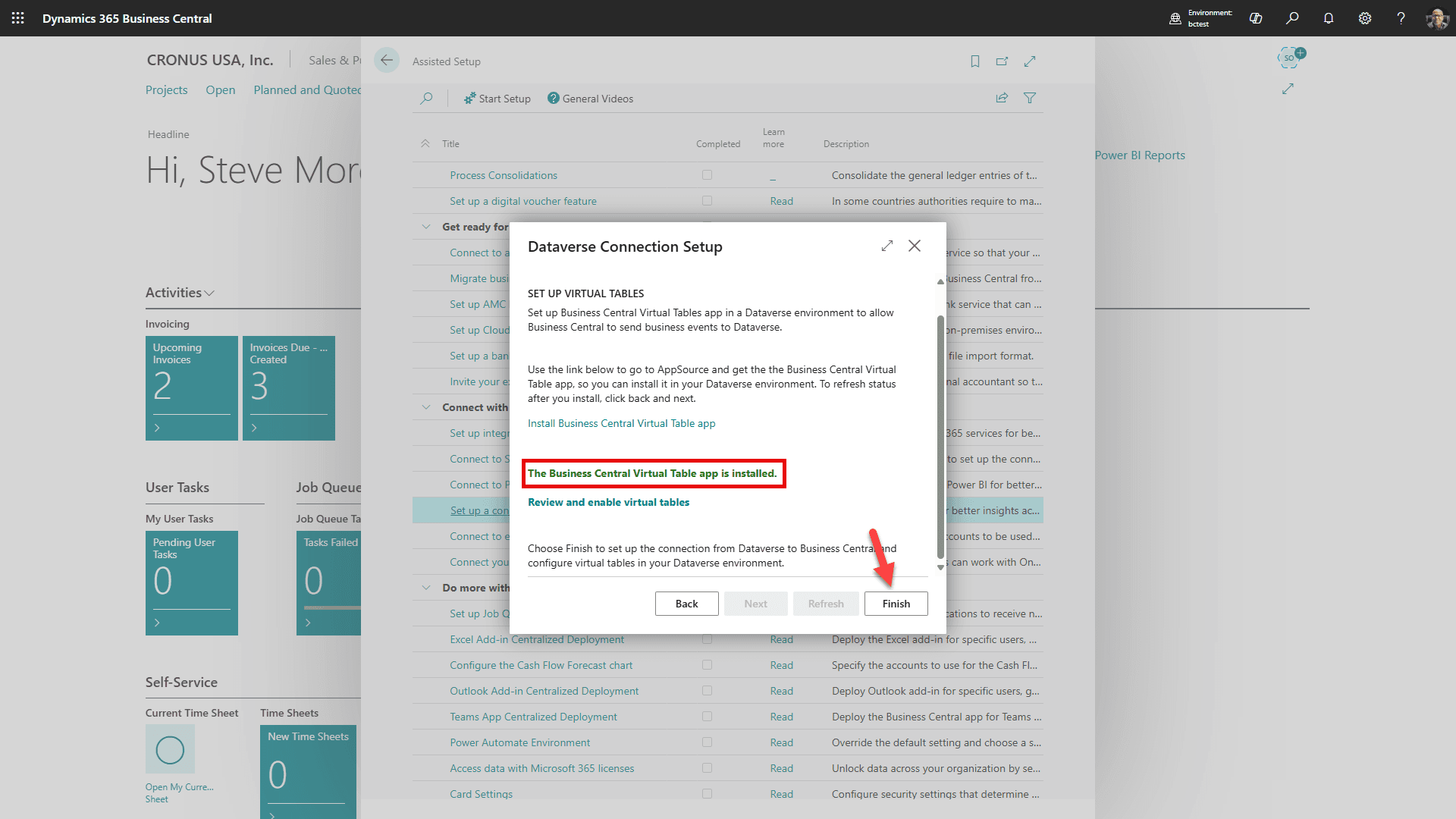
You will see that the Virtual Tables app has successfully installed. Click “Finish”
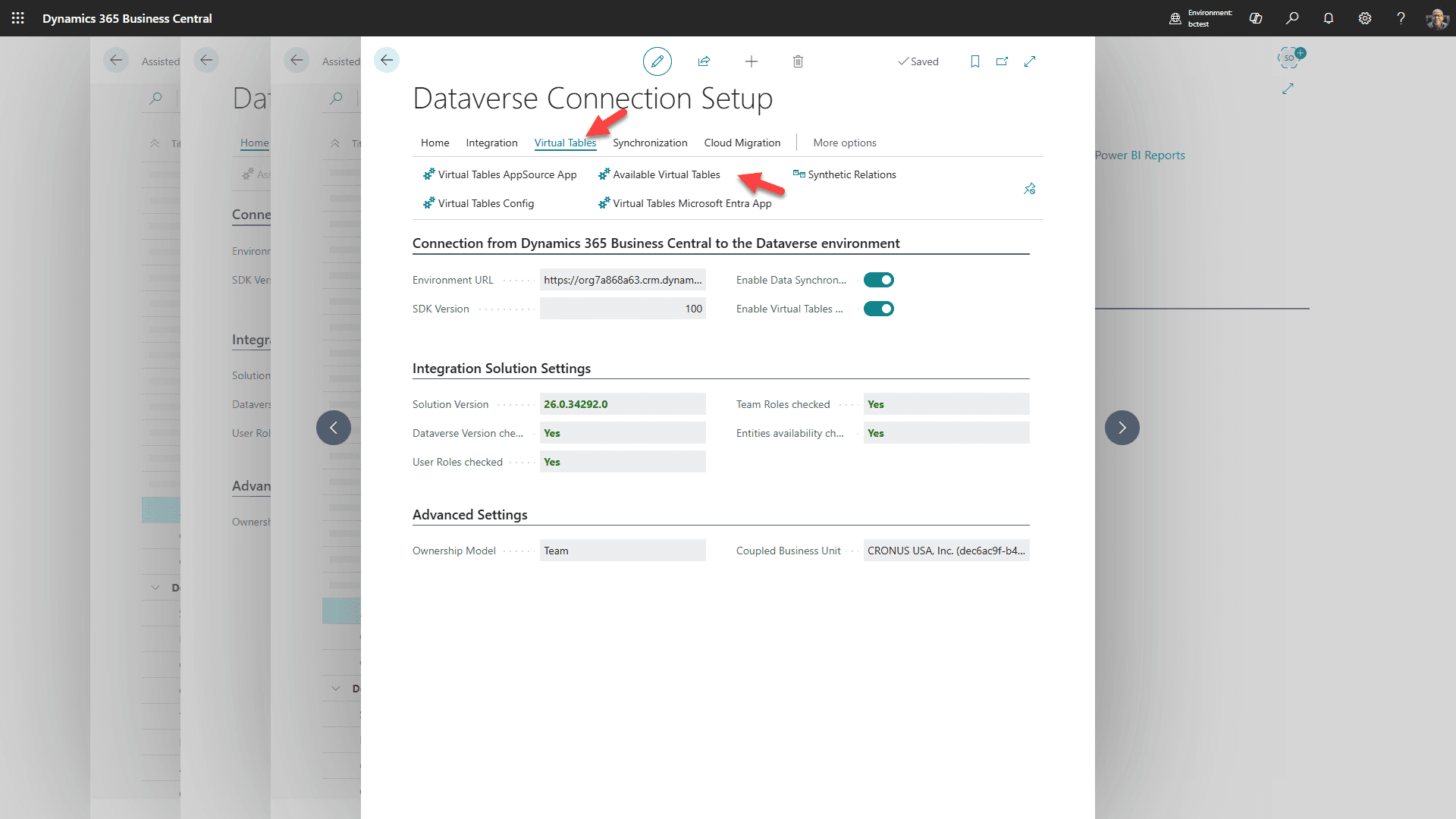
After a few minutes this page will appear. Select Virtual Tables Tab and then “Available Virtual Tables”
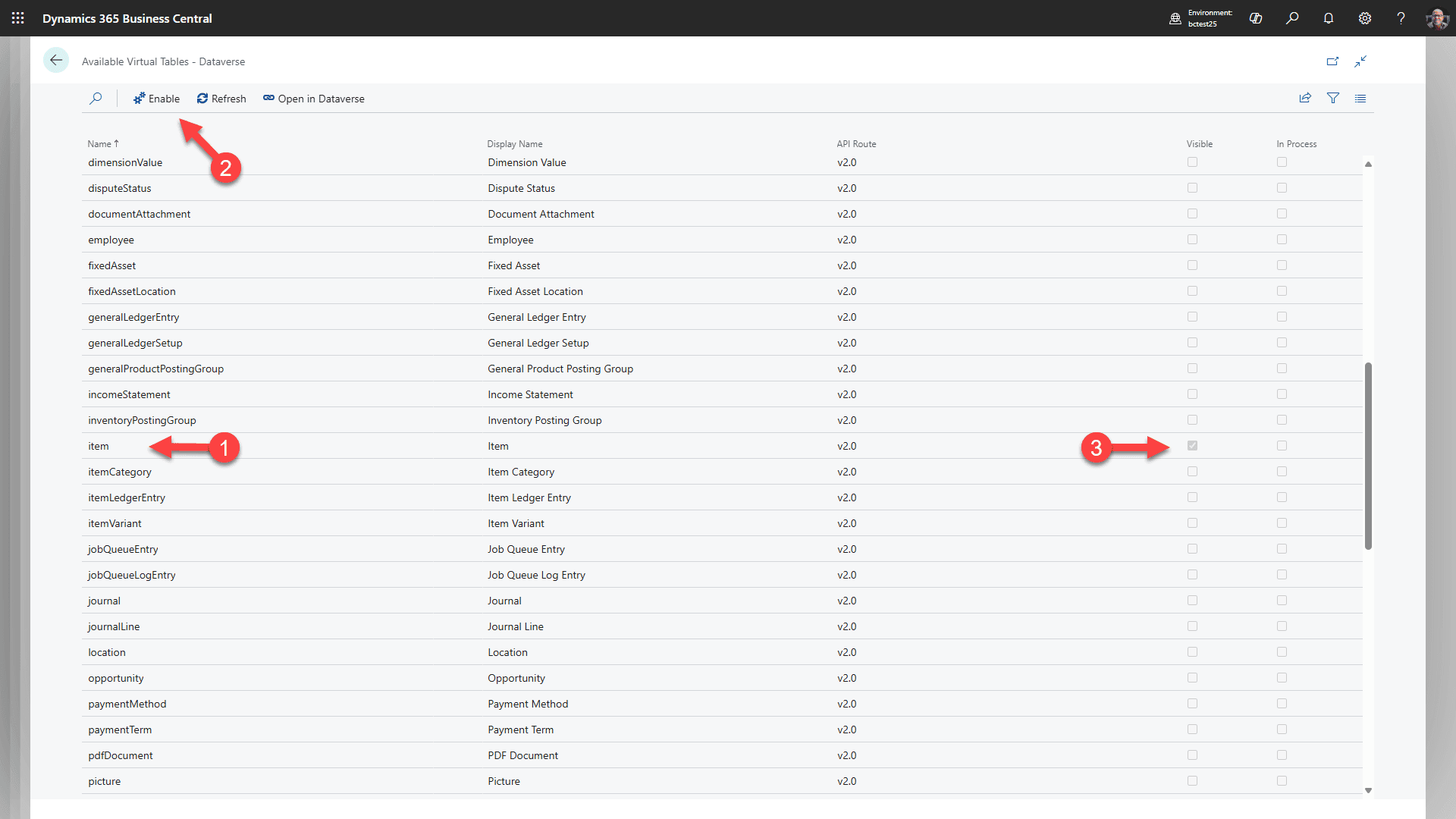
1. Starting by selecting the “item” line
2. Click “Enable” (This will create the virtual table in Dataverse for items)
3. Wait until you see “Visible” box checked. You may need to refresh a few times.
Repeat these steps for: salesInvoice, salesInvoiceLine, salesOrder, salesOrderLine, salesQuote, salesQuoteLine, salesShipment, and salesShipmentLine. This will take several minutes for each one to enable.
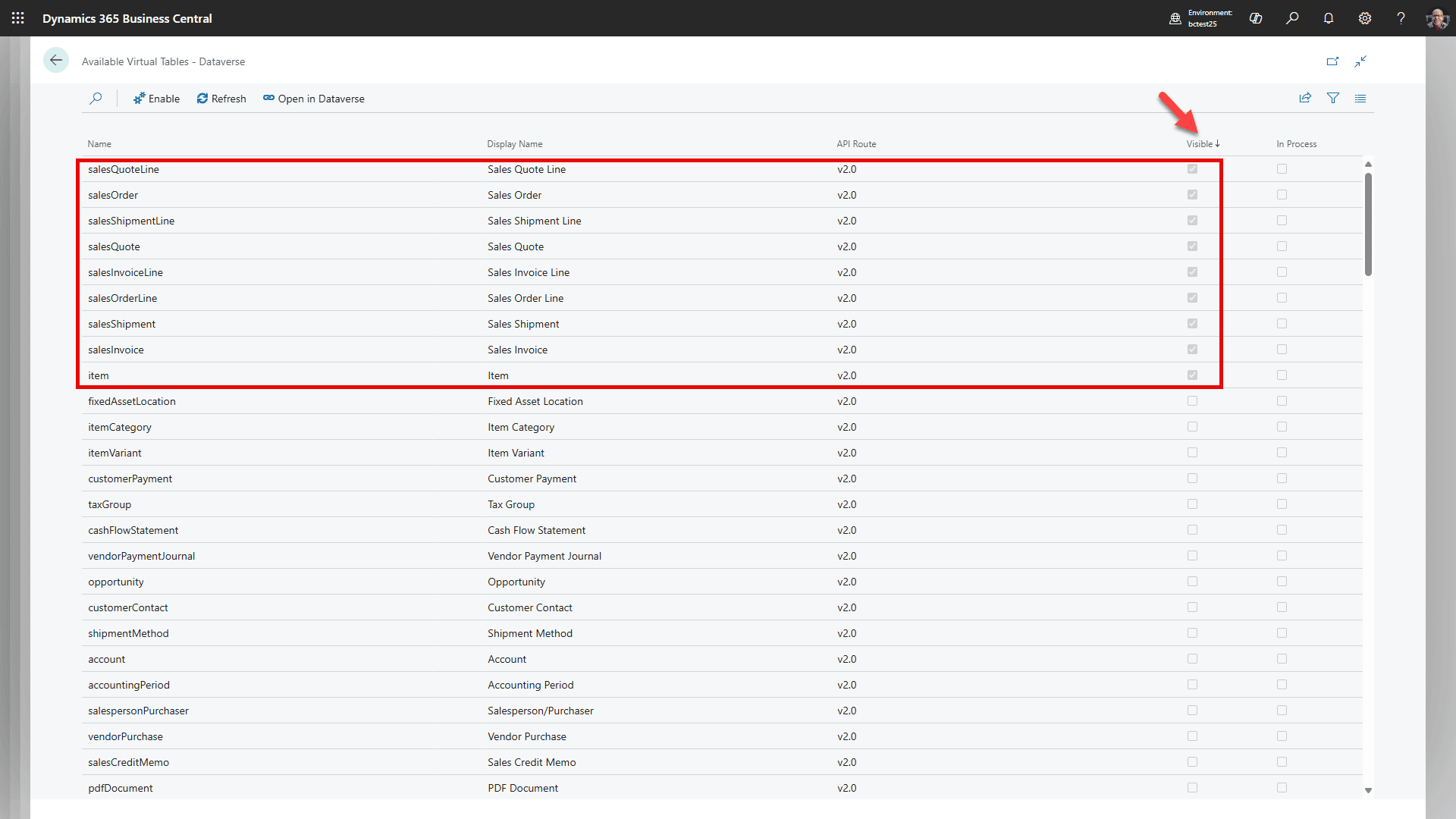
Change to sort by Visible/descending, and confirm you see all of these tables. Do not add more Virtual Tables at this time. You can leave the screen as is (we will come back to it) and open a new tab.
Step 5: Verify the Business Central Integration Application User
Do not assign System Administrator to the application user
The human setup administrator needs Dataverse System Administrator permissions during setup. The automatically created Business Central integration application user should use Microsoft's Business Central Dataverse Integration role, not System Administrator.
If Business Central-Dataverse synchronization permissions appear damaged, open Dataverse Connection Setup in Business Central and use Redeploy Integration Solution. This restores Microsoft's integration solution and deploys the Business Central integration security role.
Continue only after the connection test succeeds and the Business Central integration application user has Microsoft's Business Central Dataverse Integration role.
Step 6: Set up Record Mapping and Coupling
RapidStart flows and Microsoft synchronization are separate
RapidStart cloud flows create or update Business Central customers and contacts from Dataverse and support RapidStart quote actions. Microsoft's native Business Central integration-table mappings handle synchronization, coupling, reference data, and scheduled synchronization. Both must use the same Dataverse environment and Business Central company.
Choose one owner for customer creation
Do not run RapidStart account creation and native uncoupled-record creation at the same time: they can create duplicate customers or race to assign the customer number. When native CUSTOMER synchronization owns creation, keep Sync New Account to BC off. Quote and other flows can remain enabled when they do not duplicate CUSTOMER creation.
Configure reference mappings before customer synchronization
Run and validate reference mappings before testing CUSTOMER. Customer synchronization often fails when currency, payment terms, shipment method, or shipping agent values do not exist or do not have matching option IDs on the Dataverse side.
Reference mappings to configure before CUSTOMER
- CURRENCY: Business Central Currency → Dataverse Transaction Currency. Direction must be Business Central to Dataverse. Confirm these enabled field mappings: Code → Currency Code, Symbol → Currency Symbol, and Description → Currency Name.
- Confirm the CUSTOMER mapping contains Currency Code → Currency. Synchronize currencies before customers. The Dataverse base currency and Business Central local currency must agree, and required exchange rates must exist.
- Payment Terms: synchronize to Account Payment Terms before customer testing.
- Shipment Method: synchronize to Account Freight Terms before customer testing.
- Shipping Agent: synchronize to Account Shipping Method before customer testing.
Customer creation policy
Set CUSTOMER to Bidirectional if accounts/companies may be created on either side. Then choose the Sync. Only Coupled Records policy as a customer deployment decision:
| Setting | Behavior |
|---|---|
| Sync. Only Coupled Records = On | Synchronizes only records that an administrator has already coupled. This avoids broad creation of new uncoupled records. |
| Sync. Only Coupled Records = Off | Initial and scheduled synchronization may create uncoupled customers/accounts on the other side. Use this only when that creation behavior is intended. |
Coupling required when Sync. Only Coupled Records is On
When Sync. Only Coupled Records is On, Microsoft synchronization updates only records already coupled. A RapidStart flow can create a Business Central customer and store its customer number on the Dataverse account, but that does not establish Microsoft's native coupling. After using the flow, manually couple the customer and account in Business Central if ongoing native synchronization is required. A Business Central customer number by itself is not proof of coupling.
Automatic customer creation and coupling
- If the customer chooses native automatic creation, set CUSTOMER to Bidirectional and Sync. Only Coupled Records to Off. Keep Sync New Account to BC off.
- Leave Disable Event-driven Synch. Job Rescheduling unchecked.
- Confirm the CUSTOMER integration-table filter contains the selected Company System ID. Include 00000000-0000-0000-0000-000000000000 only when legacy or unassigned Dataverse rows are intentionally supported.
- Confirm the CUSTOMER integration synchronization job exists and its interval meets the customer's needs. On Hold with Inactivity Timeout is an expected status between runs; a 30-minute interval is not real-time.
- Before broad synchronization, manually couple records that already exist on both sides, or review match-based coupling criteria and results carefully. Automatic creation does not safely identify every existing pair.
Coupling uses the integration GUID, not the Business Central customer number. The number is useful for display and search; to show it in Dataverse, verify the CUSTOMER field mapping from Business Central No. to Dataverse Account No..
Option-value validation
Business Central enum value IDs used for Payment Terms, Shipment Method, and Shipping Agent must match the corresponding Dataverse option IDs. The display text or code label alone is not enough. A full synchronization does not repair an ID mismatch when Business Central contains custom enum values that do not exist in Dataverse.
- Run Synchronize Modified Records for PAYMENT TERMS, SHIPMENT METHOD, and SHIPPING AGENT.
- Inspect Dataverse Option Mapping and the synchronization error log before testing CUSTOMER.
- If IDs are not aligned, use the safe default on the CUSTOMER field mappings: Payment Terms Code → Payment Terms = FromIntegrationTable; Shipment Method Code → Address 1: Freight Terms = FromIntegrationTable; Shipping Agent Code → Address 1: Shipping Method = FromIntegrationTable.
- Change those three fields to Bidirectional only after a developer has added matching option IDs on both sides.
- Do not invent or renumber option IDs during setup. Custom Dataverse values and Business Central enum extensions must use exactly the same IDs.
For these CUSTOMER field mappings, FromIntegrationTable means Dataverse → Business Central only. This keeps account/customer creation bidirectional while preventing unmatched Business Central option IDs from blocking Business Central → Dataverse creation.
Go back to Business Central tab in your browser that we left open.
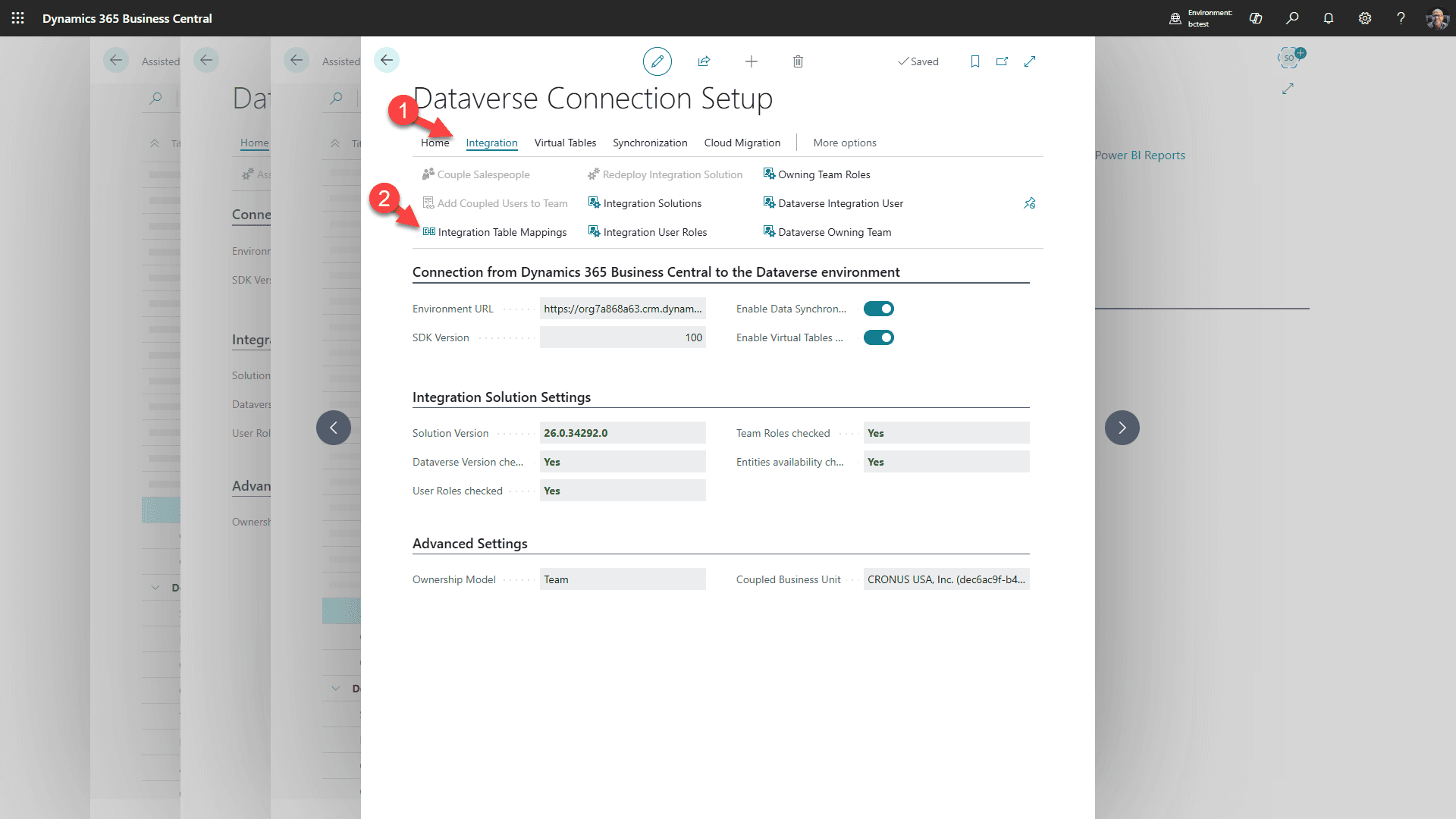
1. Click the “Integration” tab
2. then “Integration Table Mappings”
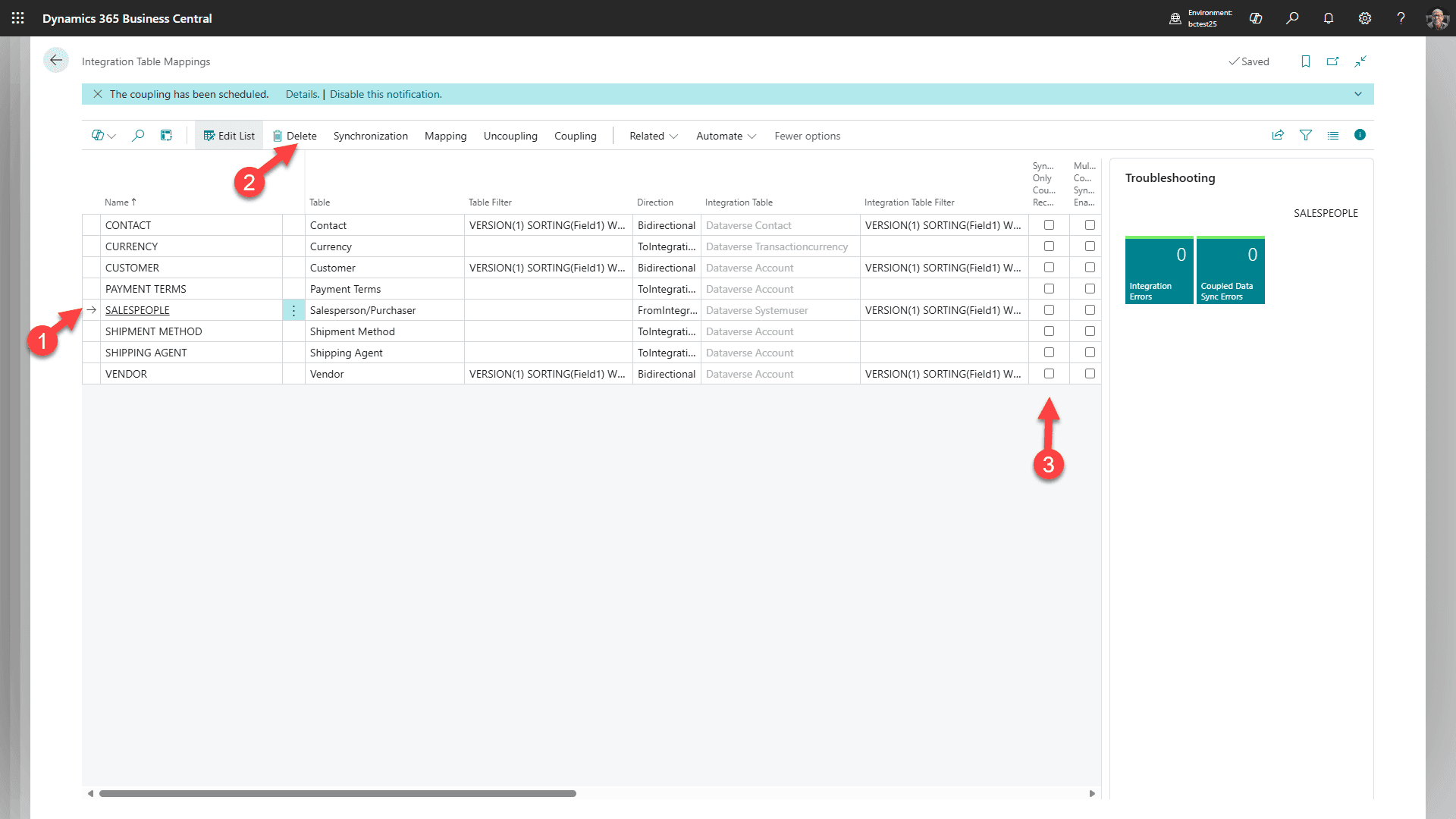
Customer decision: keep SALESPEOPLE if the customer wants Microsoft's standard Dataverse-user-to-Business-Central-salesperson synchronization. Delete or disable this mapping only when that standard synchronization is intentionally not used.
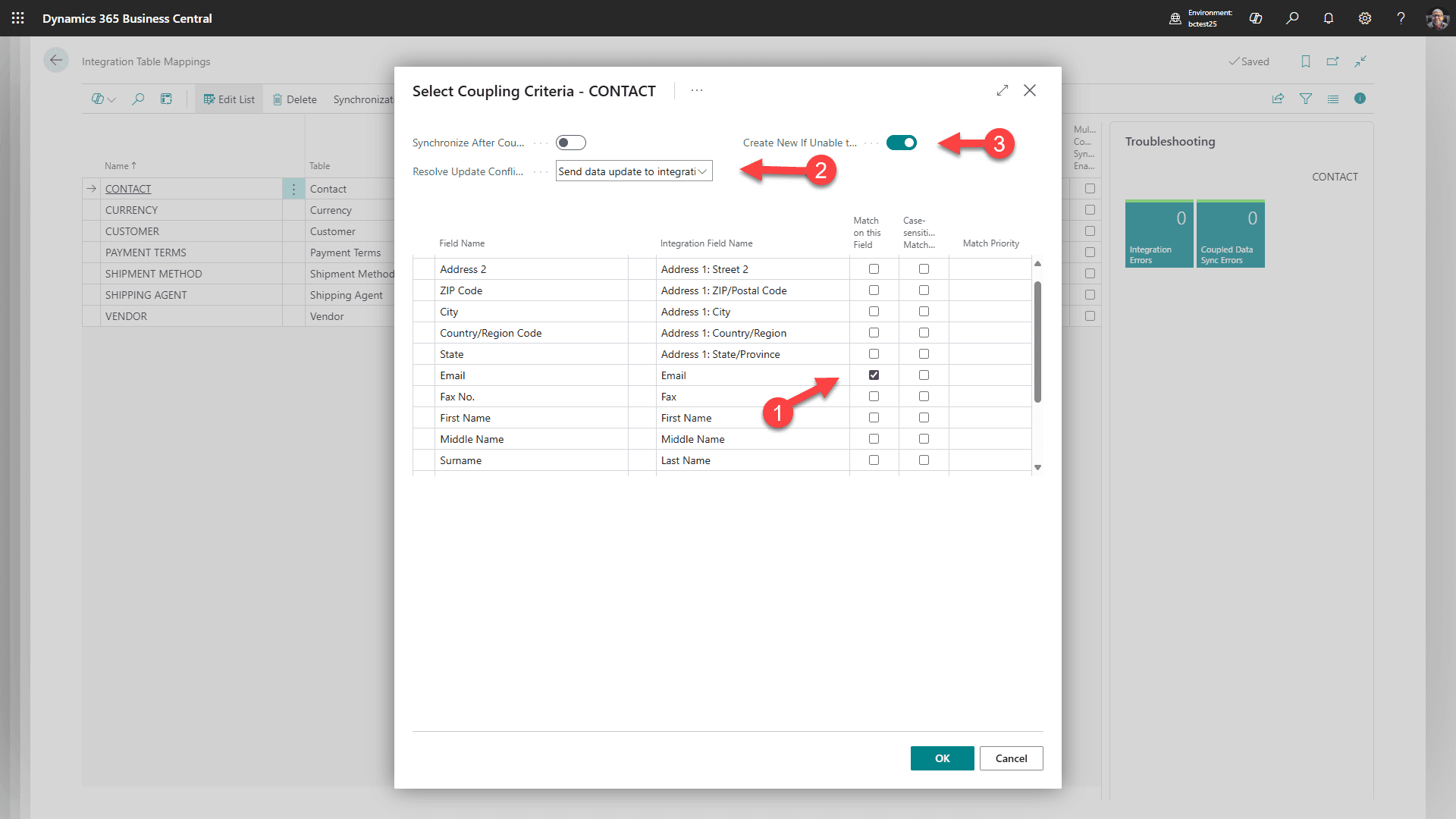
1. Select CONTACT
2. Select Coupling
3. Then click “Match-Based Coupling”.
4. Match the above and click OK
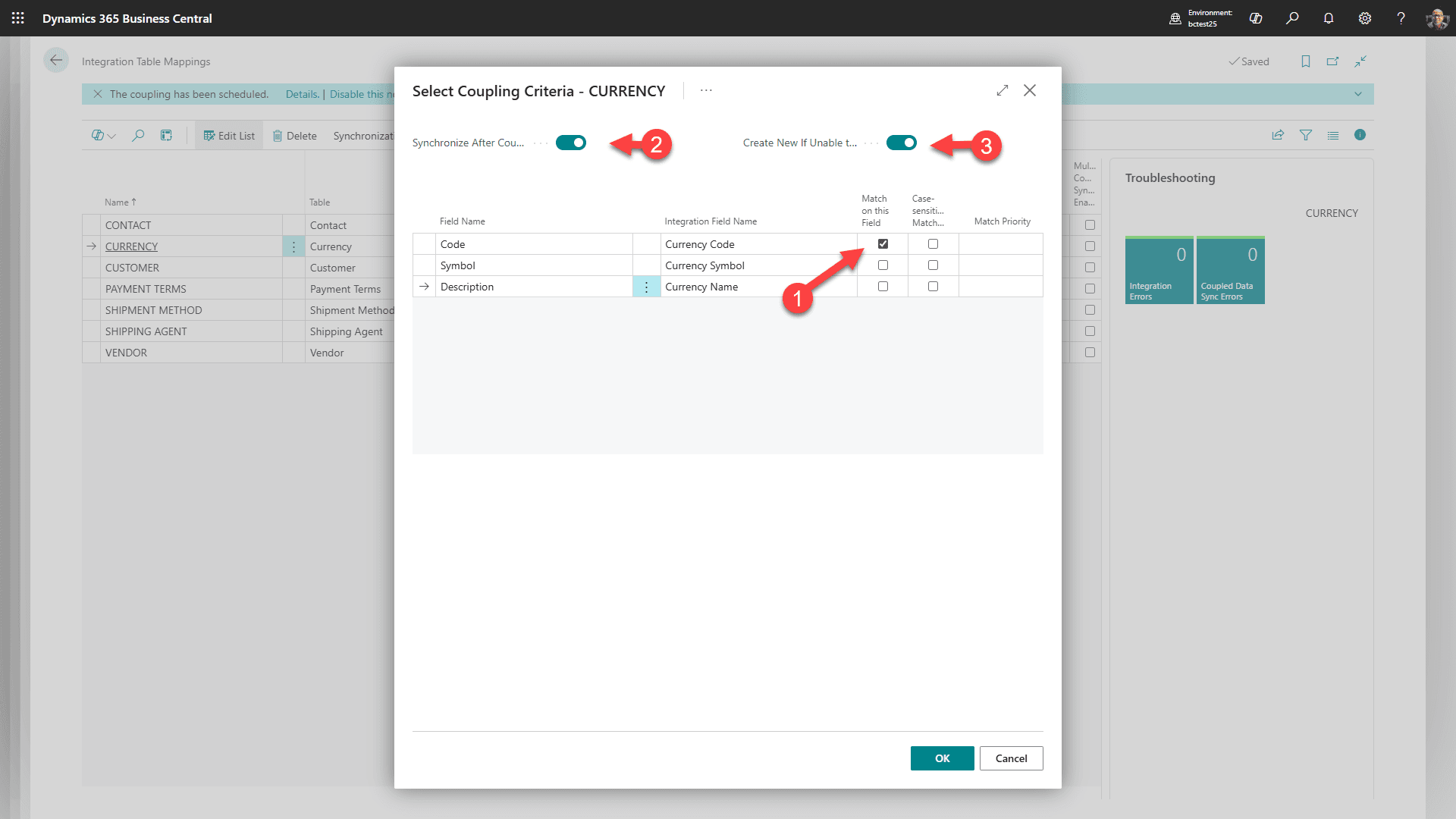
1. Select CURRENCY
2. Select Coupling
3. Then click “Match-Based Coupling”.
4. Match the above and click OK
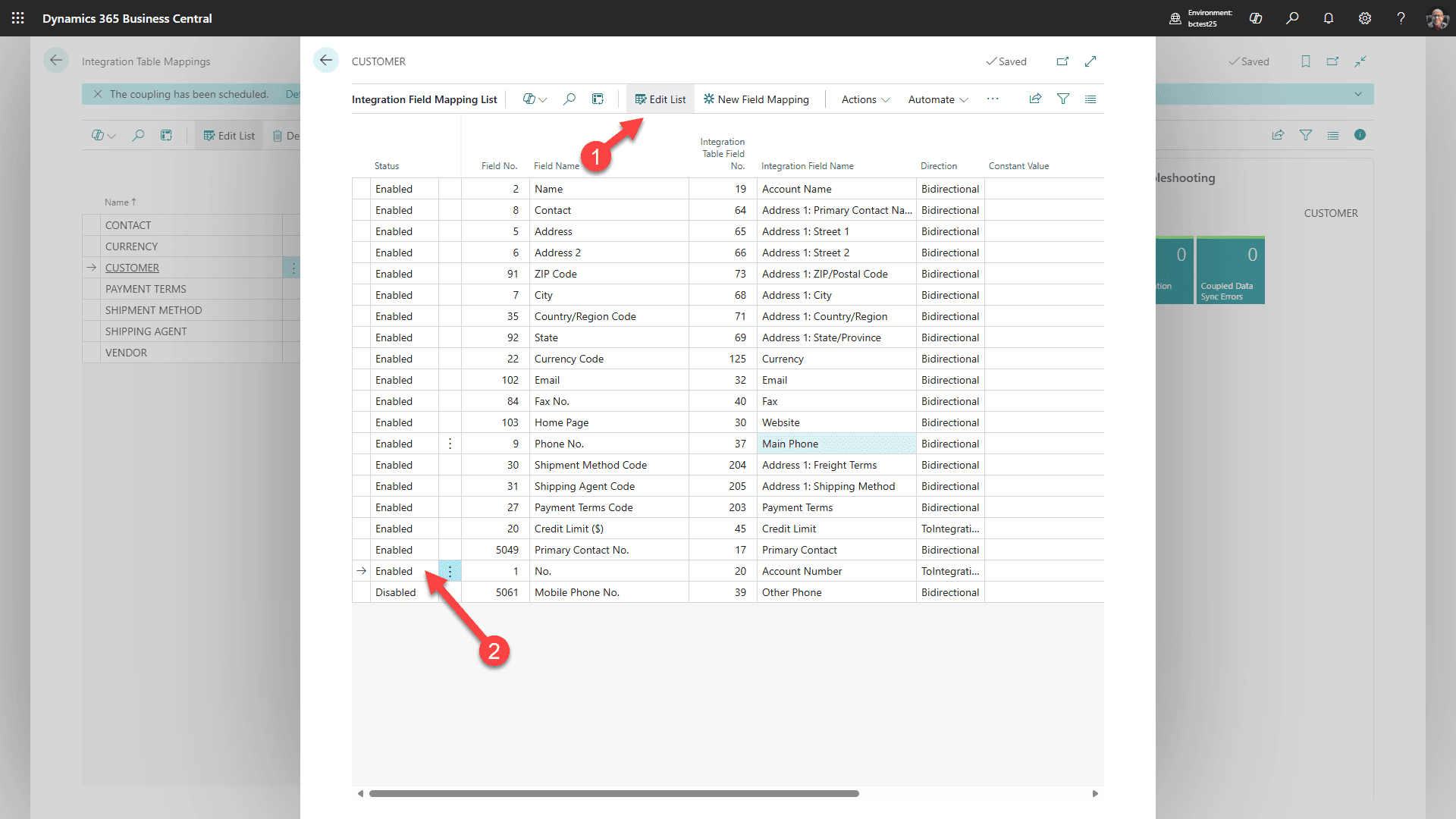
For CUSTOMER, select Mapping/Fields, then Edit List. Enable the mapping from Business Central No. to Dataverse Account No. if the customer number should appear on the Dataverse account. This does not replace integration-GUID coupling.
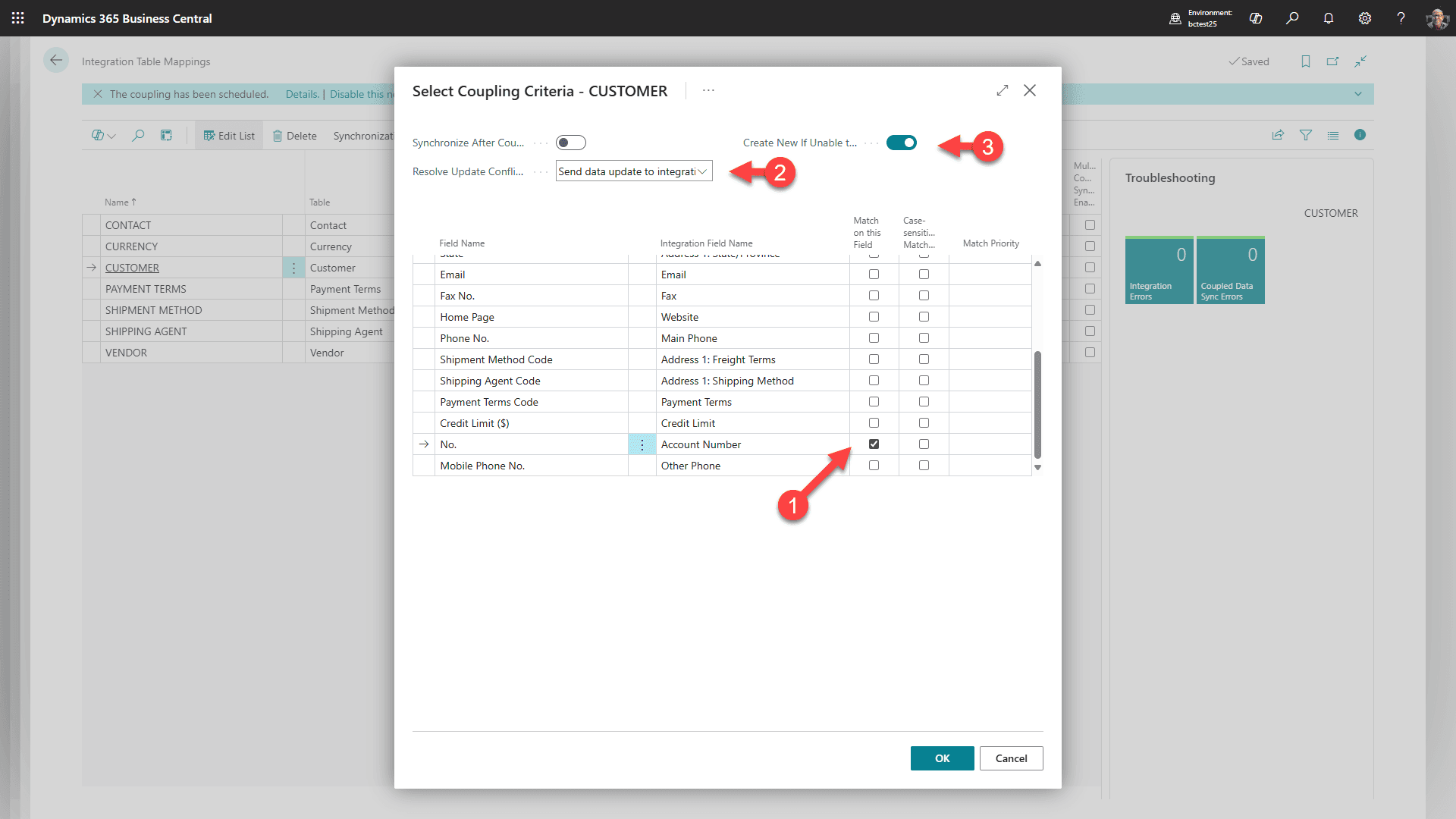
Still for CUSTOMER, select Coupling/Match-Based Coupling. Match using the customer/account identifier fields shown in the screenshot, and confirm the matching fields uniquely identify the same customer on both sides.
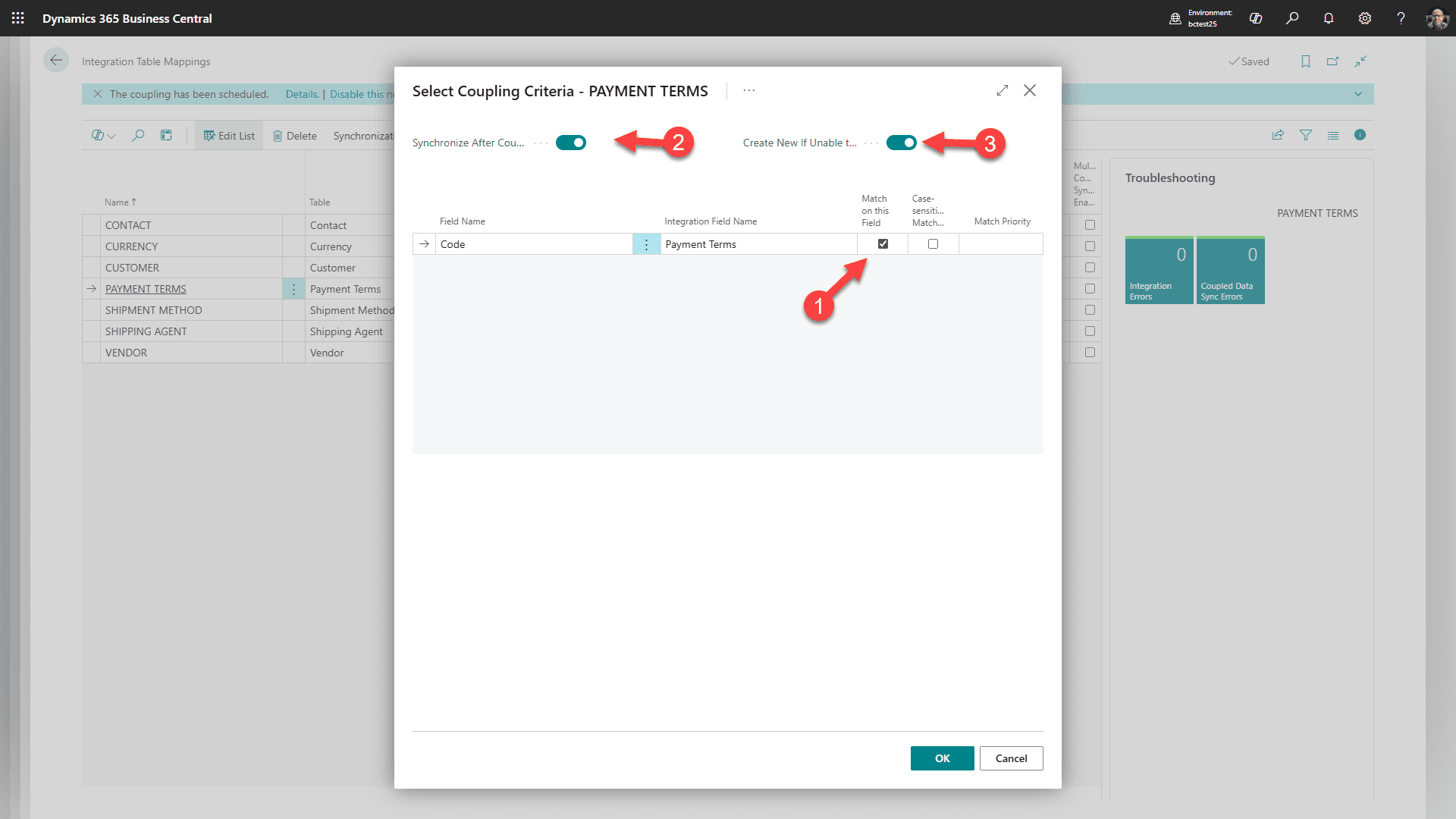
For PAYMENT TERMS, select Coupling/Match-Based Coupling. Match Business Central payment term records to the corresponding Dataverse payment term option values by the configured IDs.
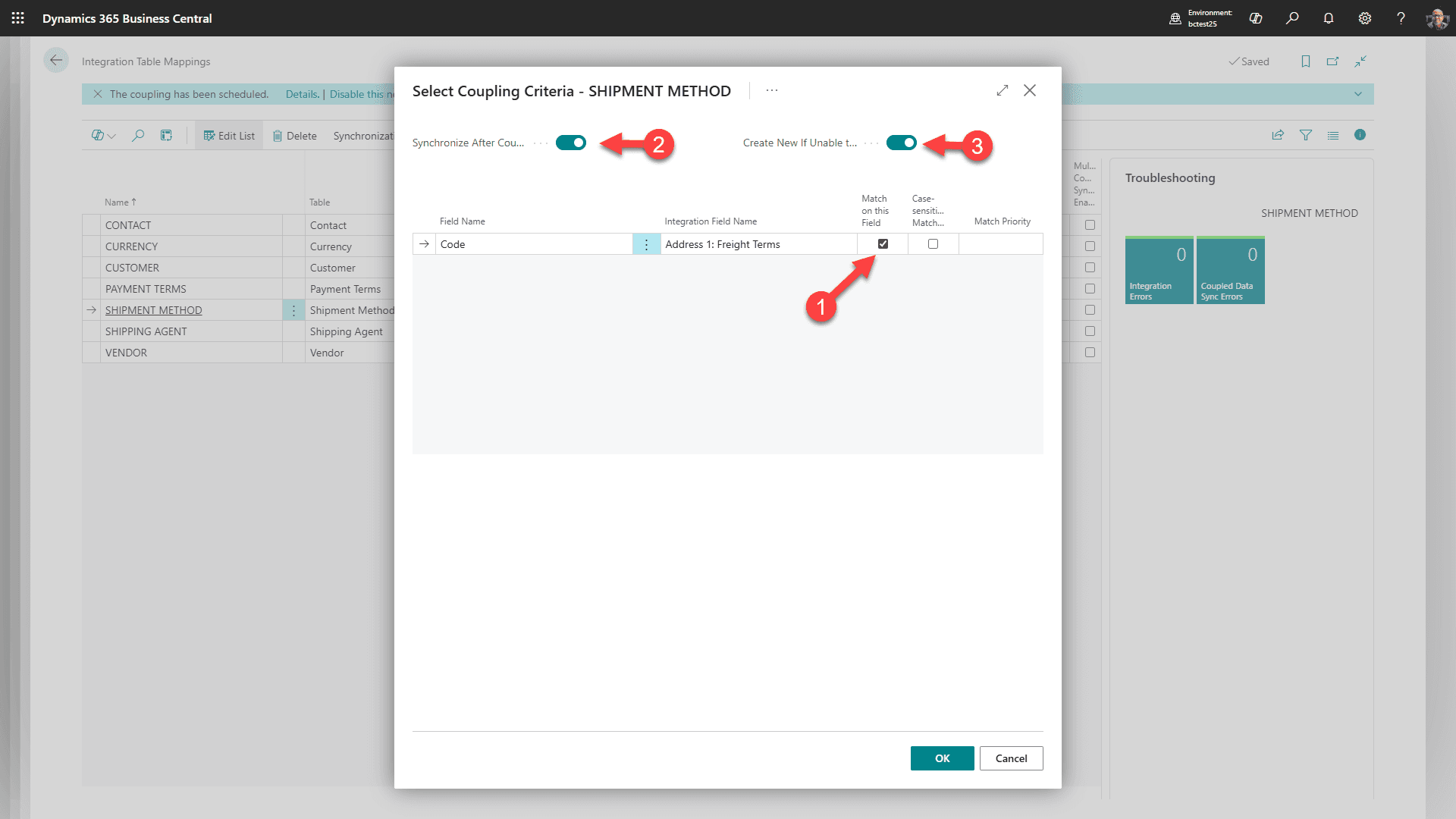
For SHIPMENT METHOD, select Coupling/Match-Based Coupling. Match Business Central shipment methods to the corresponding Dataverse freight term option values by the configured IDs.
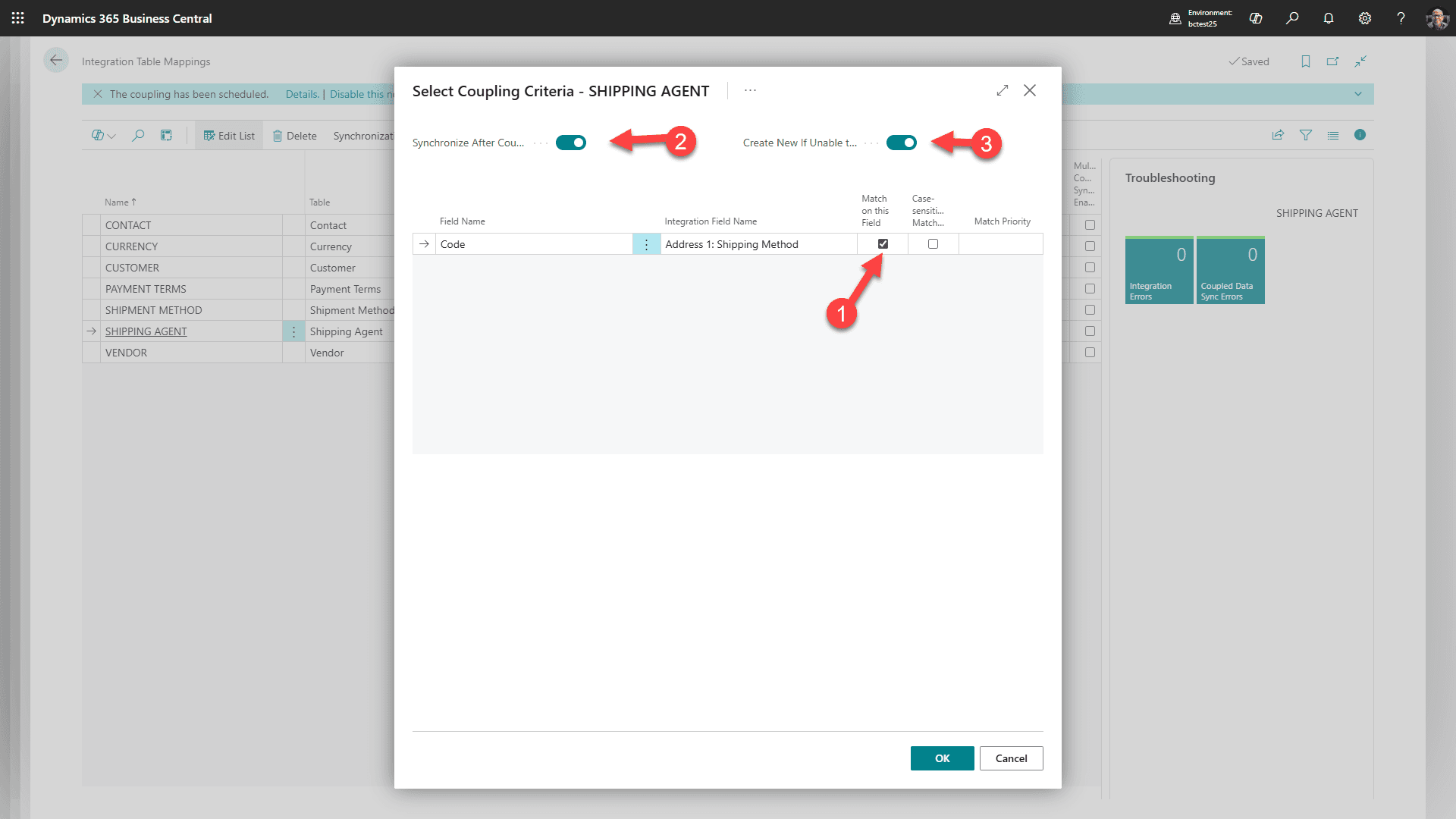
For SHIPPING AGENT, select Coupling/Match-Based Coupling. Match Business Central shipping agents to the corresponding Dataverse shipping method option values by the configured IDs.
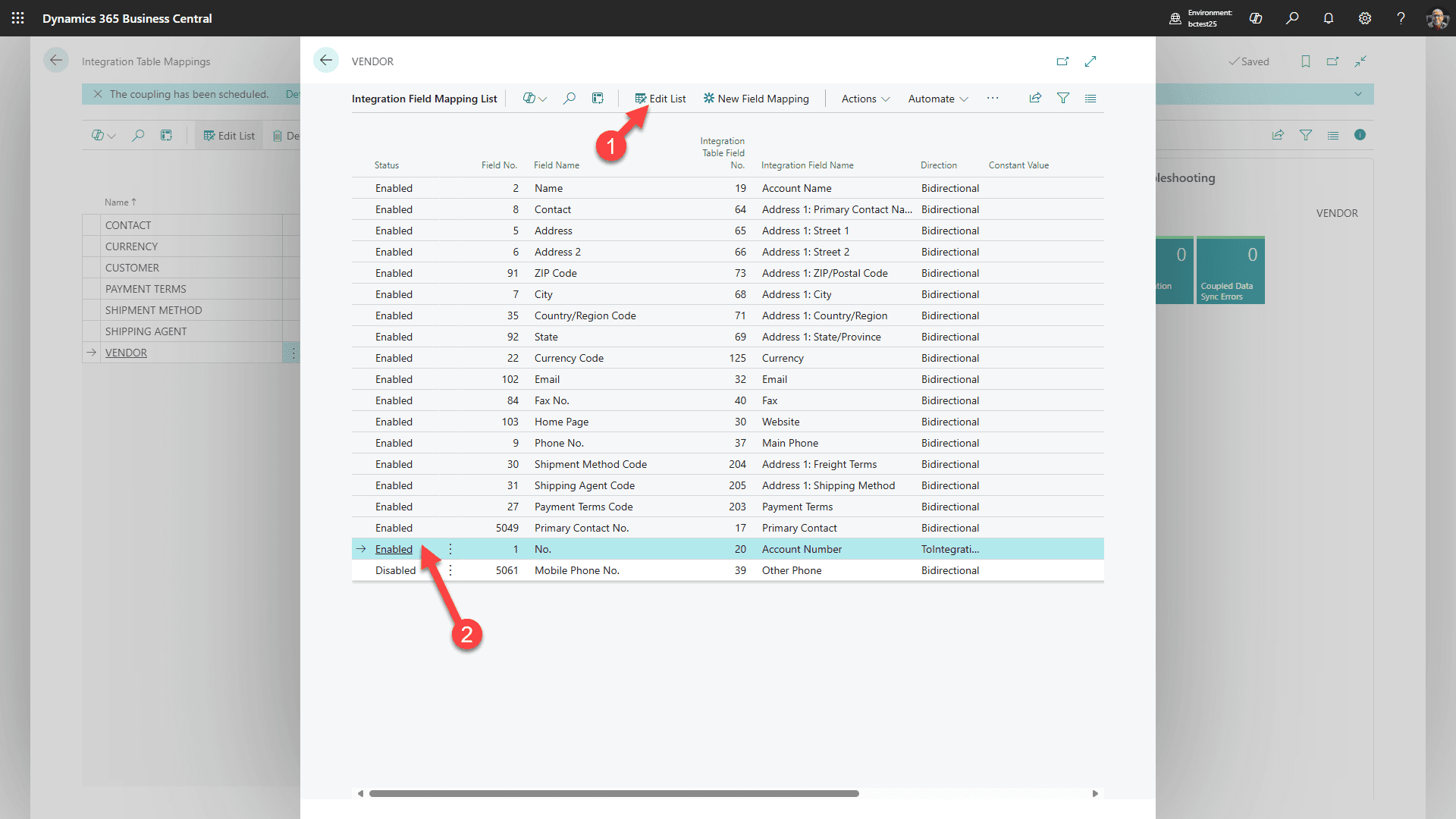
For VENDOR Select Mapping/Fields
1. Select “Edit List”
2. and “enable” Account number.
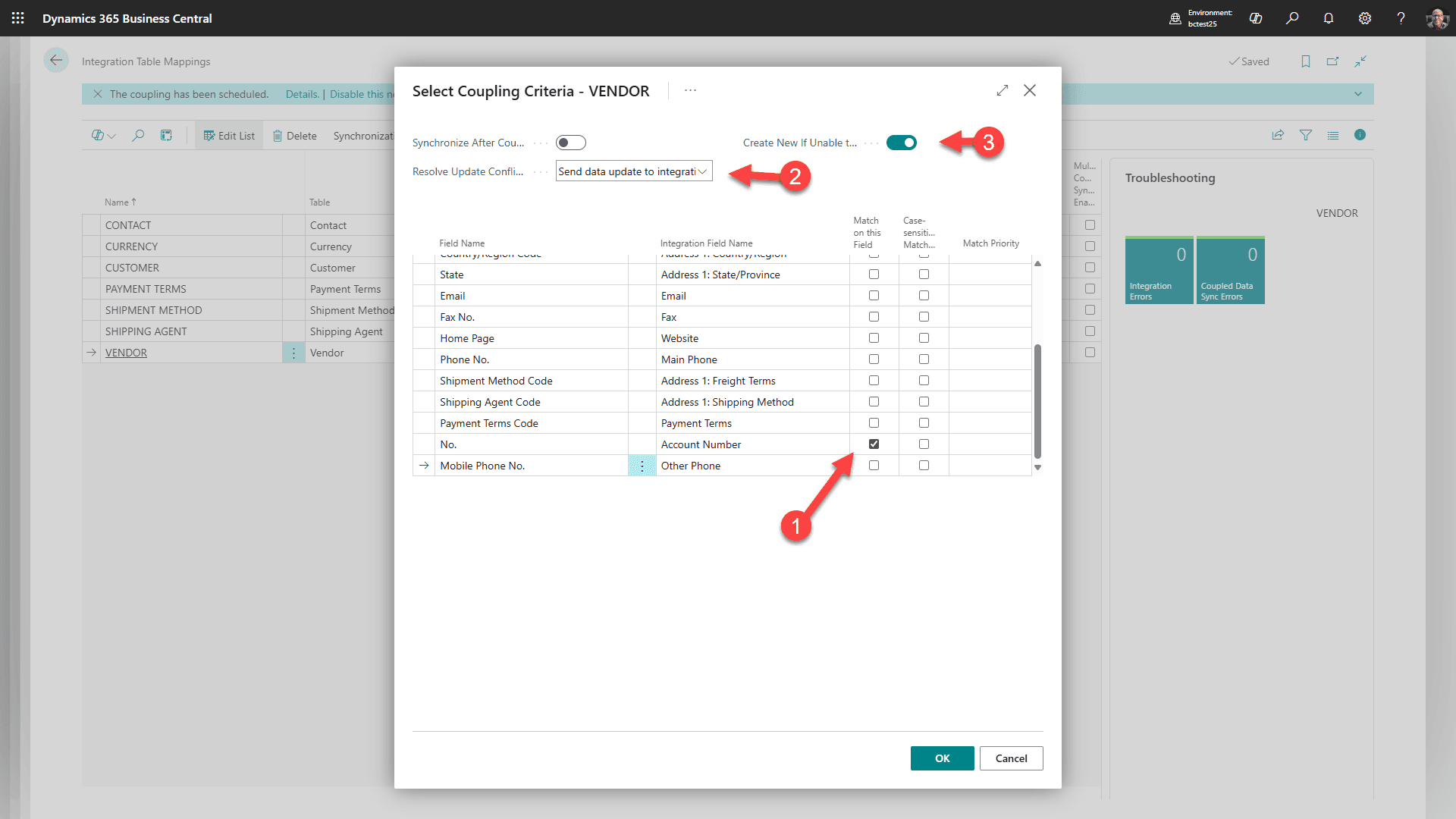
Still for VENDOR, select Coupling/Match-Based Coupling. Match using the vendor/account identifier fields shown in the screenshot, and confirm the matching fields uniquely identify the same vendor on both sides.
Step 7: Link Environments (Optional)
Optional environment linking requirement
Only link environments when the Business Central environment and Power Platform environment are the same environment type, such as production-to-production or sandbox-to-sandbox, and are in the same Azure geography.
To prevent someone from accidentally deleting environments, you can link them. Start back in Business Central.
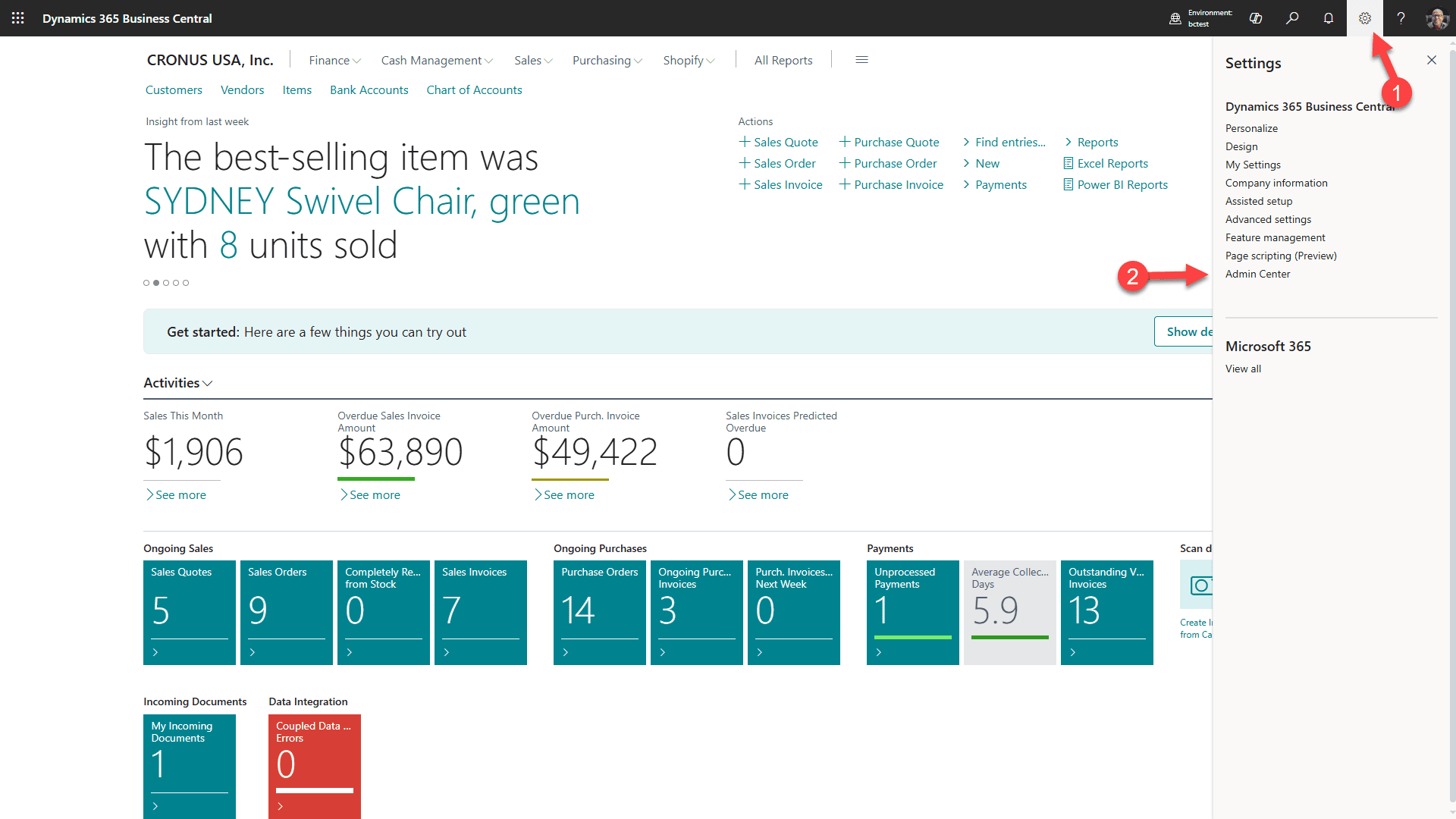
1. Select the Gear icon
2. Then select Admin Center
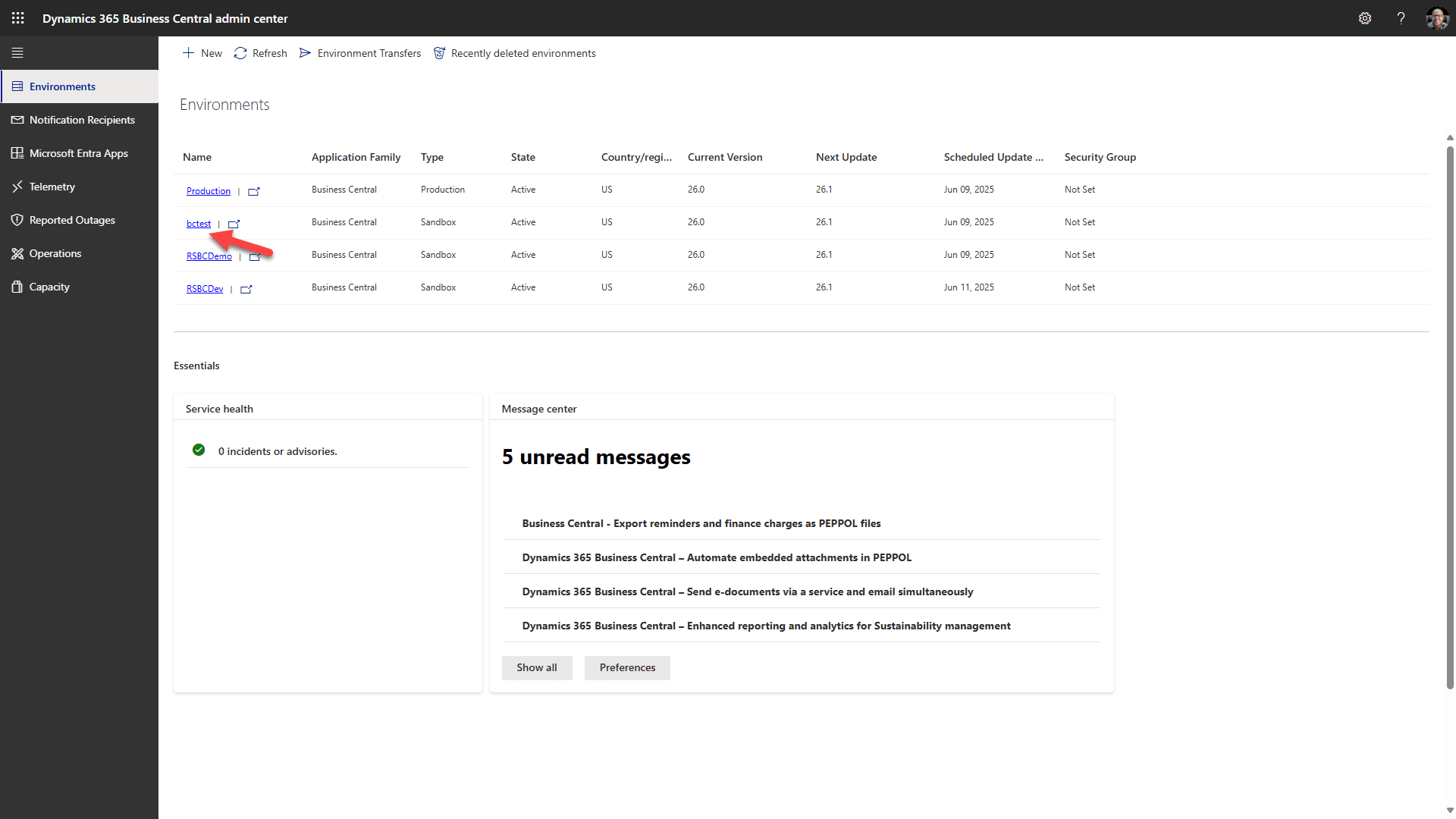
Select the target environment link
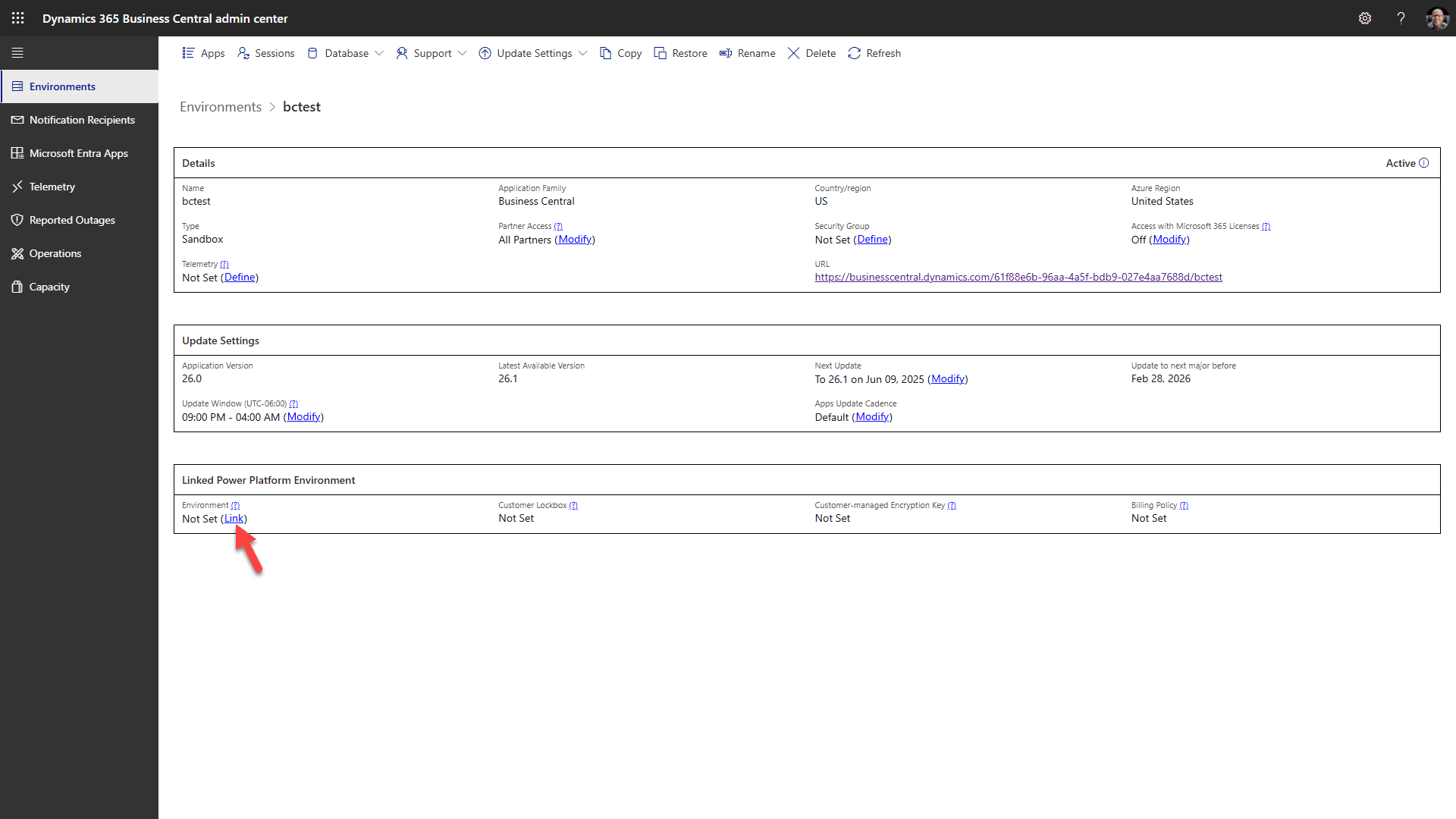
Click on “Link” and select your Dataverse environment
Step 8: Install the Business Central Addon for RapidStart CRM from AppSource
Confirm the required foundation before installing the addon
RapidStart CRM and Microsoft Business Central Virtual Table support must be installed first. Verify the required Business Central virtual tables before continuing. The addon package installs its connection references; bind them after installation in Step 9. Optional environment linking is not required for this AppSource installation.
Click this link to open Microsoft's AppSource and confirm you are logged in with your business account.
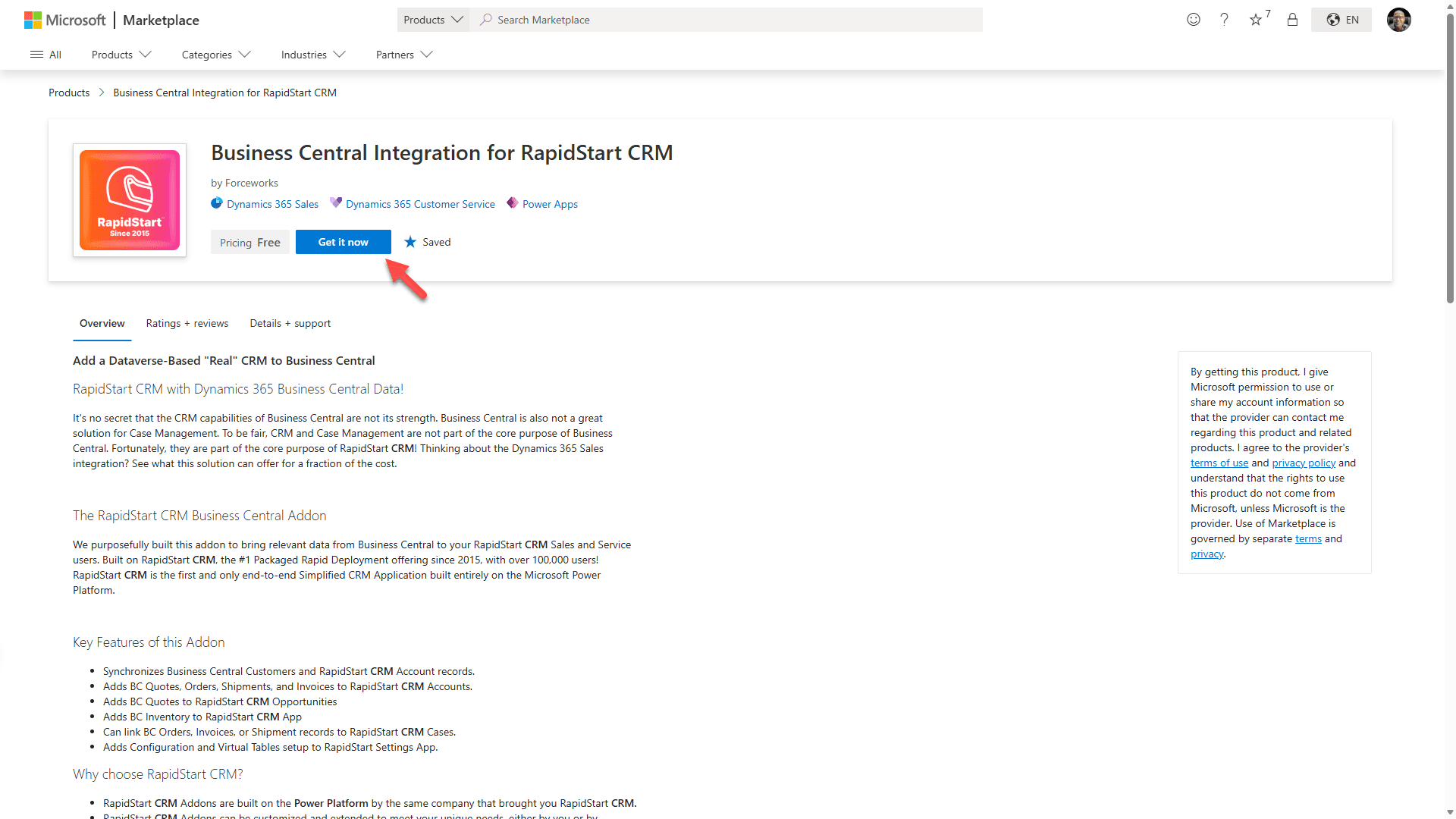
Select “Get it now” to initiate the installation.
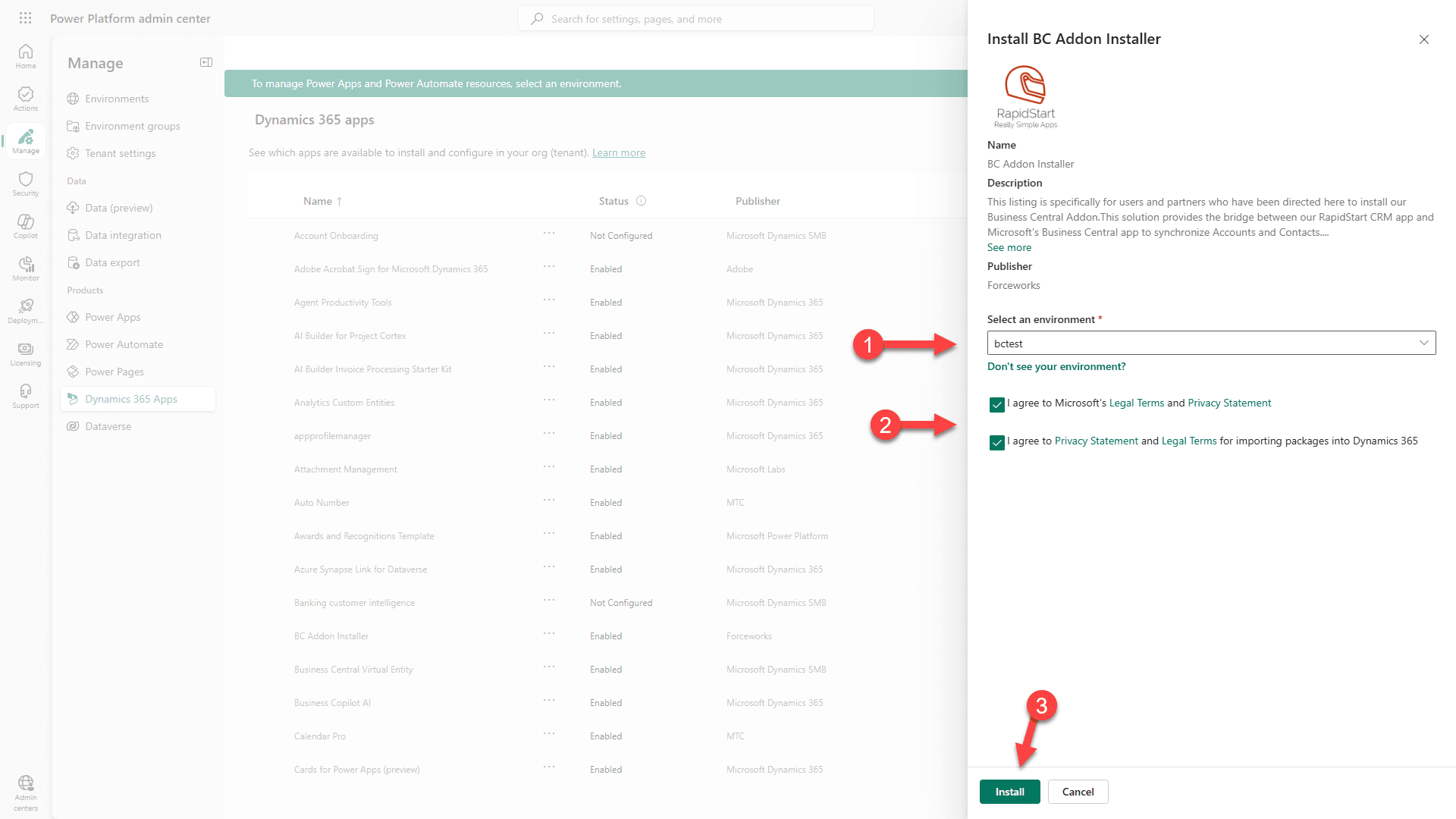
1. Select the environment where you installed the Virtual Tables solution.
2. Agree to terms.
3. Click Install. Note that installation could take several minutes.
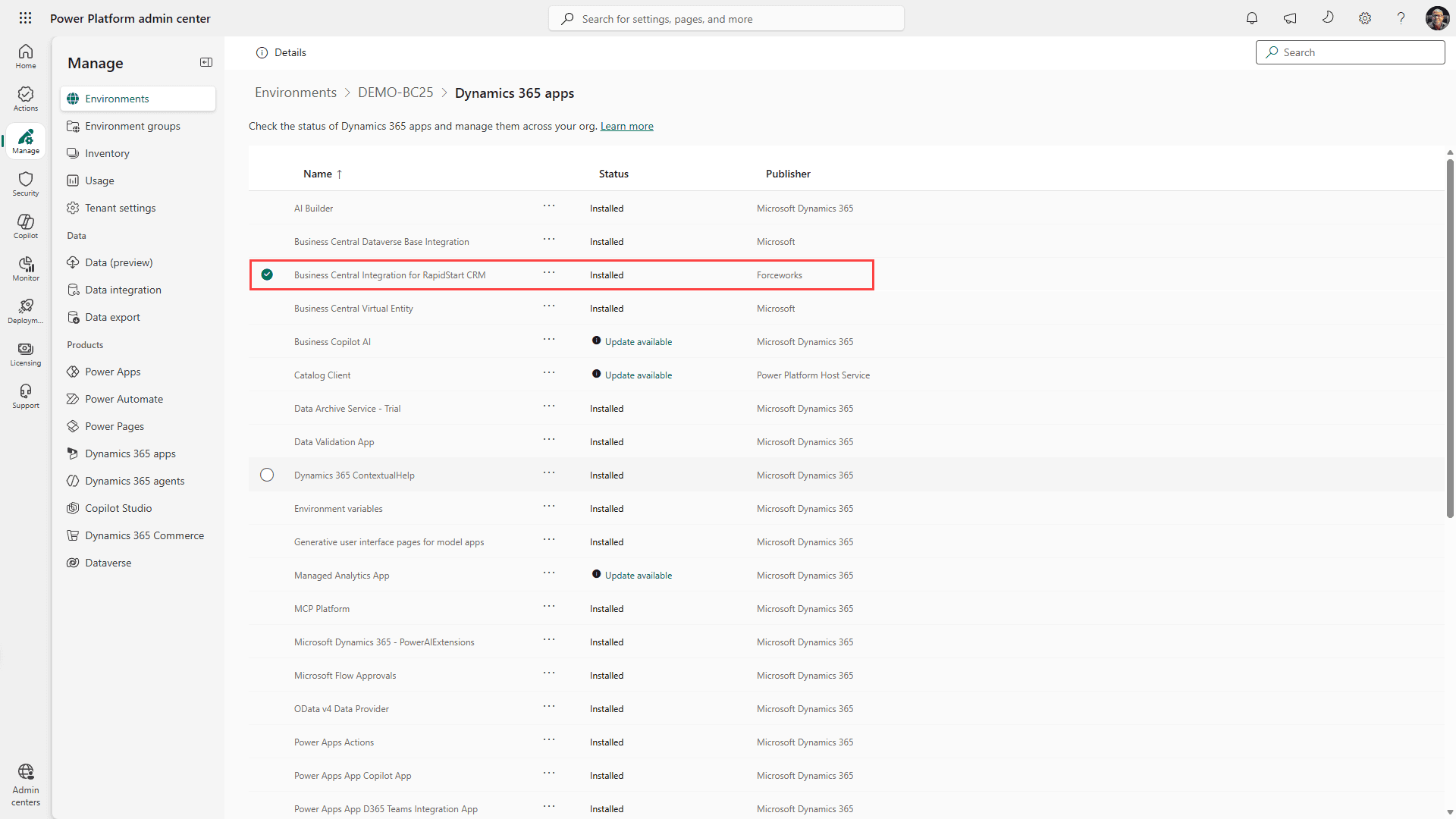
You will see that the solution is “Installing”. This could take several minutes to complete. Occasionally click “refresh” until you see that it is “Installed”.
Step 9: Complete in RapidStart Settings app
Go to RapidStart CRM and select the RapidStart Settings App.
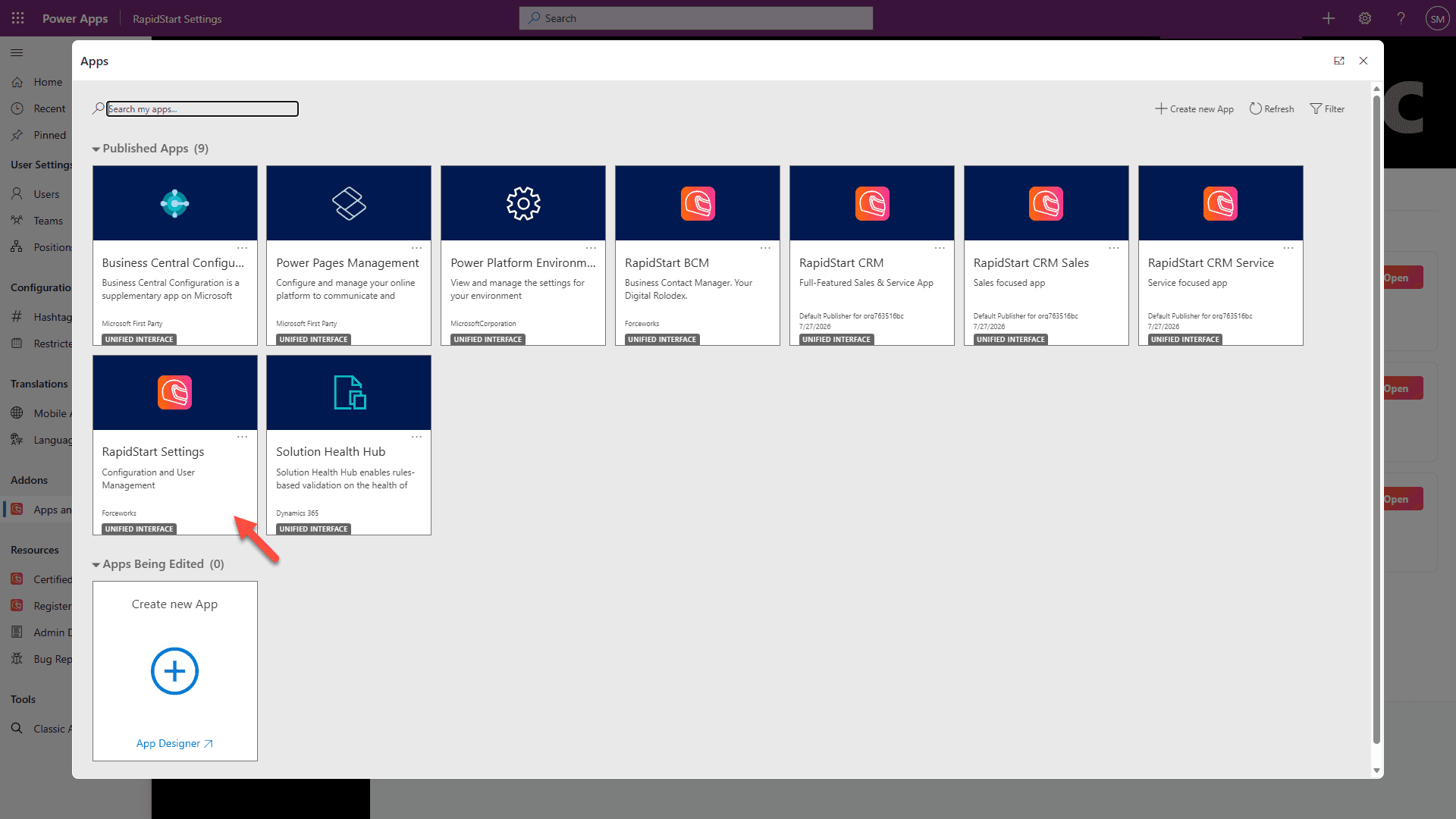
You can open the RapidStart Settings app from the App Selector in RapidStart CRM, or from the maker portal:
1. Select Apps in the sidebar.
2. Click the Run icon for the RapidStart Settings app.
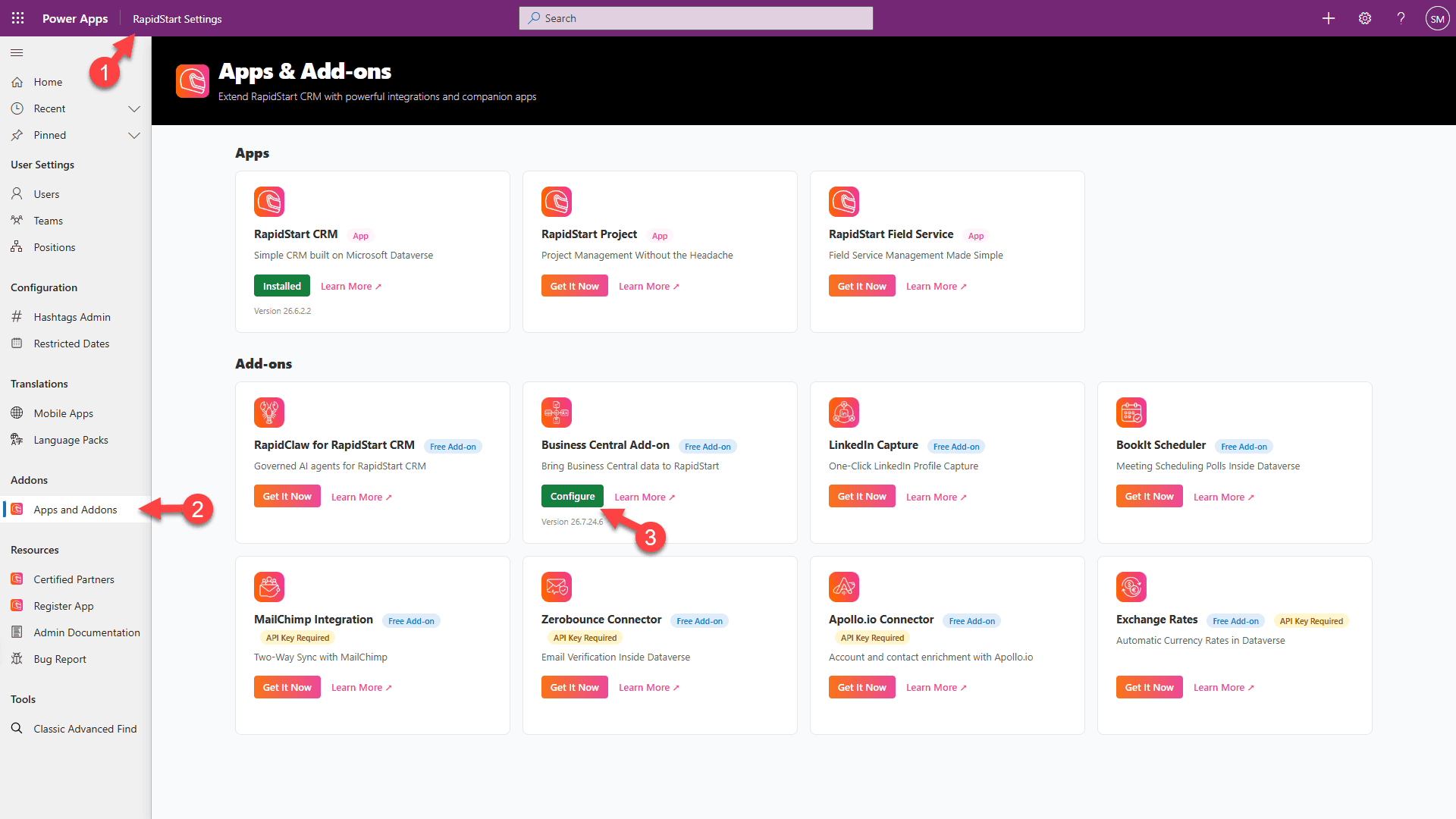
1. Confirm you are in RapidStart Settings App.
2. Select “Apps and Addons” in the sidebar.
3. Click “Configure” for Business Central Addon.
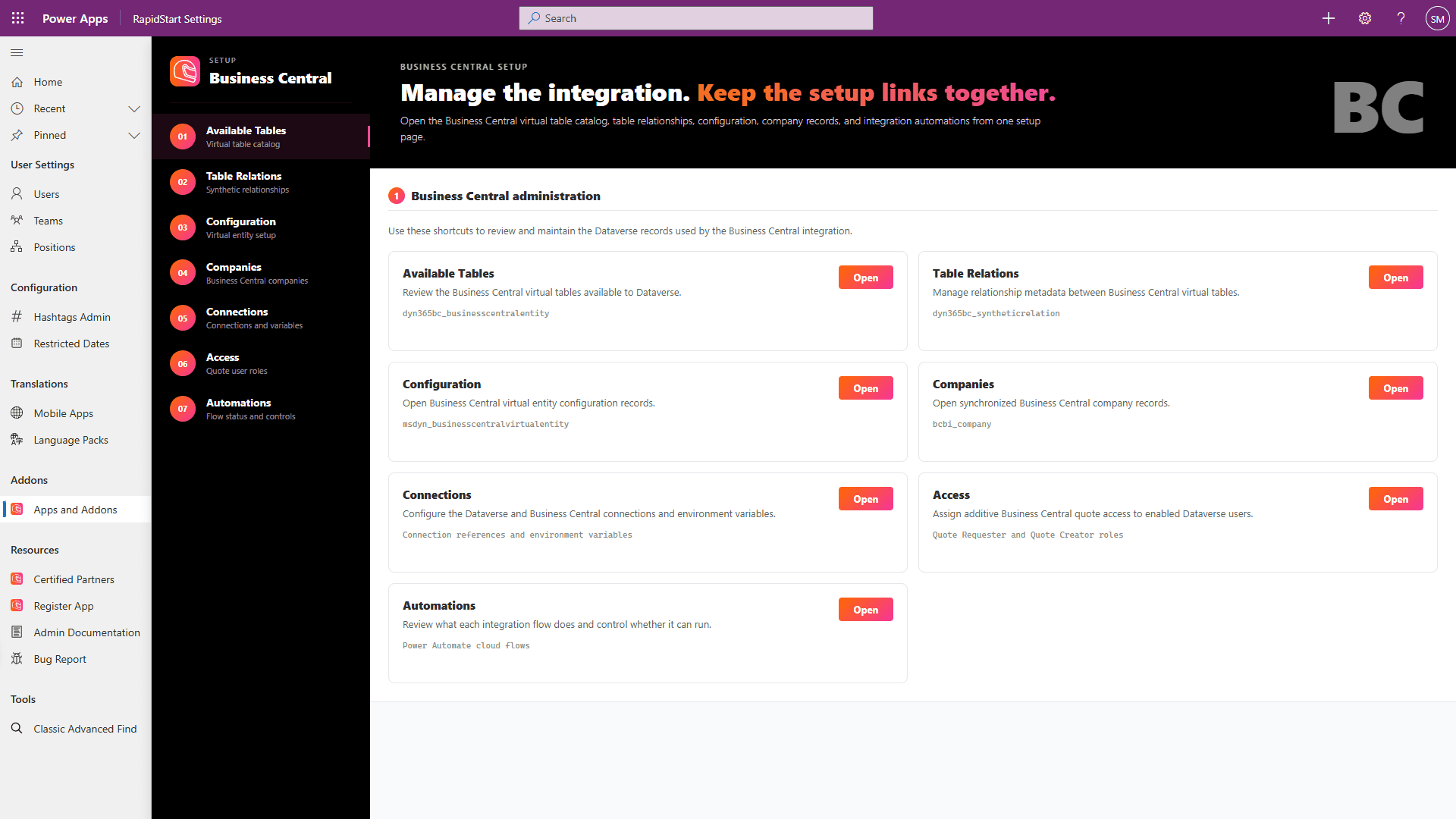
Open Connections first. AppSource does not show the connection-mapping prompt used during a manual solution import. The wizard reports connection status but does not create connections or bind connection references.
- In Connections, select Configure for the Microsoft Dataverse connection reference. This opens Power Apps.
- Select the same Dataverse environment, then open Solutions → RapidStart BC Addon → Connection references. Assign a valid connection to the Microsoft Dataverse reference and save.
- Repeat Configure for the Dynamics 365 Business Central connection reference. In Power Apps, assign a valid Business Central connection to that reference and save.
- Return to the RapidStart Settings wizard and select Refresh. Verify that both references are bound to live connections.
- Still in Connections, save BC Environment as the Business Central environment name and BC Company System ID as the Company System ID GUID captured in Step 3, not the editable company name.
- When the required connections and settings show ready, open Automations and enable the recommended flows. Leave Sync New Account to BC and Sync New Contact to BC off unless the customer has chosen those creation paths. If native CUSTOMER synchronization owns customer creation, keep Sync New Account to BC off.
Installed does not mean configured
After a successful AppSource installation, an unbound customer-owned connection reference means setup is still needed. Complete the Power Apps bindings above before enabling flows. This checklist does not resolve a package-installation failure; if AppSource reports installation failed, ask your administrator or partner to investigate that failure first.
Validate before rollout
Use a small, controlled test before broad synchronization. The creation tests below apply when native automatic creation is selected. If Sync. Only Coupled Records is On, couple the test records first and verify updates instead of expecting automatic creation.
- Confirm the target Dataverse environment, Business Central environment, and Company System ID; test the Dataverse connection from Business Central.
- Confirm the creation owner. For native automatic creation, turn off Sync New Account to BC before testing.
- Configure and synchronize CURRENCY, PAYMENT TERMS, SHIPMENT METHOD, and SHIPPING AGENT. Check Dataverse Option Mapping and synchronization errors. If option IDs are not aligned, use FromIntegrationTable for the three CUSTOMER option-field mappings described in Step 6.
- Verify CUSTOMER is Bidirectional and confirm the chosen Sync. Only Coupled Records policy. For automatic creation, set it to Off and leave Disable Event-driven Synch. Job Rescheduling unchecked.
- Review CUSTOMER company filters, confirm its job queue entry exists, and note the synchronization interval. Manually couple known existing pairs; review match-based coupling results before accepting them.
- Run Synchronize Modified Records, not a full synchronization, for the first controlled test. Review Integration Synchronization Jobs and resolve failures before expanding the rollout.
- Create a uniquely named Dataverse account that meets the CUSTOMER filters, with no Business Central customer number. Run or await synchronization. Confirm that a Business Central customer is created with an assigned customer number and Coupled to Dataverse = Yes.
- Change one mapped field on the Dataverse account; run or await the next synchronization and verify the coupled Business Central customer updates.
- Create a uniquely named Business Central customer that meets the filters. Confirm the coupled Dataverse account is created; change one mapped field in Business Central and verify the Dataverse update.
- Test a customer with a non-base currency. Confirm currency mapping and exchange rates are valid.
- Test quote creation only after the account is coupled to a valid Business Central customer.
- Run a full synchronization only after reviewing filters, reference data, option mappings, existing pairs, and error logs.
Troubleshooting
Missing connection IDs
Repair the connection references in Power Apps: select the same Dataverse environment, then Solutions → RapidStart BC Addon → Connection references. Assign and save valid Microsoft Dataverse and Dynamics 365 Business Central connections. Return to the RapidStart Settings wizard and select Refresh, then enable the required flow again under Automations. The wizard does not repair connection bindings. Recreating a connection alone is not sufficient if its reference still points to the old connection.
Currency mapping errors
Error: Table CRM Transactioncurrency must be mapped to table Currency to transfer value between fields TransactionCurrencyId and Currency Code.
The CUSTOMER mapping references Dataverse Currency, but the CURRENCY mapping or its Code → Currency Code field mapping is missing, disabled, or has not synchronized the referenced currency.
- Restore or create the CURRENCY mapping and set its direction to Business Central to Dataverse.
- Enable Code → Currency Code and synchronize currencies.
- Confirm the customer's currency exists in Dataverse, then retry CUSTOMER synchronization.
Option mismatches
Example: The value 100000003 of 'paymenttermscode' on record of type 'account' is outside the valid range. Accepted Values: 1,2,3,4.
Business Central sent a custom Payment Terms enum ID that is not present in the Dataverse Account Payment Terms choice.
- Compare Dataverse Option Mapping with the valid Dataverse choice IDs.
- If the option must synchronize both ways, have a developer add Dataverse choice values and Business Central enum-extension values with identical numeric IDs. Do not invent or renumber IDs during setup.
- Otherwise, set the CUSTOMER Payment Terms Code field mapping to FromIntegrationTable. Apply the same check to Shipment Method and Shipping Agent.
- Retry one customer and confirm the Business Central Account action opens the coupled Dataverse account.
Couplings pointing to deleted records
If a record appears coupled but synchronization points to a deleted or missing record, remove the stale coupling in Business Central and create a fresh coupling to the correct Dataverse account or contact before rerunning synchronization.
Microsoft references
- Synchronize Business Central and Dataverse
- Schedule synchronization jobs
- Set up a Dataverse connection
- Handle missing Dataverse option values
Deployment Complete
If there are issues with this documentation, please let us know.