Advanced Development for RapidStart CRM or Dynamics 365 — Part 8
The final part of this series: export your managed Solution from your sandbox and import it into your production environment — the Microsoft-recommended way.
Exporting Your Solution
Ensure you are in the correct development sandbox environment, select Solutions in the sidebar, but this time don't open your “My Customizations” solution.
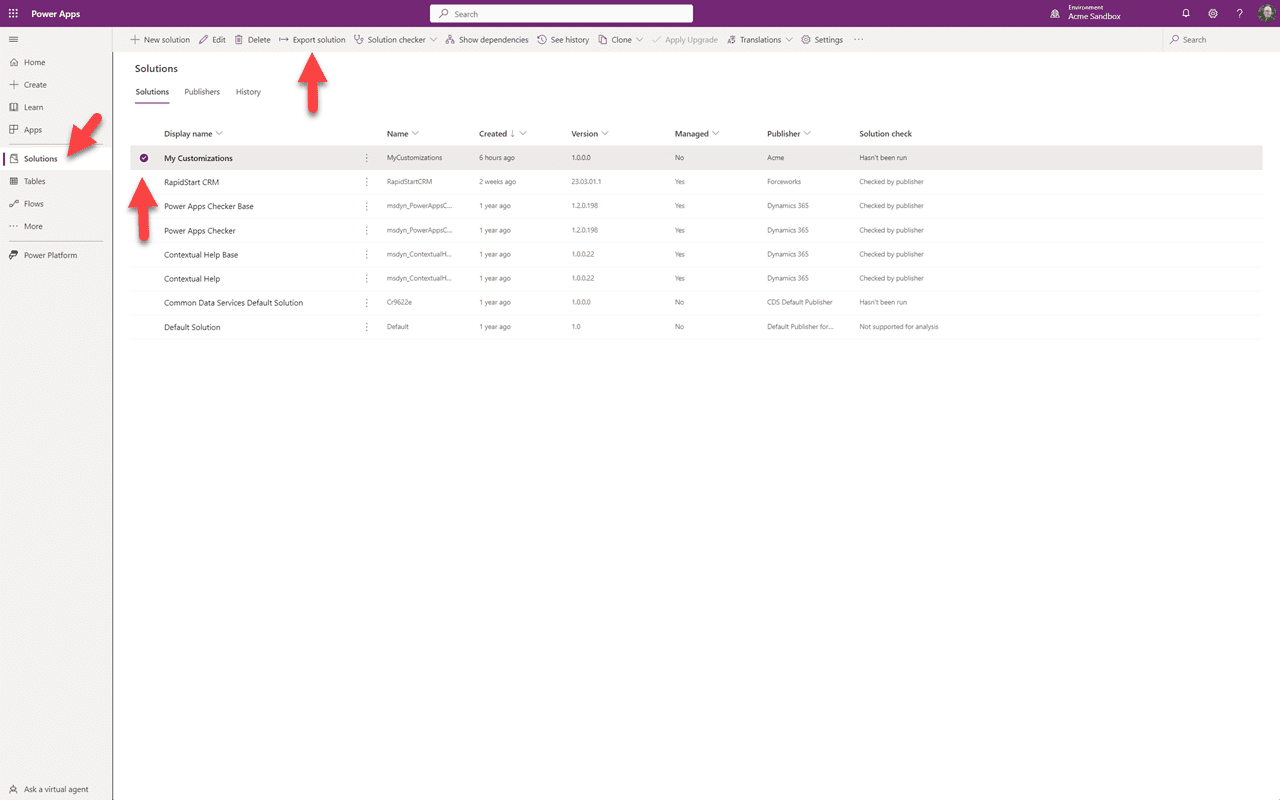
Instead of opening our solution, we're going to select it and click “Export Solution”.
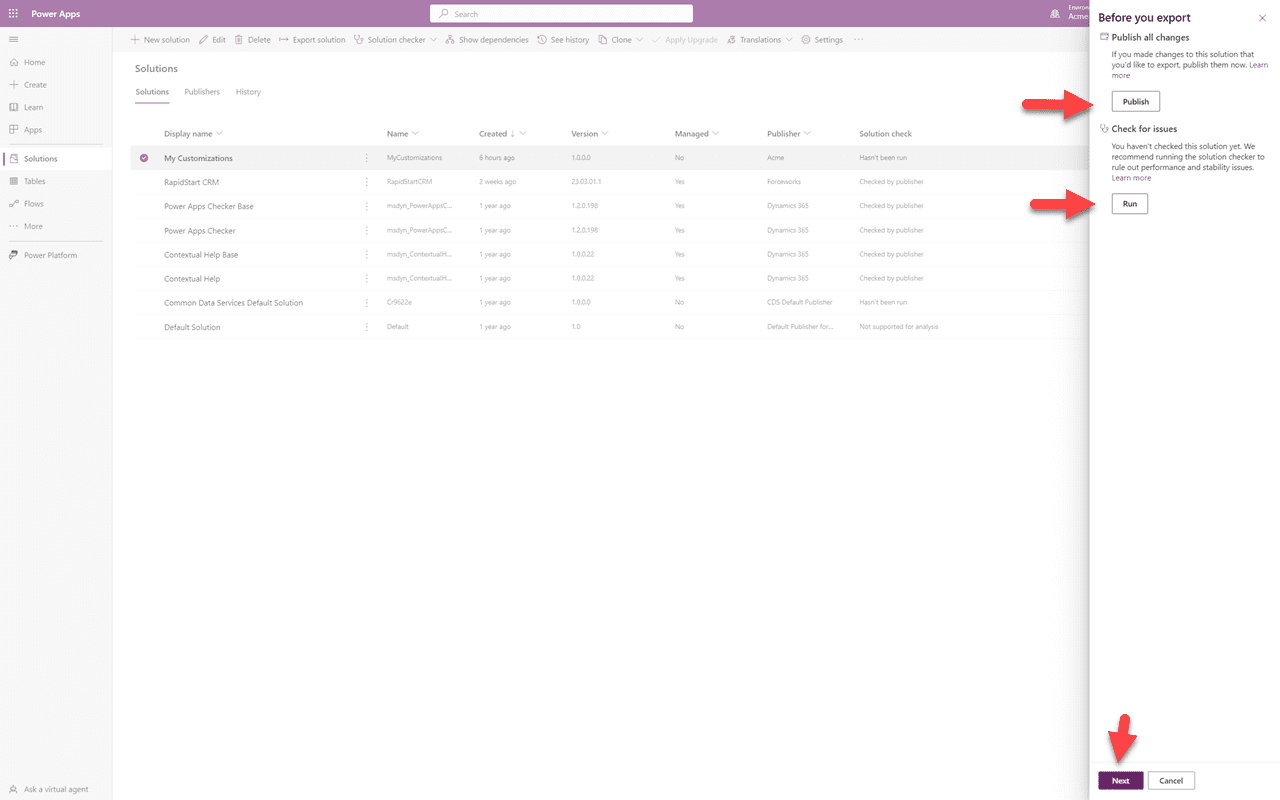
To be certain that everything is published we'll select the “Publish” button. Once the publish has completed, we'll select “Run” to have a scan done for any issues. This could take some time, but we've come this far being safe. If there are no issues from the Solution Checker, we can click “Next”.
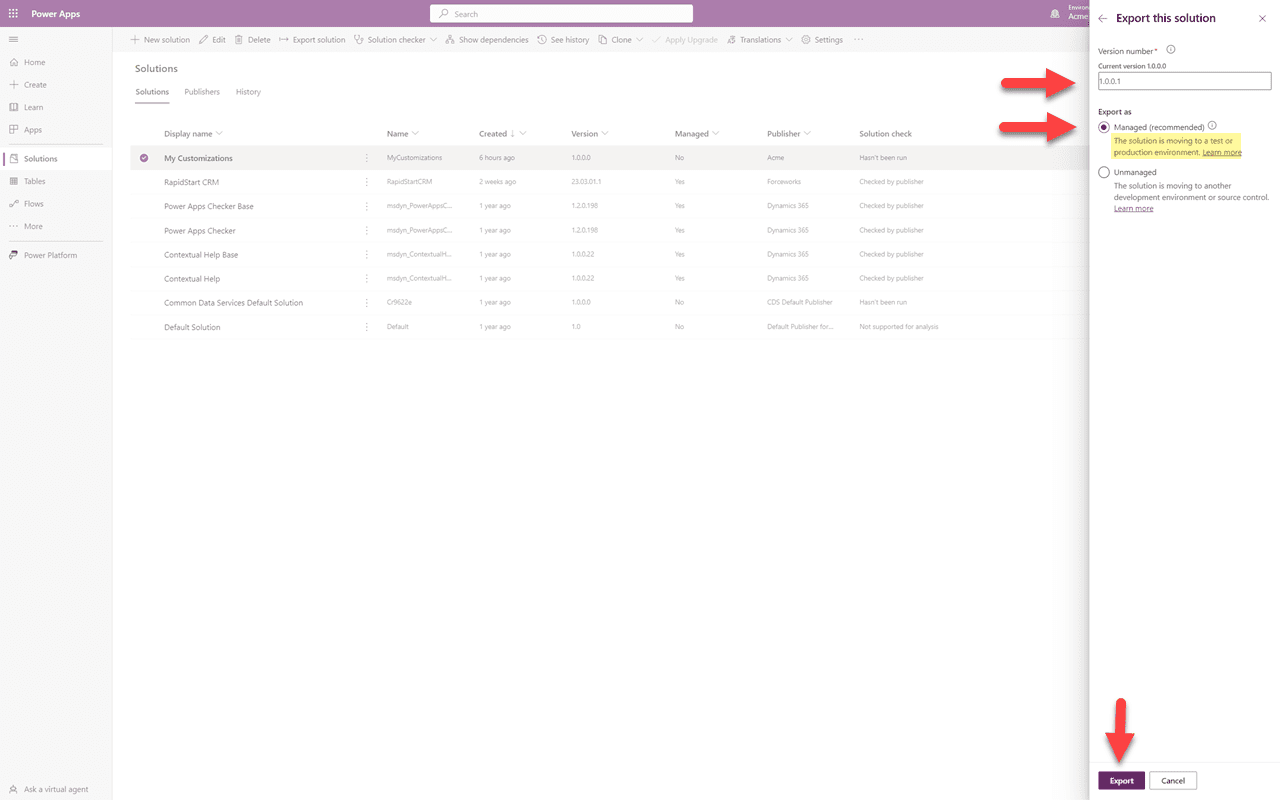
You will notice that it has incremented the version number, which you can change as long as you don't go lower. It has also defaulted to “Managed” and even says “This solution is moving to a test or production environment” — so that's what we want. Exporting can take a little time and when complete you will have an option to download a zip file of your “My Customizations” solution. Save it somewhere handy.
Importing into Production
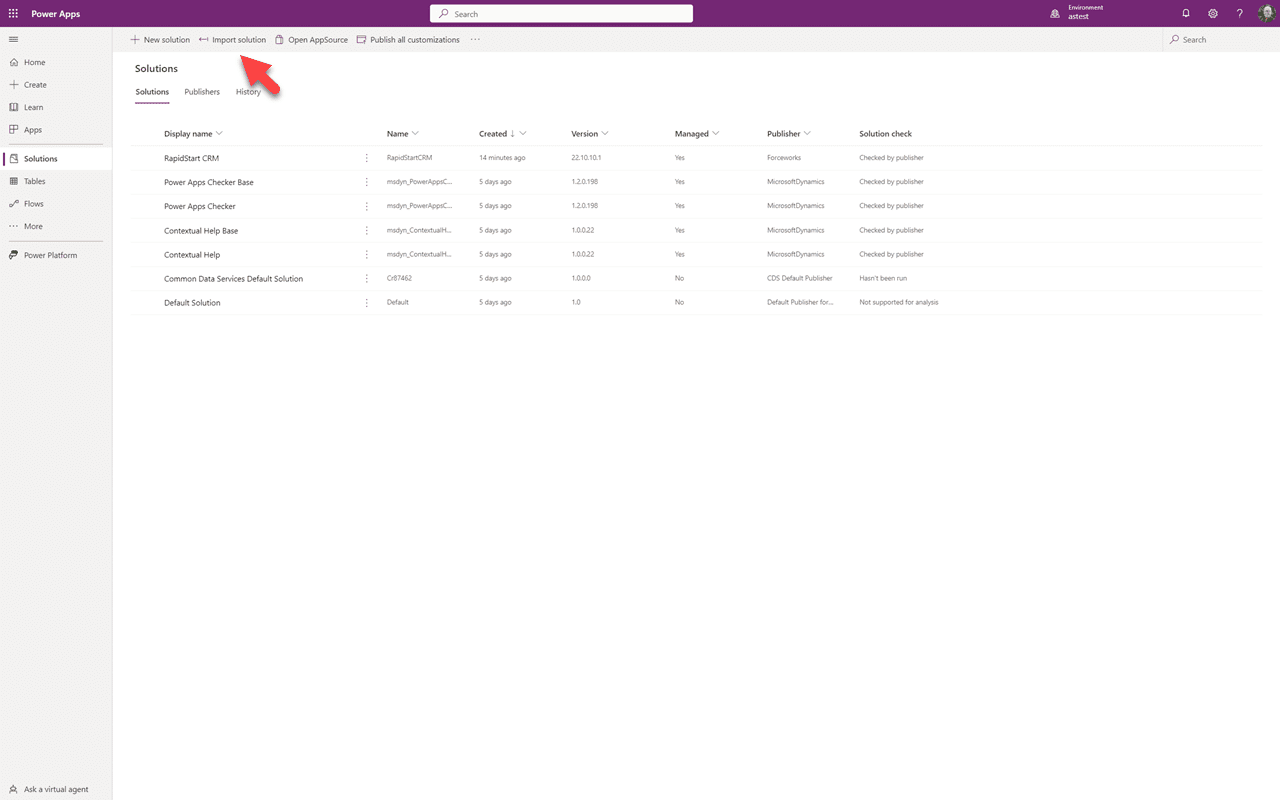
Now switch to your production environment. Select Solutions in the sidebar and click “Import Solution”.
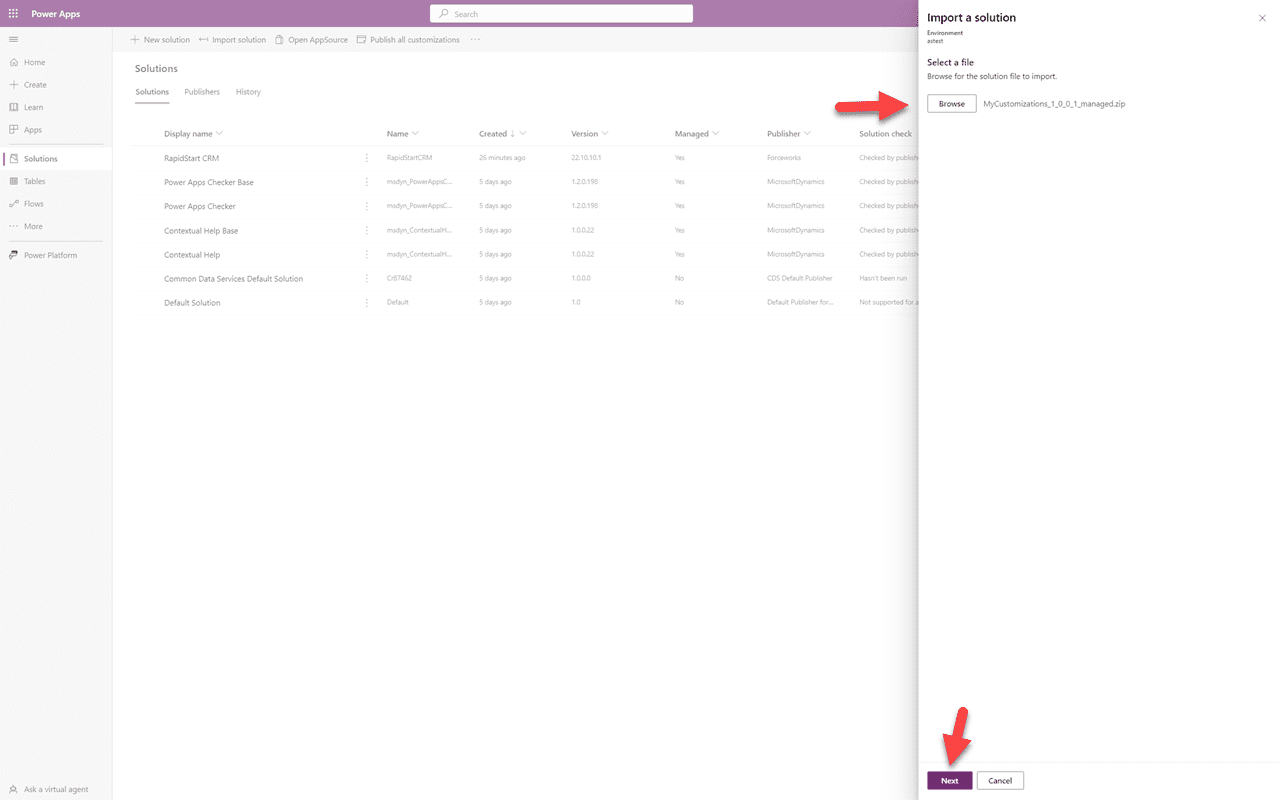
Browse to that handy spot and select the solution you exported earlier. Then click “Next”.
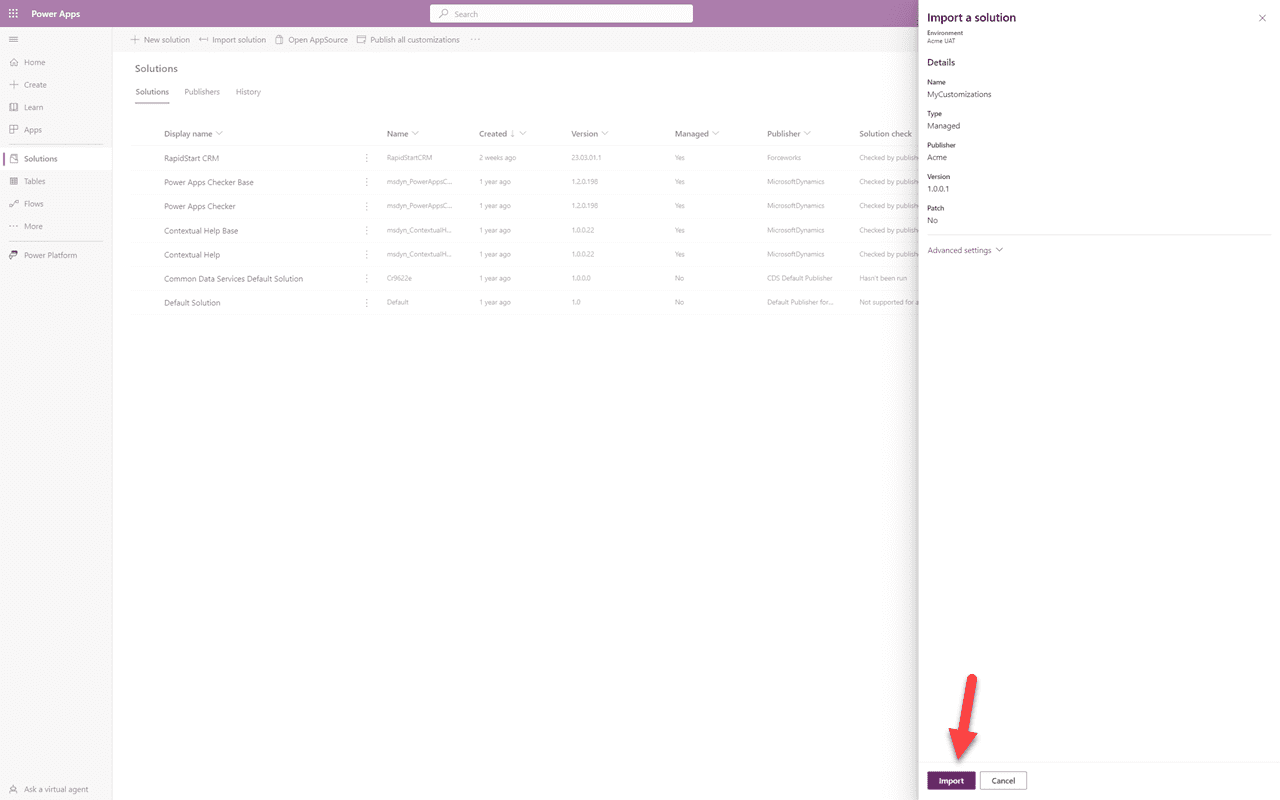
You can accept the defaults here and just click “Import” and the import will begin. During this process it will convert any unmanaged components that you added to the “My Customizations” solution to managed — which is what we want. Afterwards you can delete any other unmanaged solutions in production. Removing an unmanaged solution will not remove its components.
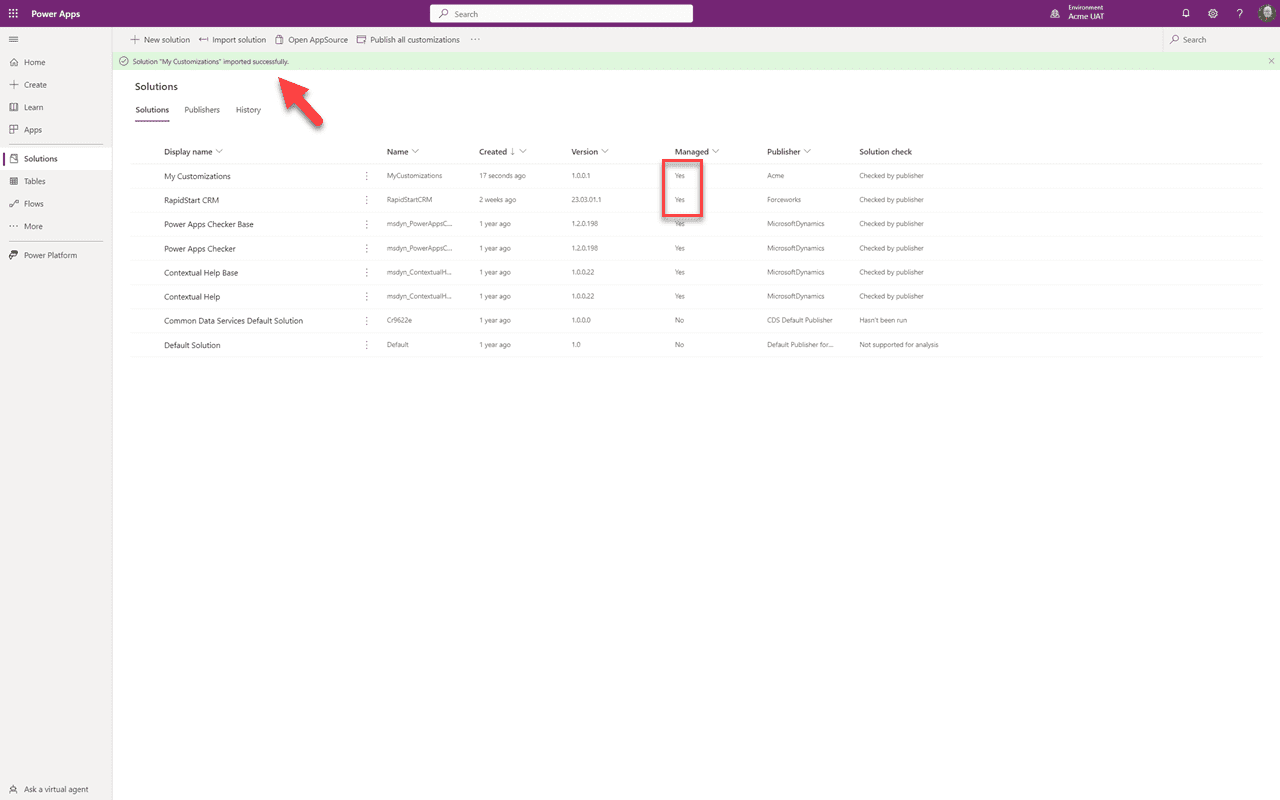
If all goes well, you should see the success message and all of your solutions should be managed — like shown above in the 50th and last screenshot in this series.
Series Complete — Summary
🎉 Congratulations!
In this final Part 8 we transported your customizations from your sandbox to UAT and/or Production using a managed solution. This is the recommended practice from Microsoft and any knowledgeable partner.
Now that everything is set up, future customizations will not only be organized and easy, but also safe. Going forward you will do all customizations in your sandbox solution and transport them to UAT and/or Production via a managed export of your sandbox solution.